
This guide explains how to remove a product from an existing order in the OE system. Follow the steps below, or refer to the instructional video for additional clarity.
Instructional video
Step-by-Step Instructions: Remove a Product from an Order
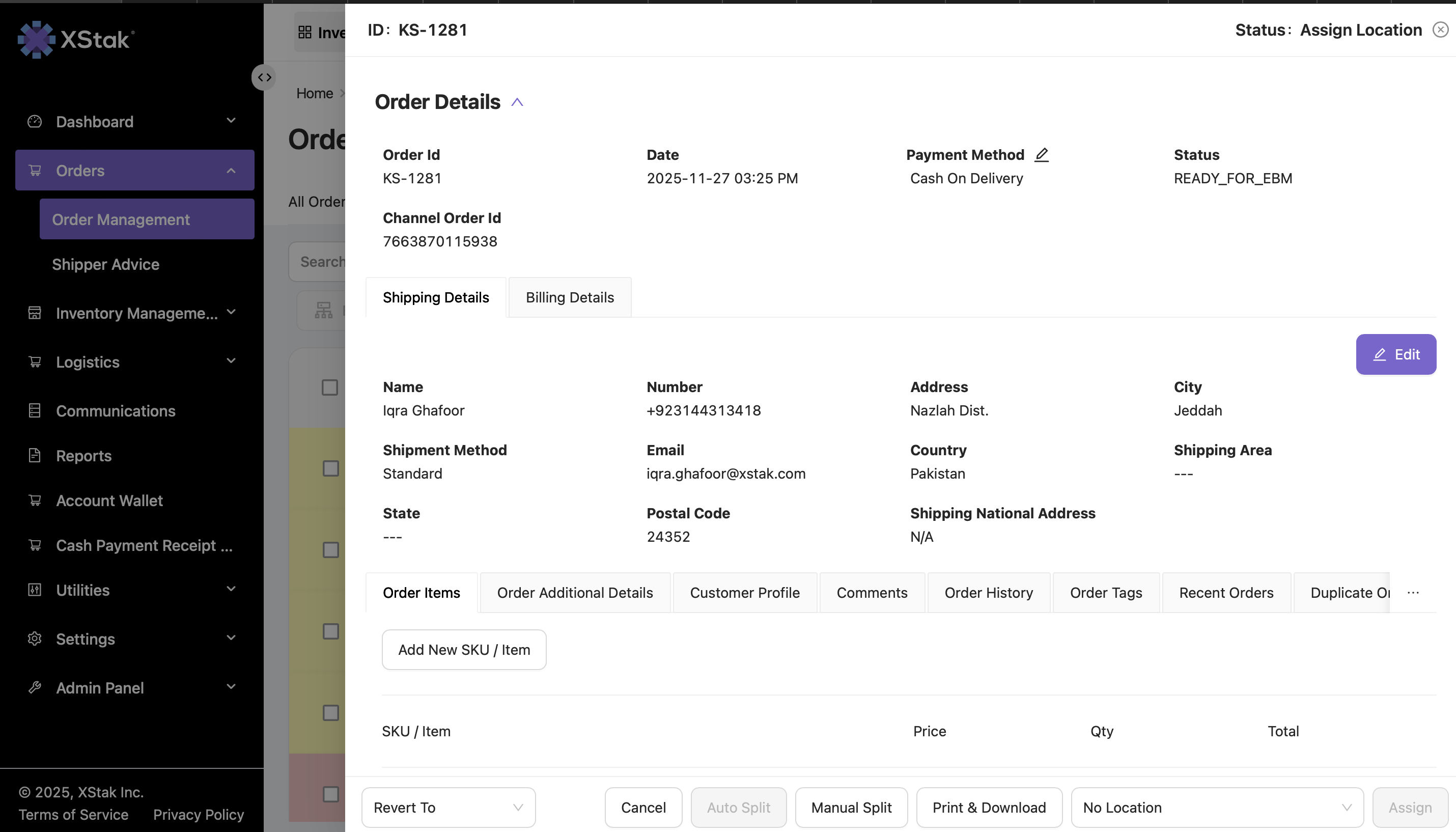
Step 1: Move the Order to “Assign Location”
Ensure the order is in the Assign Location tab before making any changes.
Step 2: Open the Order
Click the Order ID to view the order details.
Step 3: Edit the Product Quantity
-
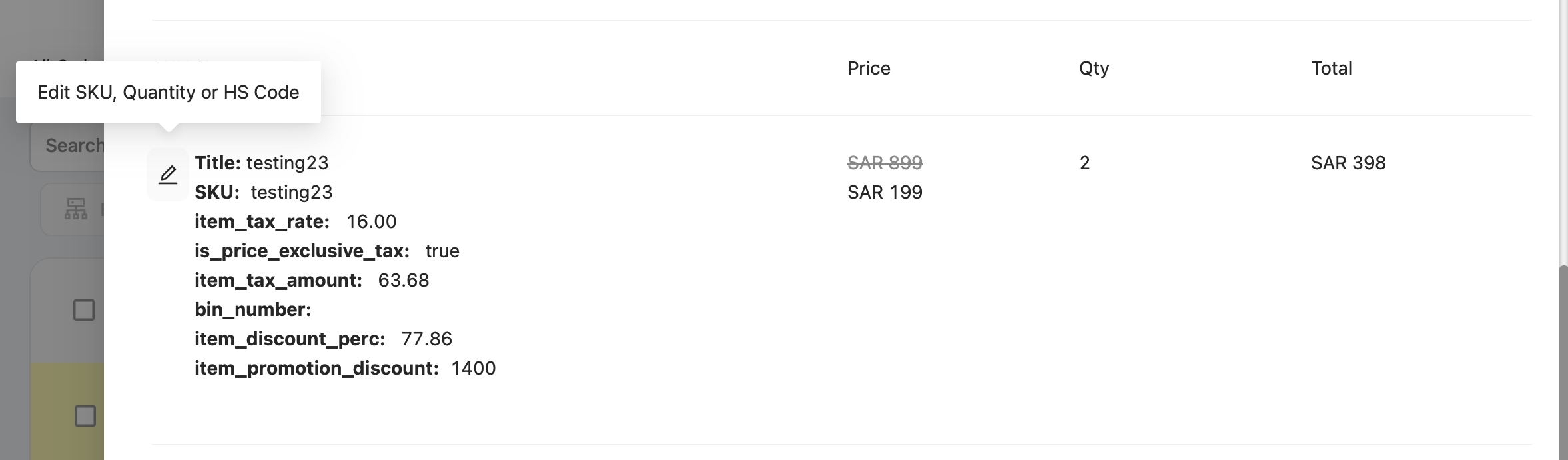
Scroll to the product list.
-
Click Edit next to the SKU you want to remove.
-
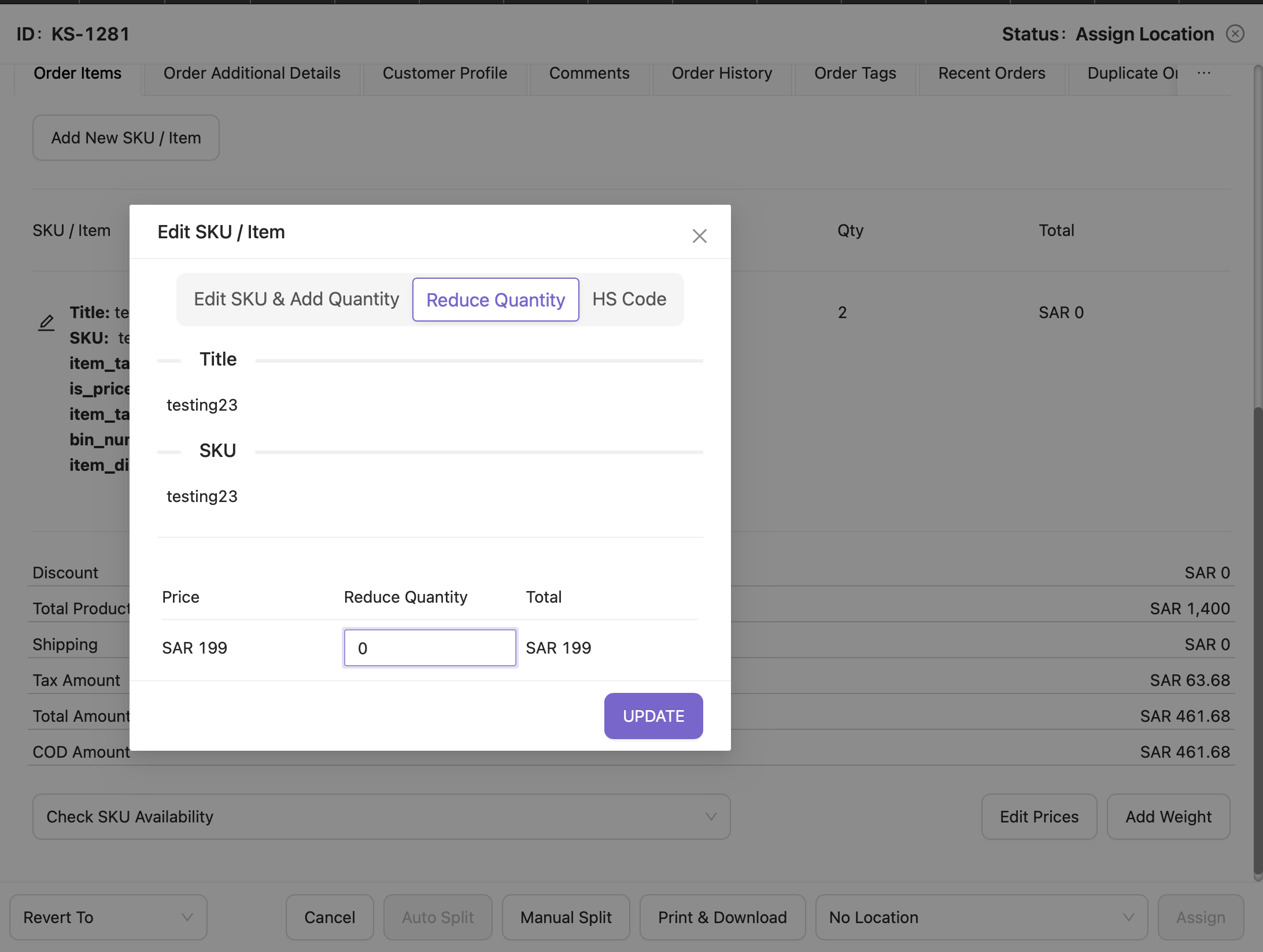
Select Reduce Quantity.
-
Enter the quantity as 0 to remove the SKU from the order.
-
Click Update.
Step 4: Apply the Changes
-
Scroll to the bottom of the page.
-
Click Update to confirm the change.
Step 5: Final Order State
-
After updating, the order will remain in the same tab.
-
The removed product will no longer appear in the order.