
Assign Location — How To Guide
Purpose: This guide explains how to assign pending orders to warehouse or store locations, review stock availability, process partially available orders, perform bulk assignment actions, upload operational files, and generate assignment reports.
Overview
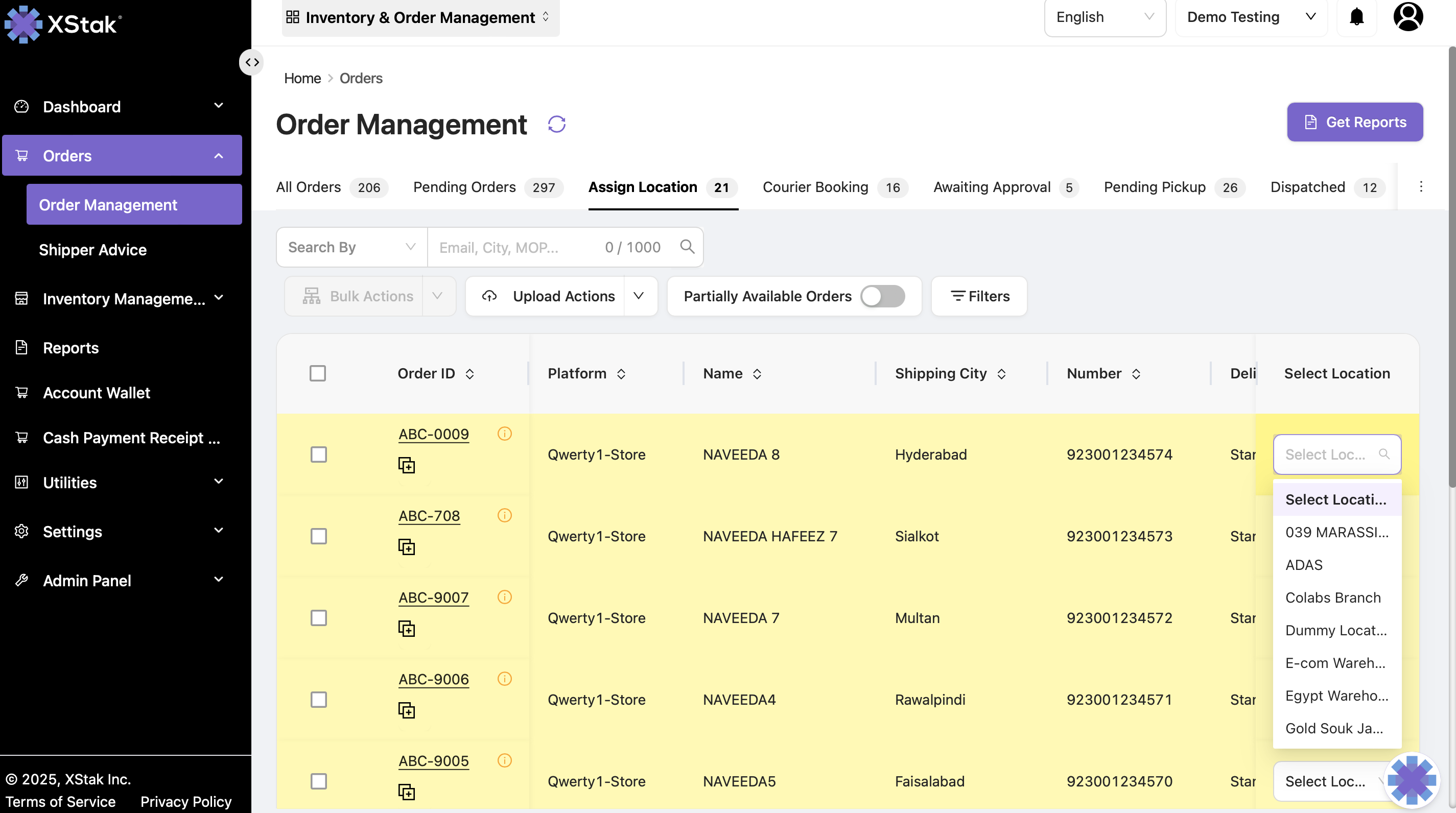
The Assign Location section is used to allocate pending orders to specific warehouse or store locations for processing and dispatch.
This stage ensures that order fulfillment is based on product availability, correct location tagging, and inventory status.
Key Functionalities
|
Feature |
Description |
|
Order List View |
Displays orders awaiting location assignment, along with SKUs, quantity, and current status. |
|
Filters & Search |
Filter orders by Order Creation Date, Order Transition Date, Location, Mode of Payment, and Sales Channel. |
|
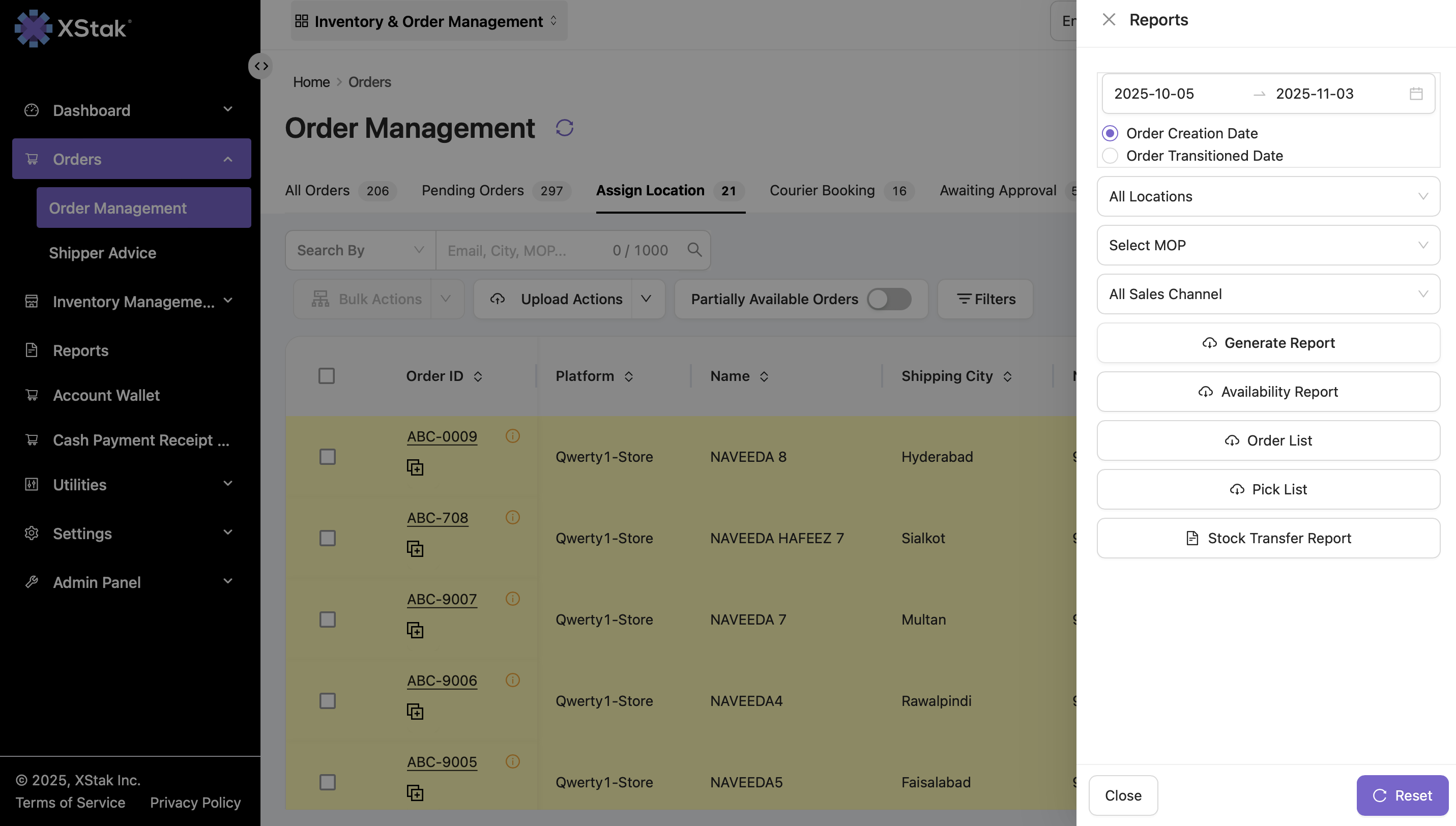
Report Generation |
Generate and download reports such as Availability Report, Order List, Pick List, and Stock Transfer Report. |
|
Bulk Actions |
Perform operations like Generate OE Slips, Auto Assign, Assign to Specific Location, Cancel, or Reverse Orders.
|
|
Partial Availability Toggle |
Allows processing of orders with limited available stock instead of waiting for full inventory. |
|
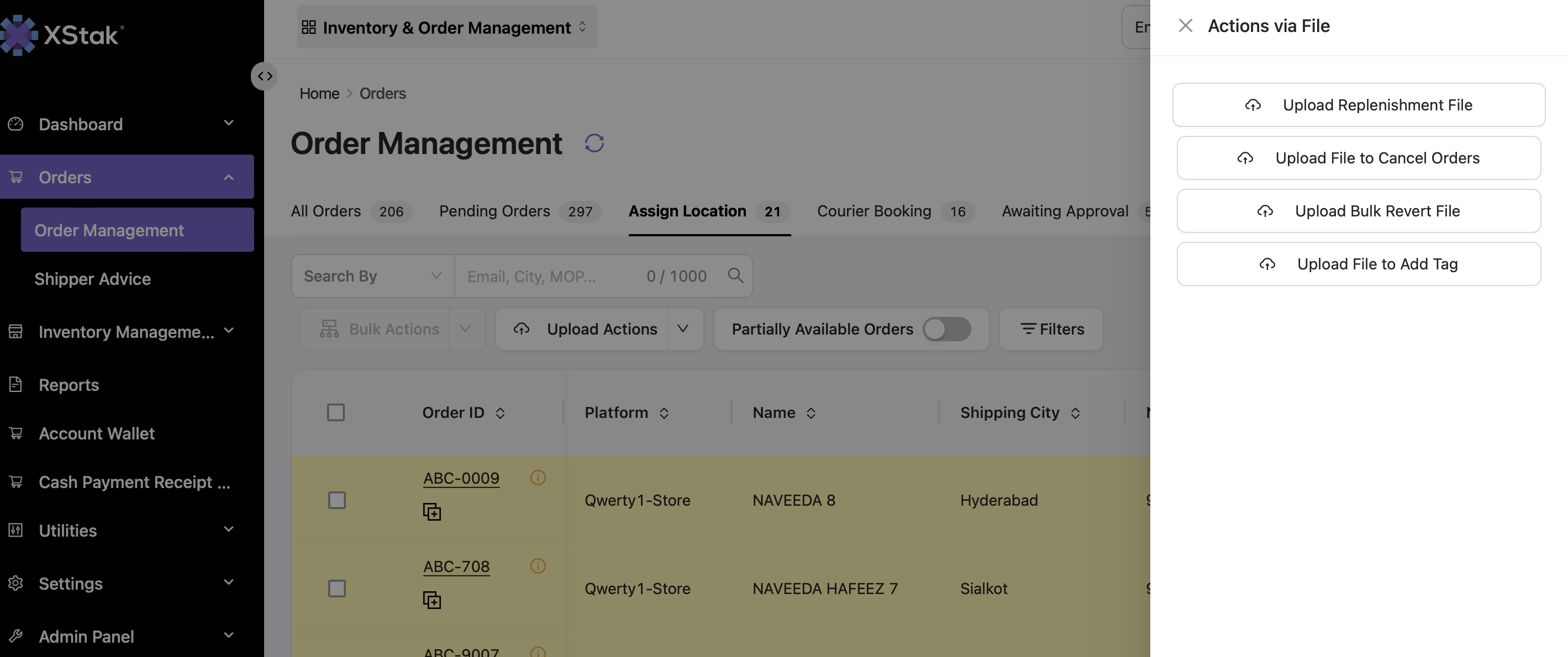
File Upload Options |
Upload different file types to manage location assignments in bulk. |
Process Flow
-
Navigate to Orders → Order Management → Assign Location.
-
Use filters to view specific orders by date, MOP, sales channel, or location.
-
Review the order list and enable Partially Available Orders if you need to view orders with incomplete stock availability.
-
Use Bulk Actions to auto-assign, assign to a specific location, reverse, or cancel selected orders.
-
Upload supported files such as Replenishment, Cancel, Revert, or Add Tags for batch operations.
-
Click Reports → Get Report to generate the required report, then download it as Excel/CSV.
Partial Available Orders
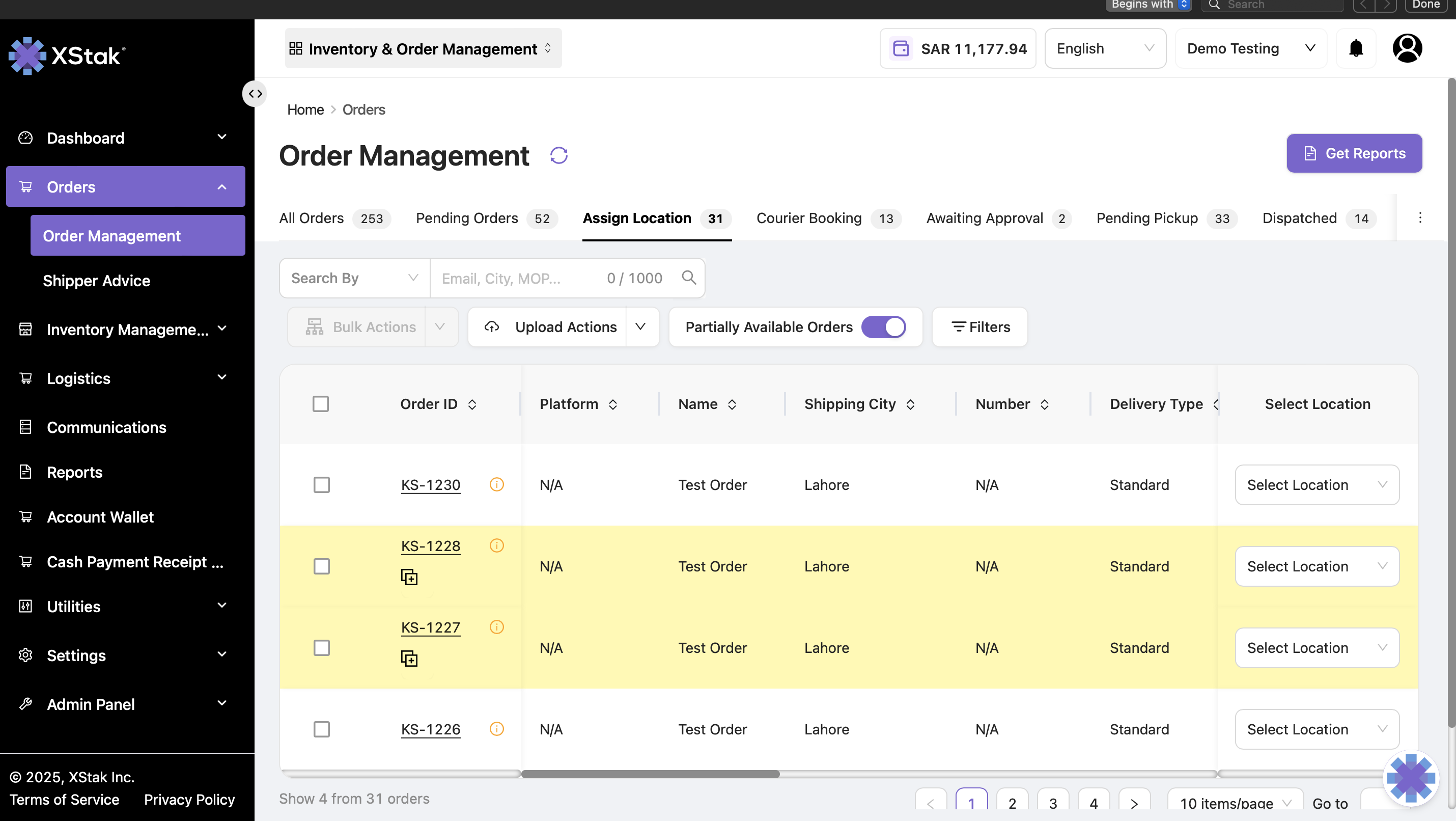
Partial Available Orders refer to those orders where only some of the items are currently available in stock, while the remaining items are out of stock or not yet received at the assigned location.
In simple terms, the order cannot be fully fulfilled because complete inventory is not available at the moment — only a partial quantity is ready for processing or dispatch.
Purpose
It helps identify and manage orders based on their stock availability at specific locations or warehouses.
When the “Partial Available Orders” option is enabled, the system (OE) will:
-
Display all orders that are partially available in inventory.
-
Allow users to review, take action, or monitor these orders easily without confusion.
-
Help operations teams decide whether to:
-
Wait until the full stock is available, or
-
Proceed with partial fulfillment if allowed.
-
Filters: Users can apply filters, upload files for bulk actions, and generate detailed reports to track and manage order assignments efficiently.
File Upload Options
|
Upload Type |
Purpose / Action |
|
Replenishment File |
Updates stock levels and replenishes inventory at assigned locations. |
|
Upload File to Cancel Orders |
Cancels selected orders in bulk directly from this stage. |
|
Upload Bulk Revert File |
Reverts previously assigned or processed orders back to the pending state. |
|
Upload File to Add Tags |
Adds tags or labels to orders for easy classification or tracking.
|
Reports
Click the Reports button to generate available assignment reports. Reports can be filtered by Location, Mode of Payment (MOP), and selected Sales Channels before downloading.
Common Errors & Fixes
|
Error |
Cause |
Fix |
|
Invalid File Format |
Uploaded file not matching system template. |
Use official sample file format. |
|
Bulk Action Failed |
Orders already assigned or cancelled. |
Recheck order status and retry. |
Best Practices
-
Confirm stock availability before assigning orders to a warehouse or store location.
-
Use filters to narrow down orders before applying bulk actions.
-
Download and use the official file templates for upload-based operations.
-
Review partially available orders separately to avoid fulfillment delays or incorrect dispatch decisions.
-
Generate reports after major assignment or upload actions to validate the final order status.