
The Return In Transit tab displays orders where a return has been initiated and the shipment is moving back to the merchant. Use this module to track, process, and complete return shipments.
1. Overview of the Return In Transit Tab
This section lists orders currently in return transit. You can filter, search, and generate reports using multiple parameters.
Filters Available
|
Filter Type |
Description |
|---|---|
|
Order ID |
Search by unique order identifier |
|
Tracking ID |
Search by return shipment tracking number |
|
Courier |
Filter returns by courier service |
|
Date Range |
Filter by return initiation or movement date |
|
Customer Details |
Filter by customer name, phone, or email |
|
Return Reason |
Filter based on selected return reasons |
|
Tags |
View orders with specific tags (QA Verified, Rejected, etc.) |
2. Bulk Actions
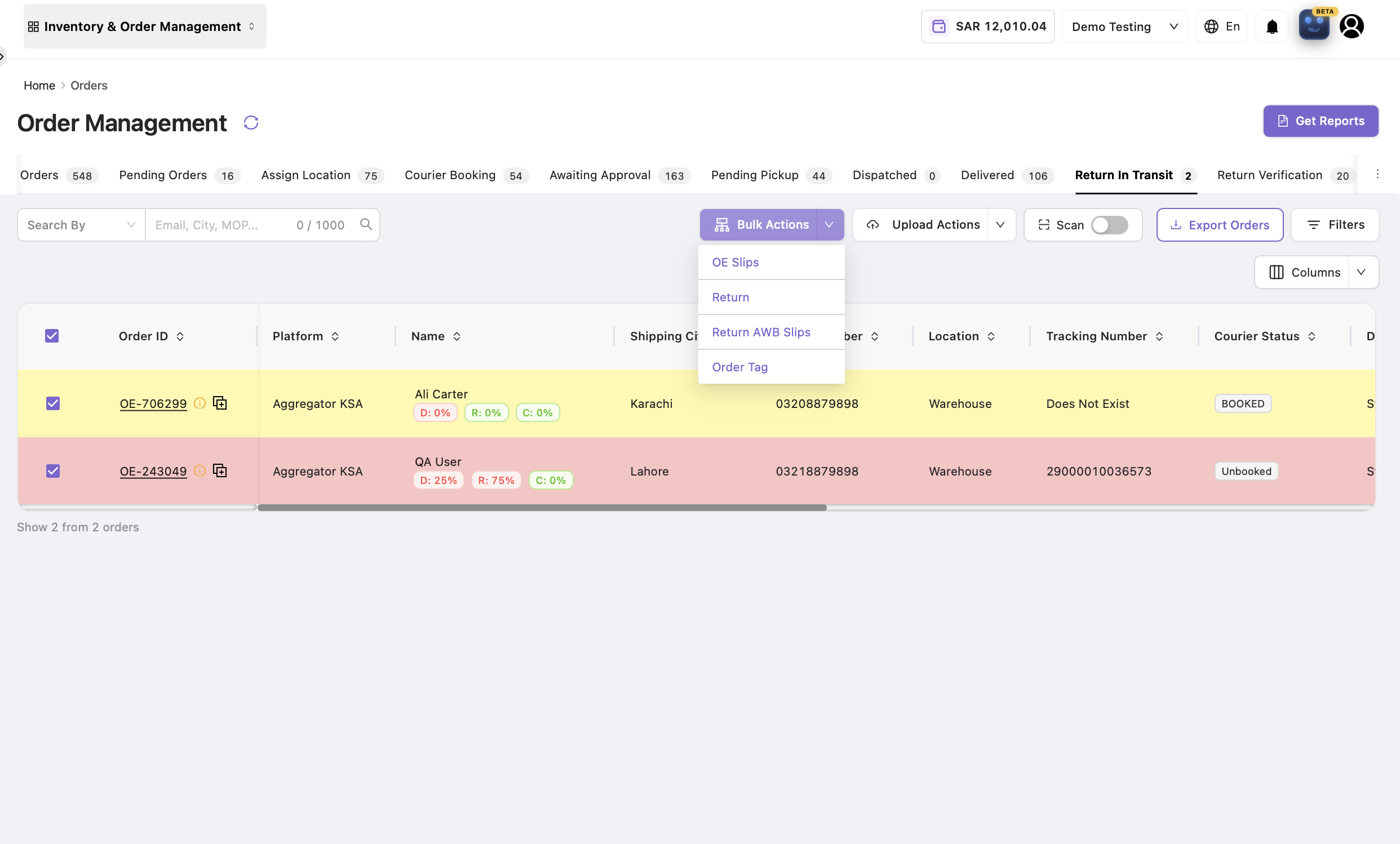
Bulk actions allow you to process multiple return orders simultaneously.
|
Bulk Action |
Purpose / Description |
|---|---|
|
OE Slips |
Generate OE slips for selected return shipments. Useful for documentation and internal tracking. |
|
Returns |
Move the selected return orders to the next processing stage. |
|
Return OE Slips |
Generate OE slips specifically for return orders. |
|
Return AWB Slips |
Generate courier slips specifically for return orders. |
3. Upload Actions
|
Upload Action |
Description / Purpose |
|---|---|
|
Upload Bulk Return File |
Used to upload return updates in bulk. Ideal for large datasets. |
|
Upload to Add Tags |
Adds or modifies tags for multiple return orders at once. Helps in categorizing returns (QA Verified / QA Rejected, etc.) |
4. Inventory Add-Back via Scanning
Return In Transit also allows scanning orders to add stock back to the sales channel.
Purpose of Scanning in Return In Transit
|
Purpose |
Explanation |
|---|---|
|
Restore SKU inventory faster |
No need to manually open each order |
|
Prevent stock mismatch |
Ensures real-time adjustment of available stock |
How It Works: Scanning for Inventory Add-Back
-
Go to the Return In Transit tab.
-
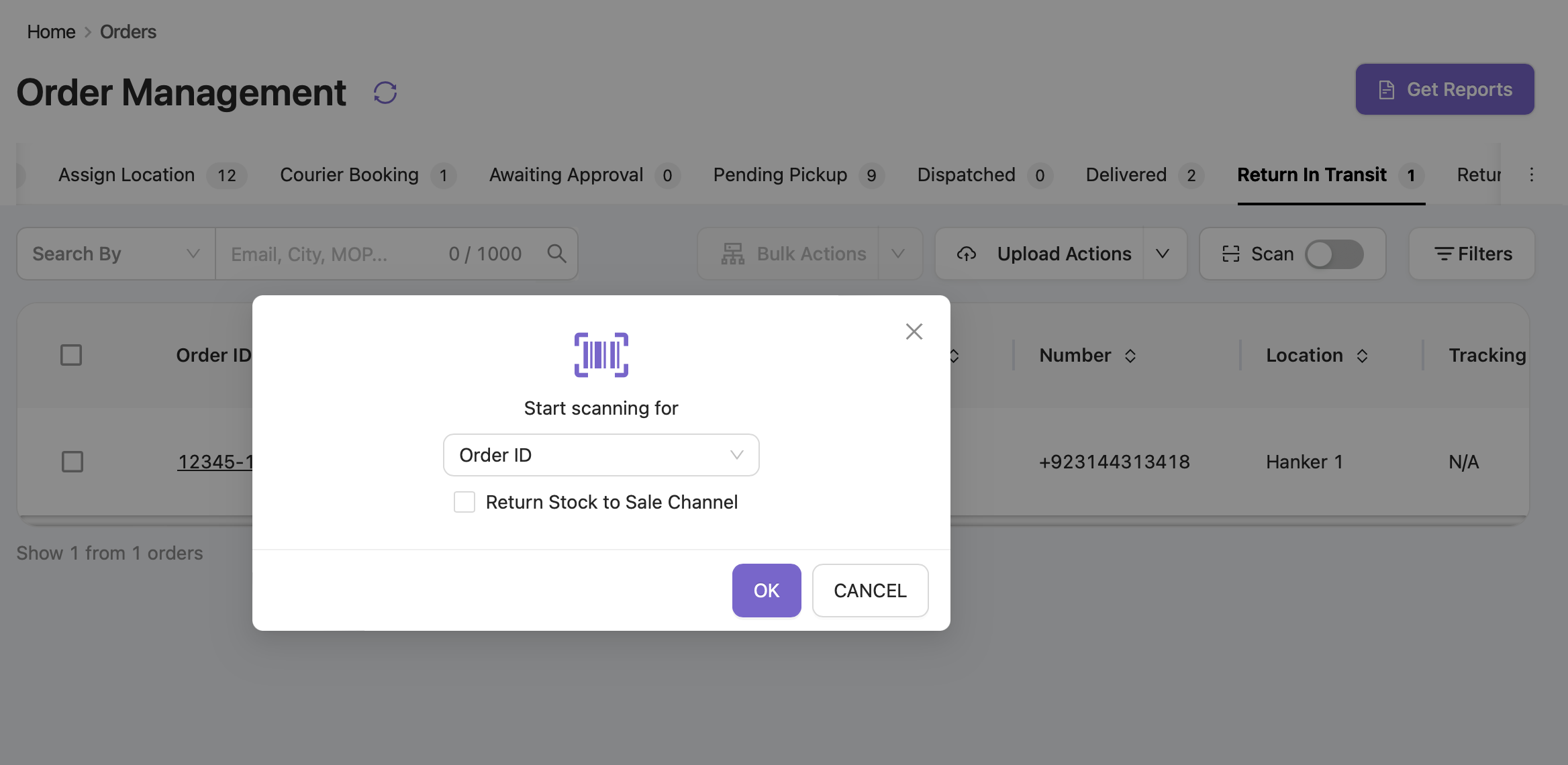
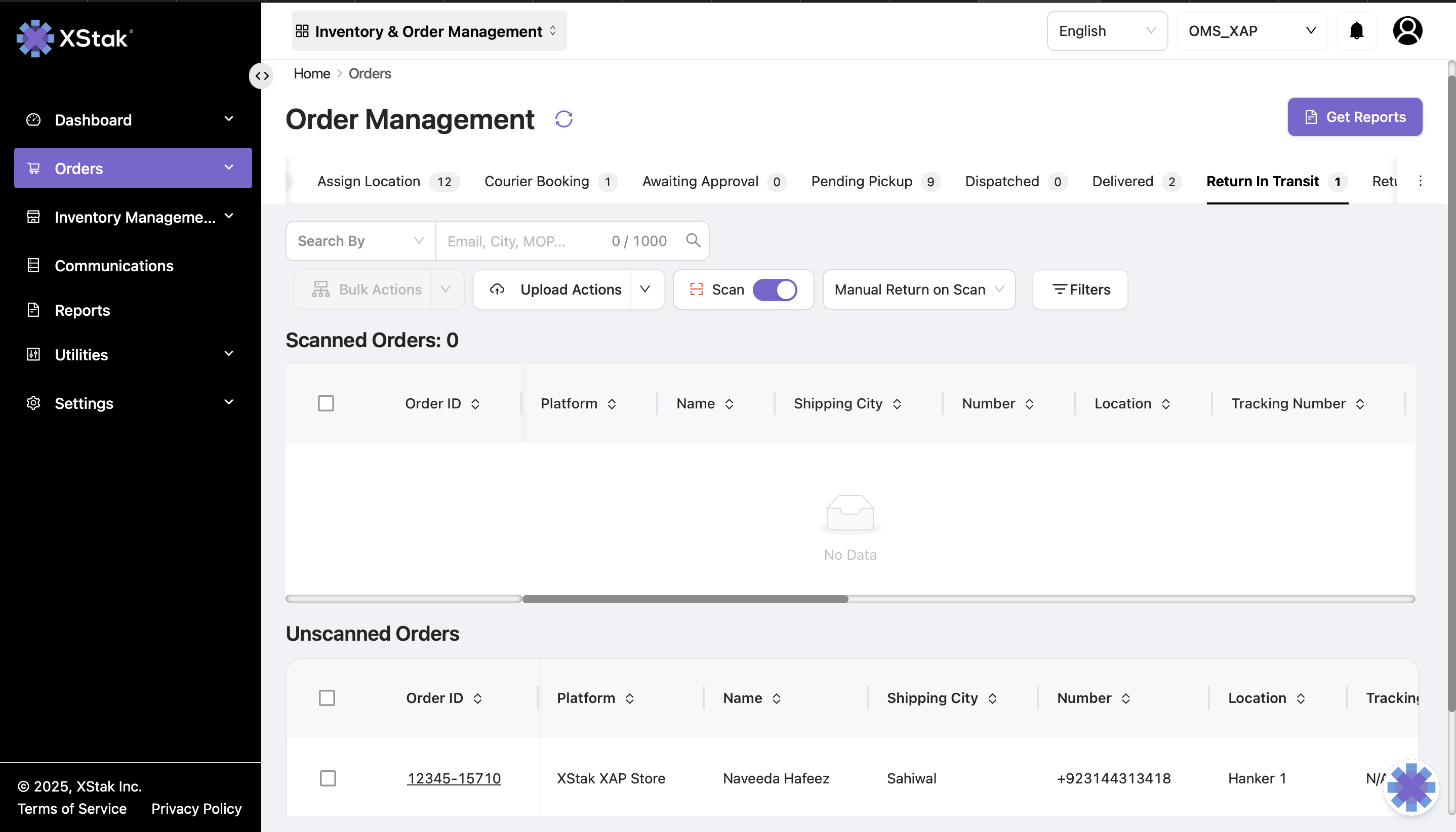
Turn on the Scanning toggle.
-
Scan the Order ID.
-
The system will:
-
Identify the returned SKU(s).
-
Add them back to the sales channel inventory, if enabled.
-
Update the return status accordingly.
-
Inventory add-back via scanning works only for orders that have already been physically received by the merchant.
Return Received
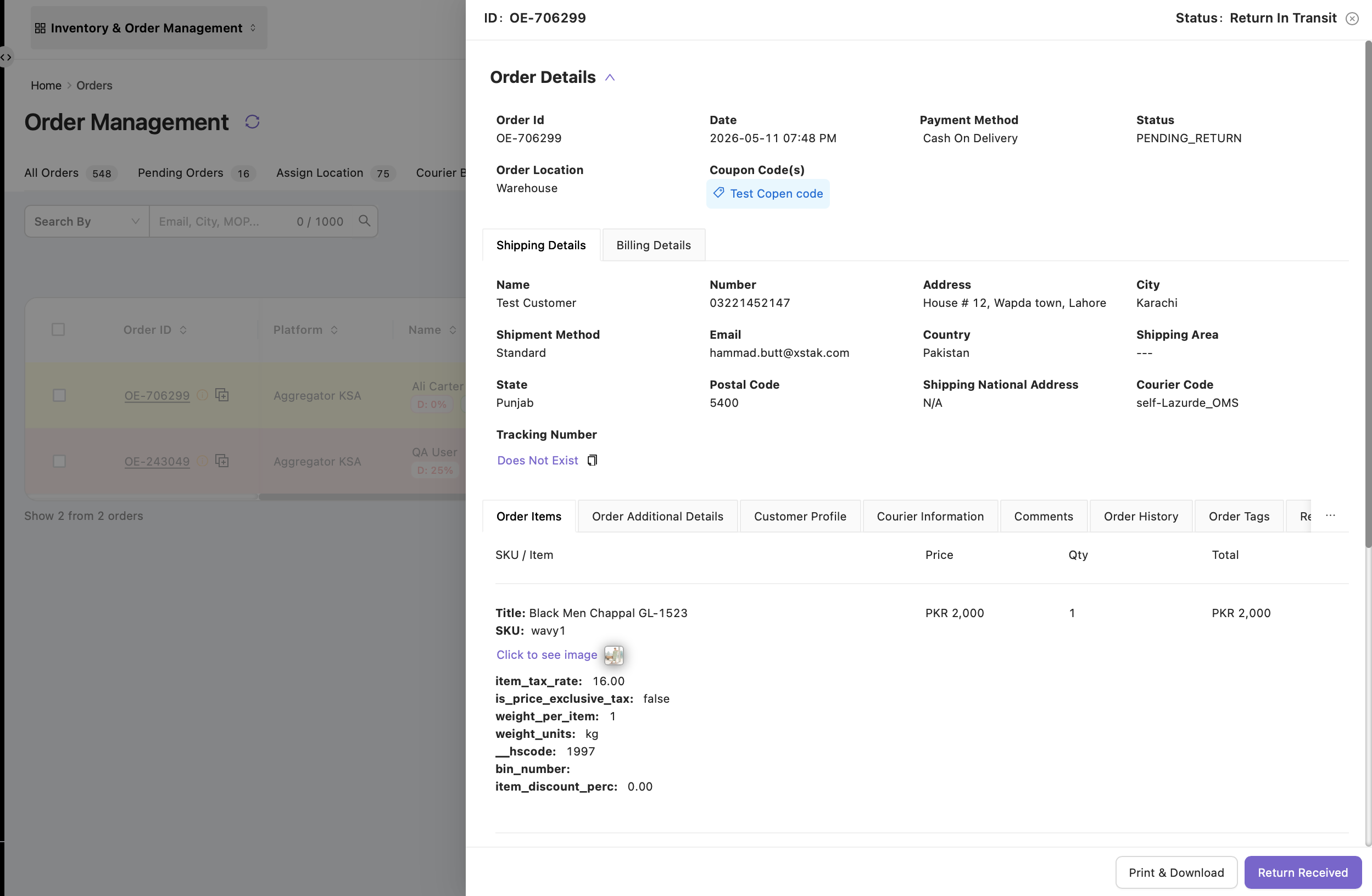
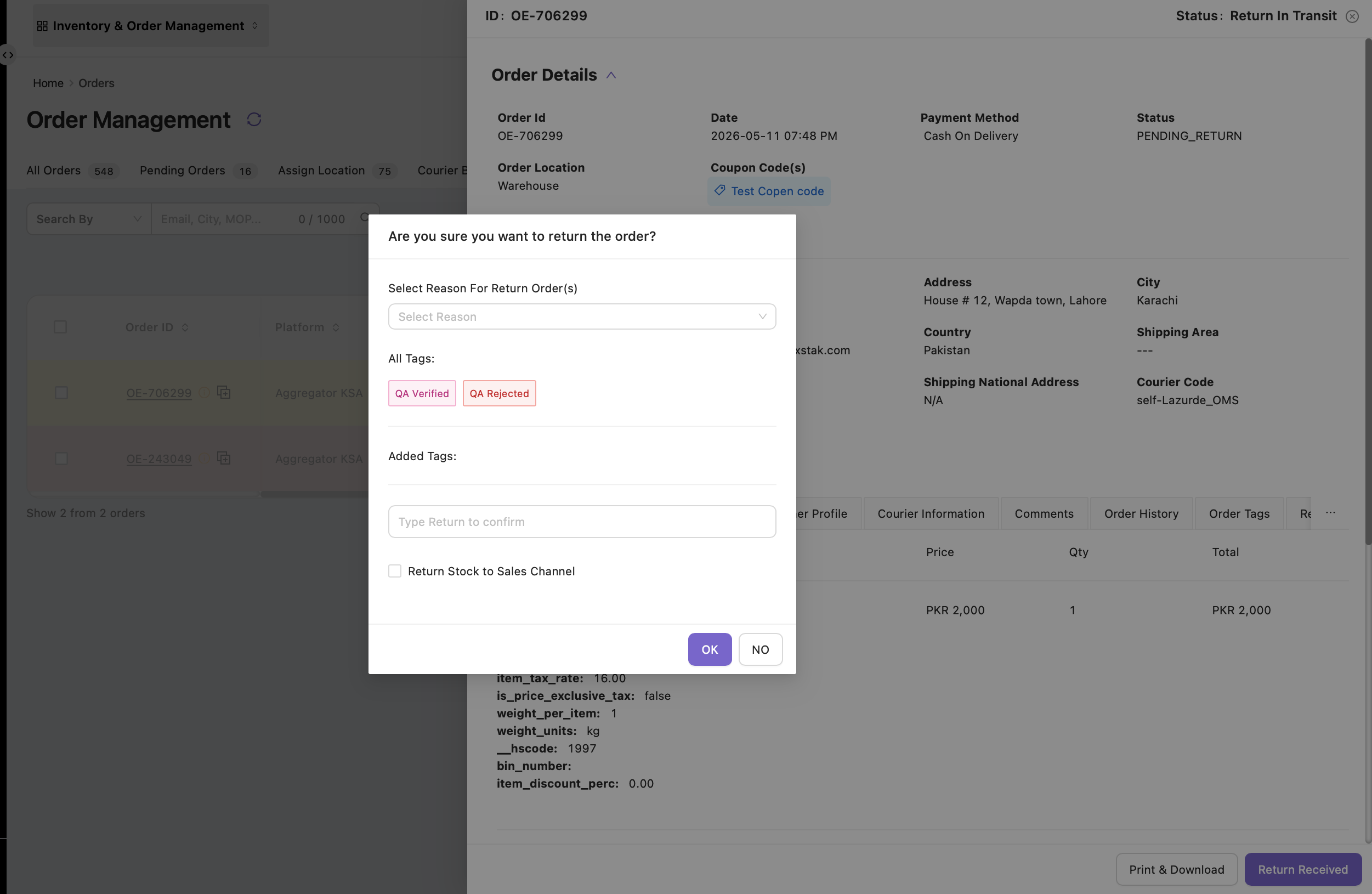
When the merchant physically receives the returned item, they use this action.
|
Field / Option |
Description |
|---|---|
|
Return Reason |
Select the correct reason why return has been received. |
|
Tags |
Add QA tags such as QA Verified, QA Rejected, Damage, Wrong Product, etc. |
|
Return Stock to Sales Channel(checkbox) |
If checked → returned stock quantity will be added back to sales channel inventory. |
Outcome after Return Received:
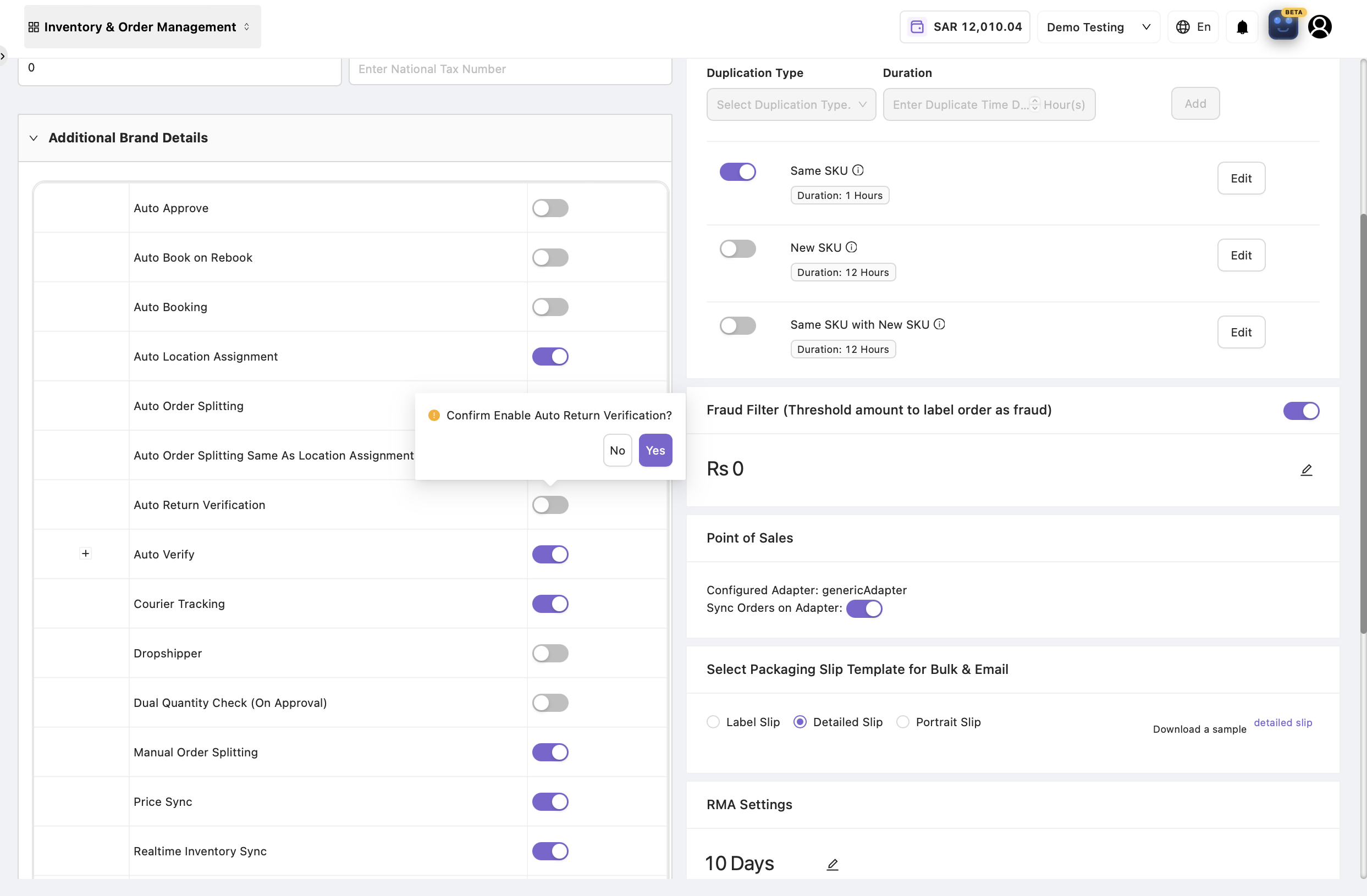
The order moves from Return In Transit → Return Accepted if Auto Verification is enabled in the settings.
If Auto Verification is not enabled, then the order will move into the Return Verification tab for manual verification.
5. Purpose of the Return In Transit Tab
|
Purpose |
Explanation |
|---|---|
|
Track Active Returns |
Provides full visibility of all return shipments. |
|
Validate Returned Items |
Ensures merchant receives correct items (via tags & QA). |
|
Complete Return Flow |
Moves order smoothly from Delivered → Return Transit → Return Accepted . |
|
Inventory Accuracy |
Allows re-adding SKU quantity back to the sales channel. |
|
Reporting & Auditing |
Export return reports for accounting and operations. |