
The Dispatched section displays all shipments that have been handed over to couriers and are currently in transit. Users can track courier booking status, update shipment details, and perform key logistics operations such as returns, deliveries, and synchronization.
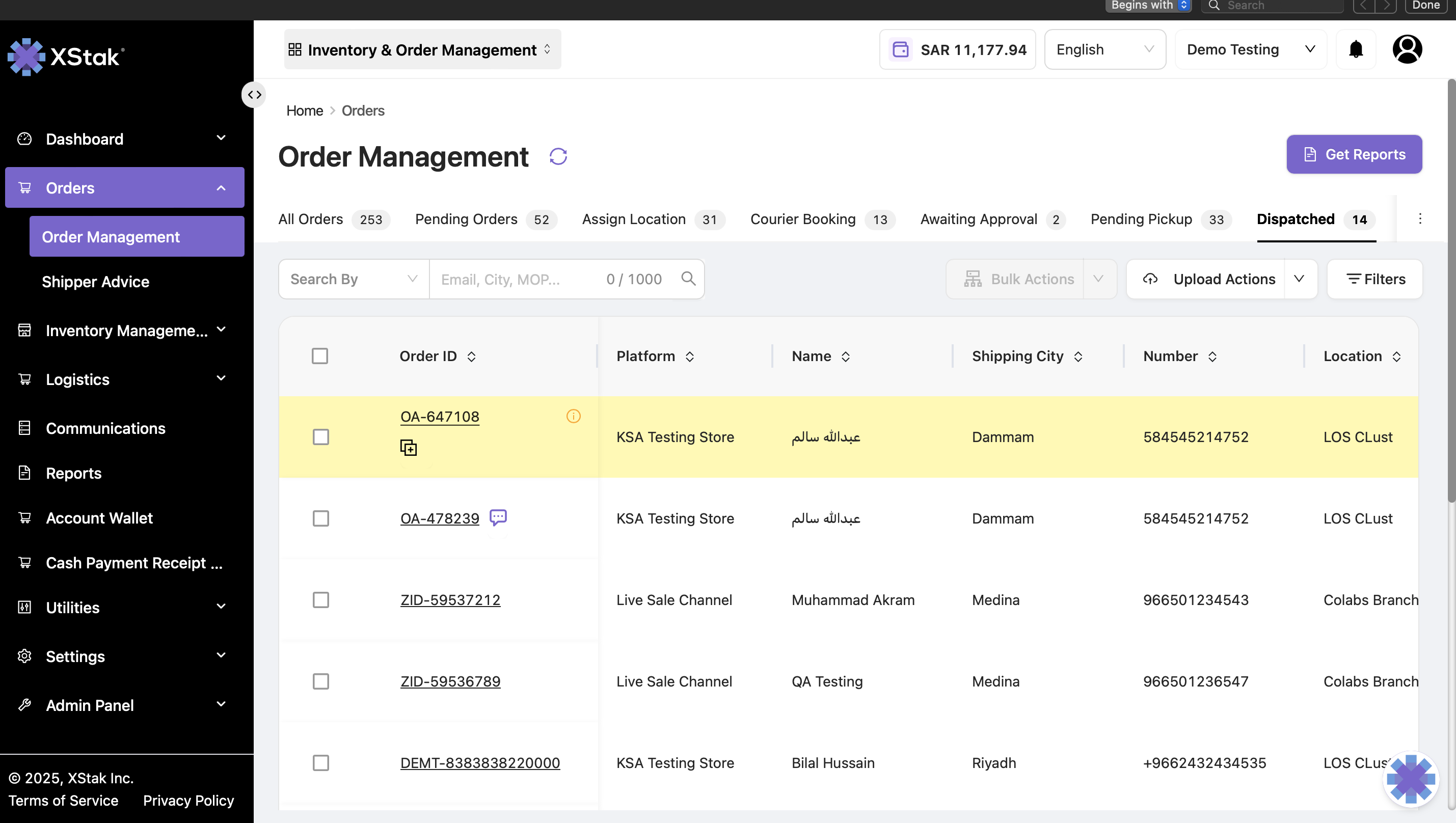
Key Functionalities
|
Feature |
Description |
Purpose / Action |
|
Courier Status |
Displays the shipment’s courier state: Dispatched, Booked, or Unbooked. |
Tracks which orders are successfully booked with couriers and which require action. |
|
Action via File |
Upload bulk files to perform mass updates. |
Supports efficient processing for large order sets. |
|
Upload Bulk Return File |
Uploads a file to mark multiple orders as returned. |
Use when couriers send back undelivered parcels. |
|
Upload Delivered File |
Updates order statuses to Delivered in bulk. |
Marks completed deliveries for reconciliation. |
|
Upload Revert File |
Reverts incorrectly updated orders to their previous status. |
Corrects dispatch or return errors. |
|
Upload Add Tag File |
Adds specific tags to multiple orders for tracking or categorization. |
Useful for internal identification, such as “High Priority.” |
|
Upload Resync File |
Re-syncs courier updates to refresh order data. |
Ensures OMS reflects the latest courier status and tracking information. |
|
Upload HS Codes File |
Adds or updates Harmonized System (HS) codes for exported items. |
Ensures compliance for international shipments. |
|
Reports Section |
Generates reports such as Bulk Final Status File and Bulk AWB Reports. |
Supports tracking, financial reconciliation, and audit logs. |
|
Bulk Actions |
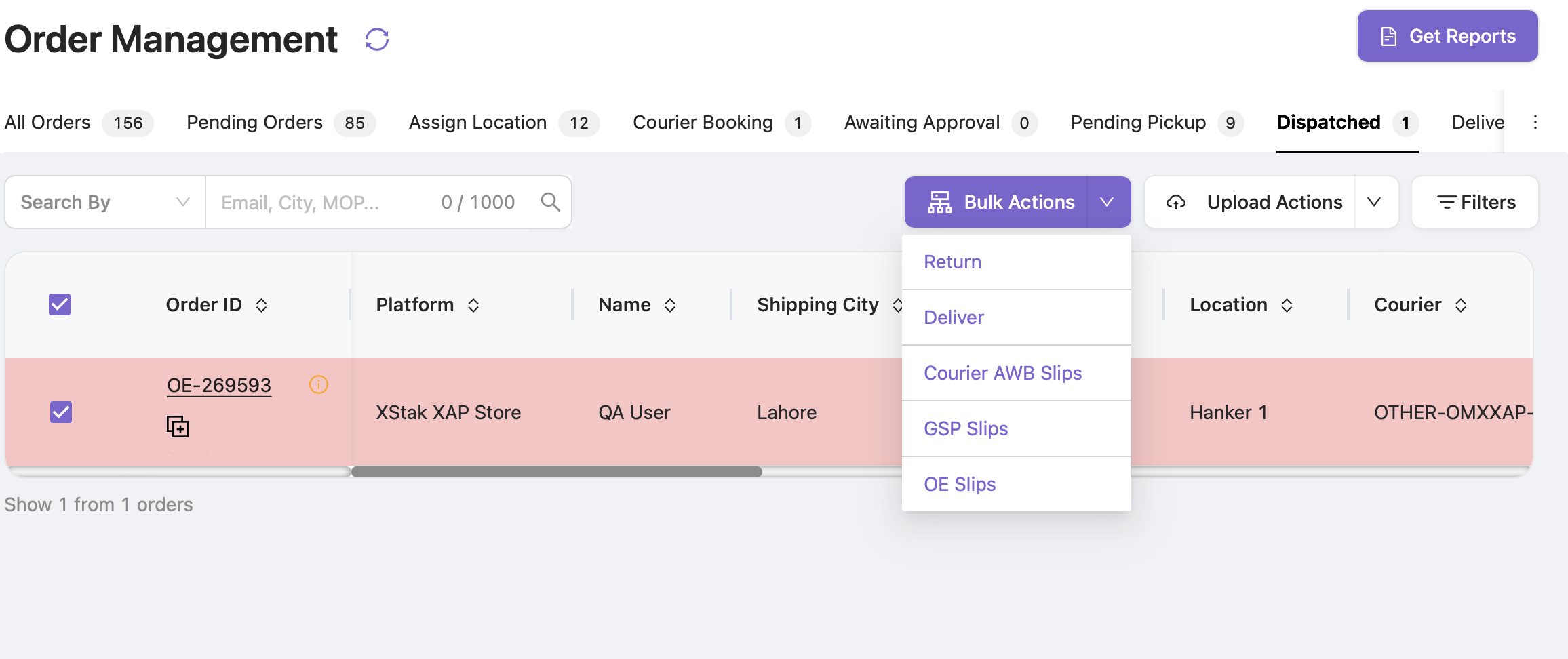
Includes Return, Deliver, Courier AWB Slips, GSP Slips, and OE Slips generation. |
Streamlines post-dispatch processes and document creation. |
|
Filters & Search |
Filter by Order Creation Date, Transition Date, Courier, Location, or Sales Channel. |
Helps locate and narrow down dispatch records quickly. |
Process Flow
-
Go to Orders → Order Management → Dispatched Orders.
-
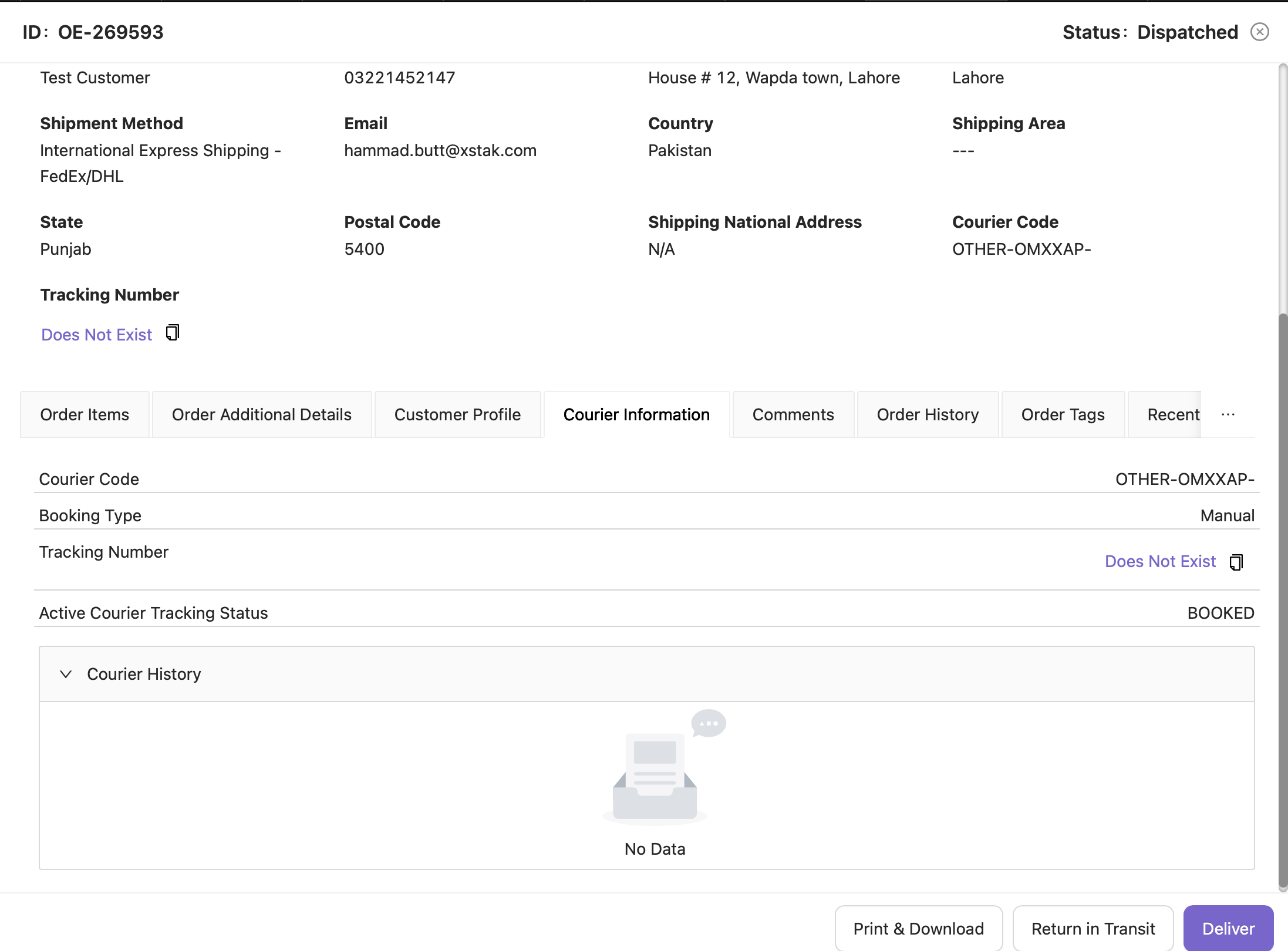
Review the courier booking status.
-
Apply filters or search for specific orders.
-
Use Upload Actions to update orders in bulk, such as returns, deliveries, reverts, or courier AWB data.
-
Generate the Bulk Final Status File or AWB Report for tracking and analysis.
-
Perform Bulk Actions to generate slips (AWB, GSP, or OE) or mark orders as returned or delivered.
Return Process in Dispatch Tab
To return a parcel from the Dispatch tab, either through bulk action or individual order selection, follow this process:
-
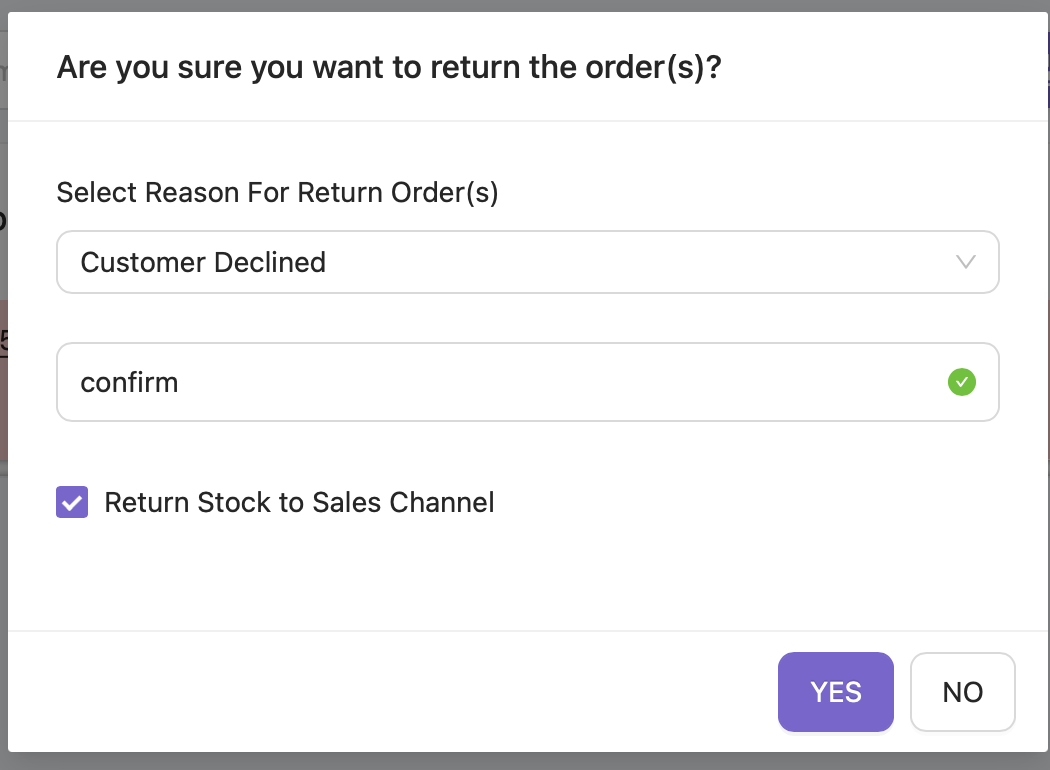
A confirmation dialog box appears.
-
Select the reason for return.
-
Type “CONFIRM” to proceed.
-
Once confirmed, the return request is initiated.
-
-
If the “Return Stock to Sales Channel” checkbox is enabled, inventory is added back to the respective sales channel automatically.
-
After confirmation, the order moves from Dispatched to Return In Transit.
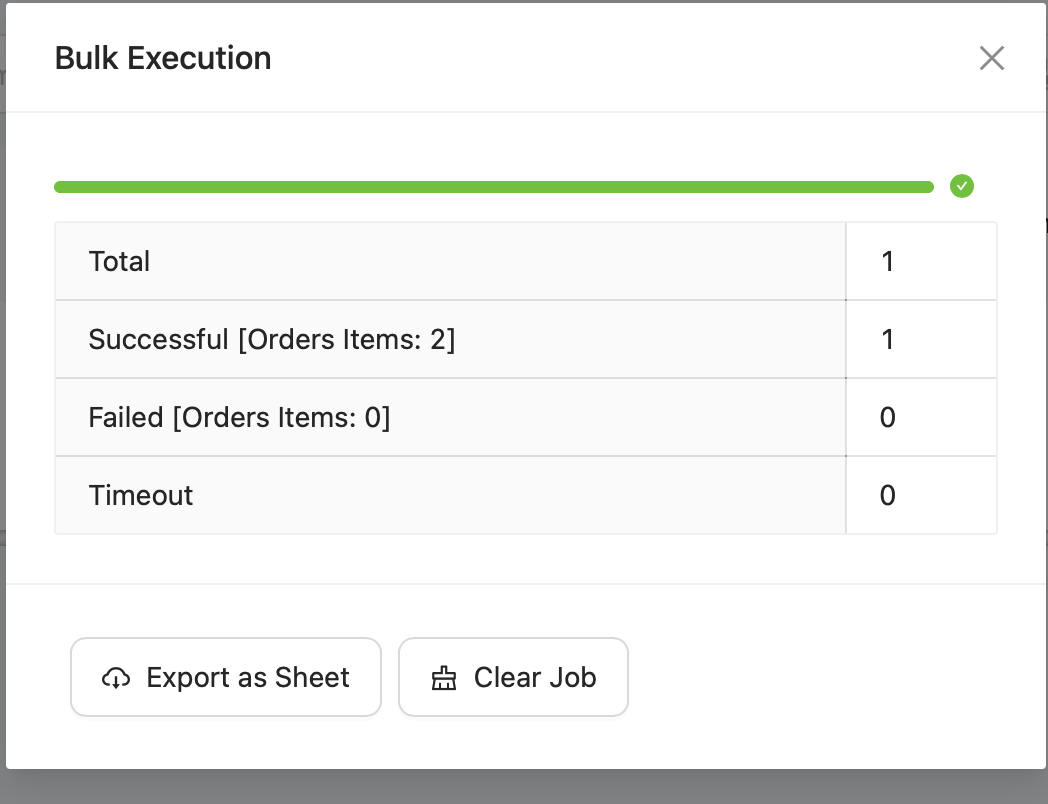
Delivered vs Return Flow
-
If the courier updates the status to Delivered, the order appears in the Delivered tab.
-
If the order is not delivered and the customer requests a return, the order moves to Return In Transit.
-
If the courier fails to deliver due to:
-
Customer not answering calls
-
Wrong or incomplete address
-
Customer unavailable
-
Any other delivery failure
The order moves to Shipper Advice along with the rider’s remarks.
-