
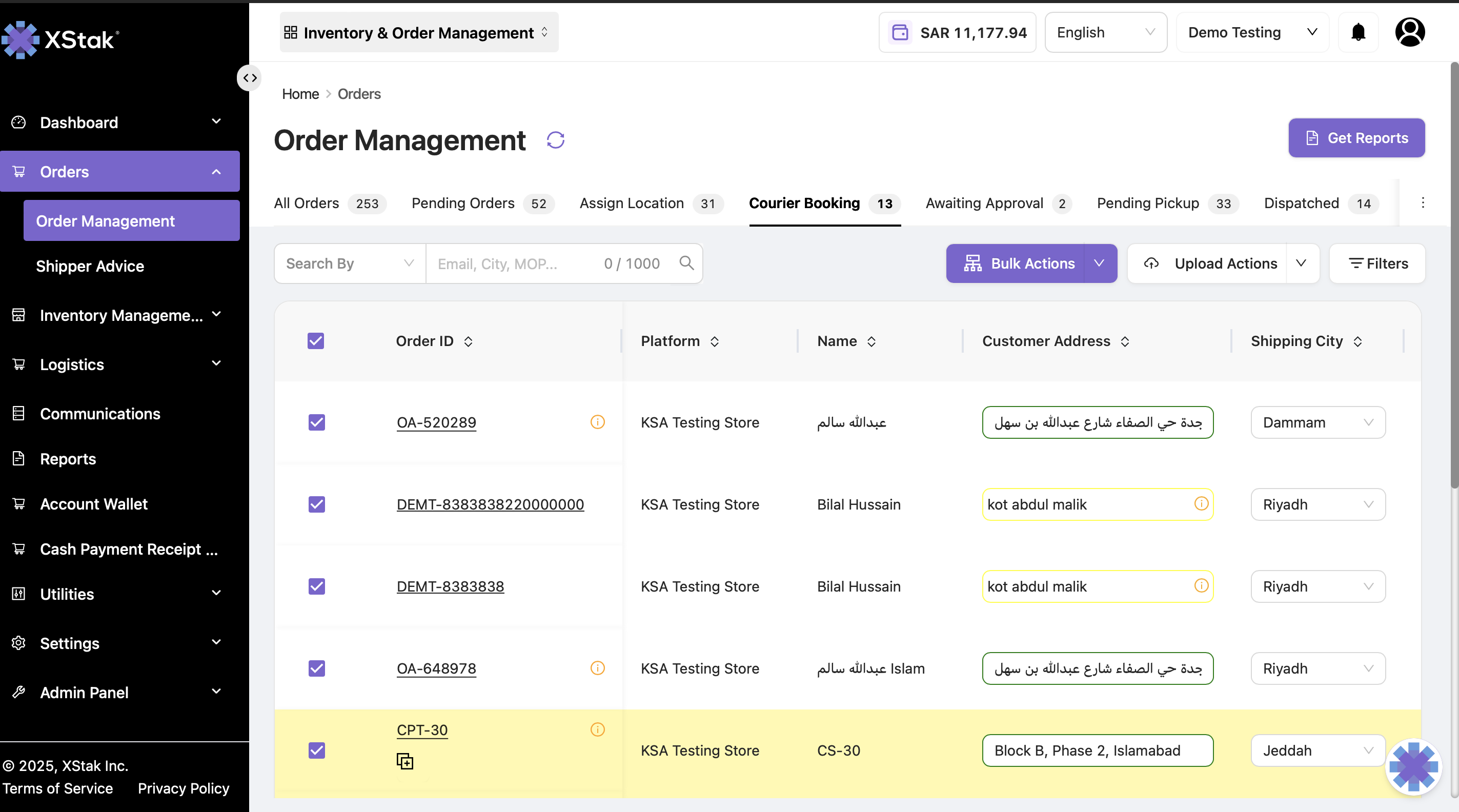
The Courier Booking section helps users manage courier assignment for orders that are ready for dispatch. From this stage, users can manually book, auto-book, or bulk-upload courier assignments to ensure orders are dispatched efficiently and tracked accurately. Users can also apply filters, search for specific orders, and generate OE slips or courier booking reports.
Key Functionalities
|
Feature |
Description |
|
Order List View |
Displays all orders pending courier assignment with details like Order ID, Location, Courier, and Tracking ID. |
|
Filters & Search |
Apply filters for Order Creation Date, Order Transitioned Date, Sales Channel, Mode of Payment, and Location. Orders can also be searched by Order ID, Courier, or Tracking ID. |
|
Manual Booking |
Allows booking of an order by selecting a brand courier and entering the tracking ID manually. |
|
Bulk Actions |
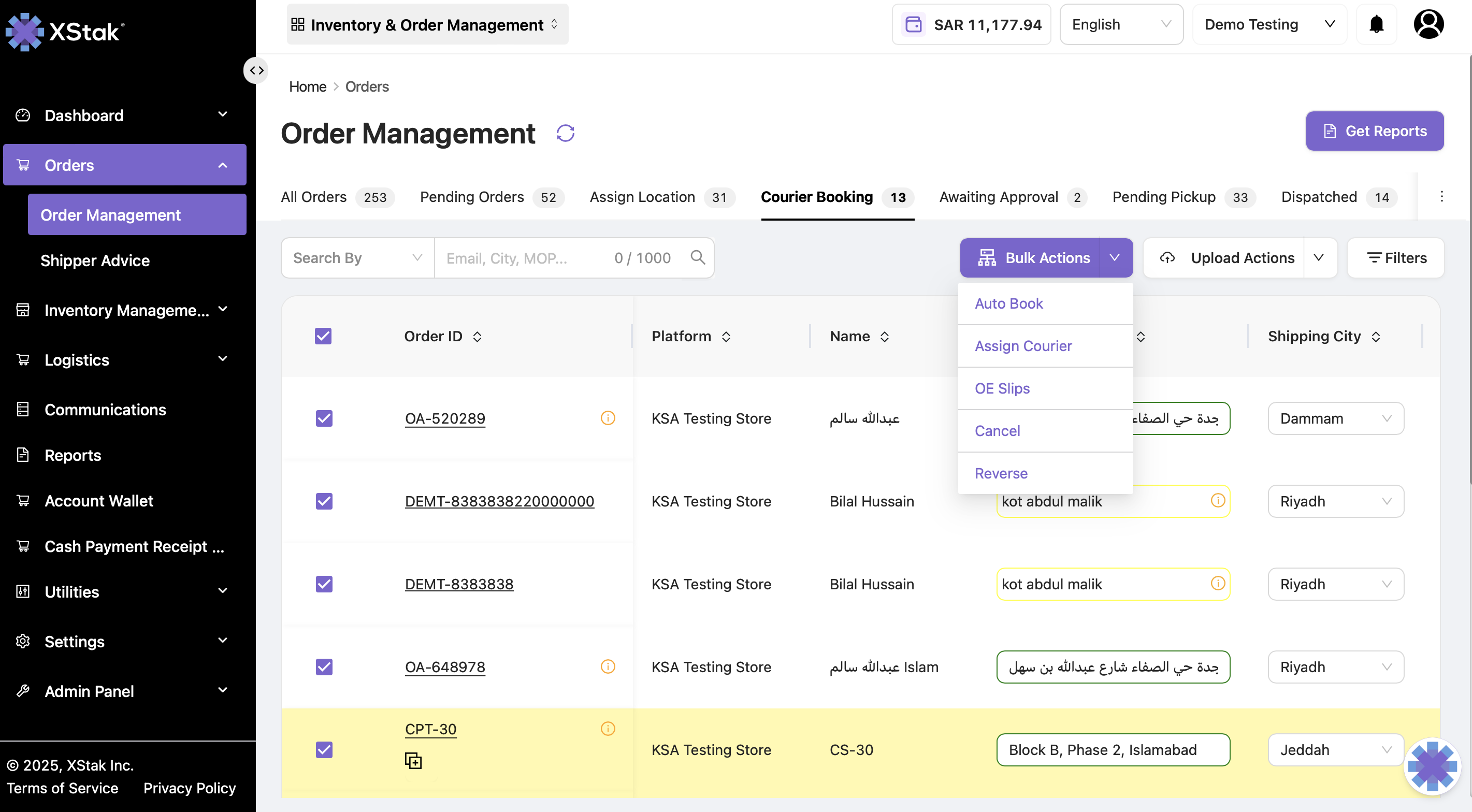
Supports multiple courier operations such as:
|
|
Upload Actions |
Enables uploading bulk files to manage courier operations across multiple or current tabs. |
|
Tabs Option |
Upload options available for All Tabs (system-wide) or Current Tab (specific filter view). |
Bulk Actions:
Purpose
|
Action |
Description |
Purpose / Functionality |
|---|---|---|
|
Auto Book |
Automatically books all eligible orders based on predefined courier mapping rules. The system decides which courier to use depending on factors such as city, region, or service type. |
Reduces manual effort by auto-assigning couriers according to set business logic (e.g., Lahore orders → PostEx, Karachi orders → BlueEx). |
|
Assign Courier |
Allows users to manually select and assign a specific courier to the selected orders. |
Used when the user wants to override auto rules or assign a courier of their choice. |
|
Reverse |
Moves selected orders back to the previous stage (e.g., from Courier Booking to Assigned Location). |
Helpful when an order needs to be reprocessed or reassigned before dispatch. |
|
OE Slips |
Generates Order Entry (OE) Slips for all selected orders. |
Used for documentation, shipment tracking, or internal record purposes. |
|
Cancel |
Cancels the selected orders in bulk. |
Used when orders need to be withdrawn before courier booking. |
Courier Booking Using Bulk Actions
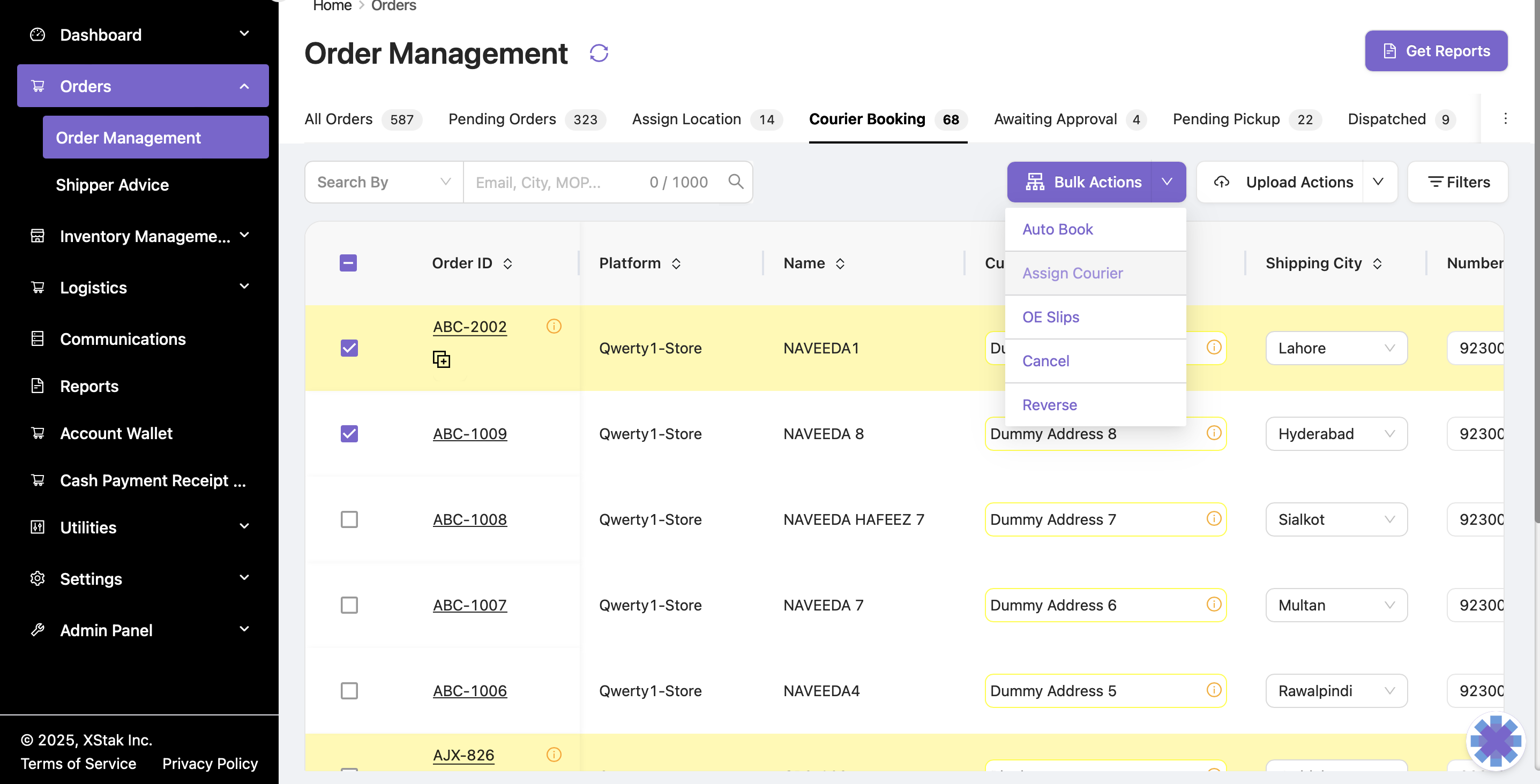
1. Select Orders in Bulk
-
Users can select multiple orders using the checkbox at the top of the grid.
-
Once selected, the bulk action buttons become active.
2. Assign Courier
-
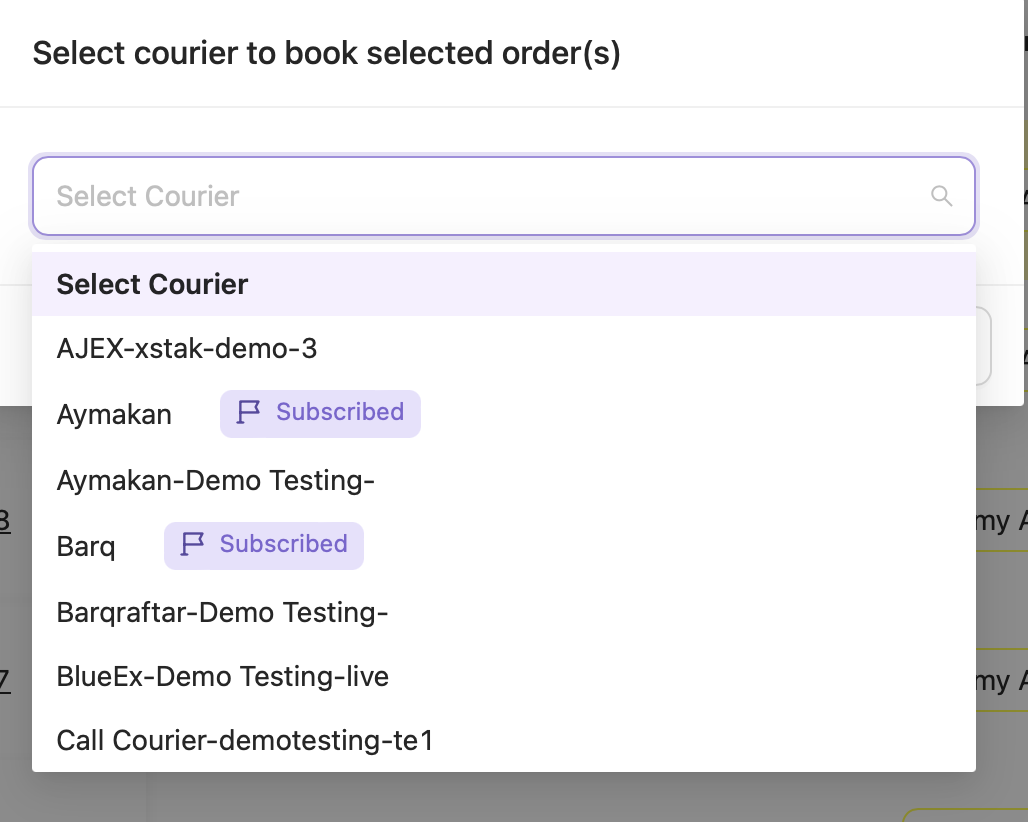
After selecting the orders, click Assign Courier.
-
A list of available couriers will appear.
-
You can choose the courier on which you want to book the orders.
-
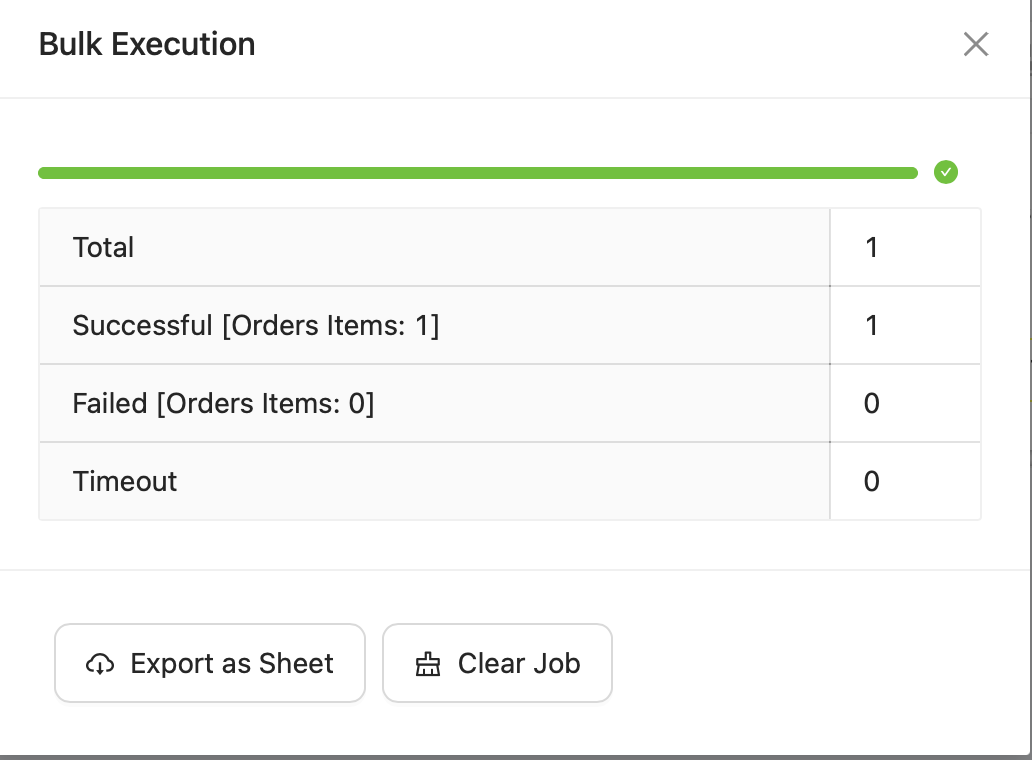
Once selected, all chosen orders will be assigned to that courier then it shows that how much orders successfully booked or failed .
Use Case:
When operations want to assign a specific courier manually for a group of orders.
Individual Courier Assignment
-
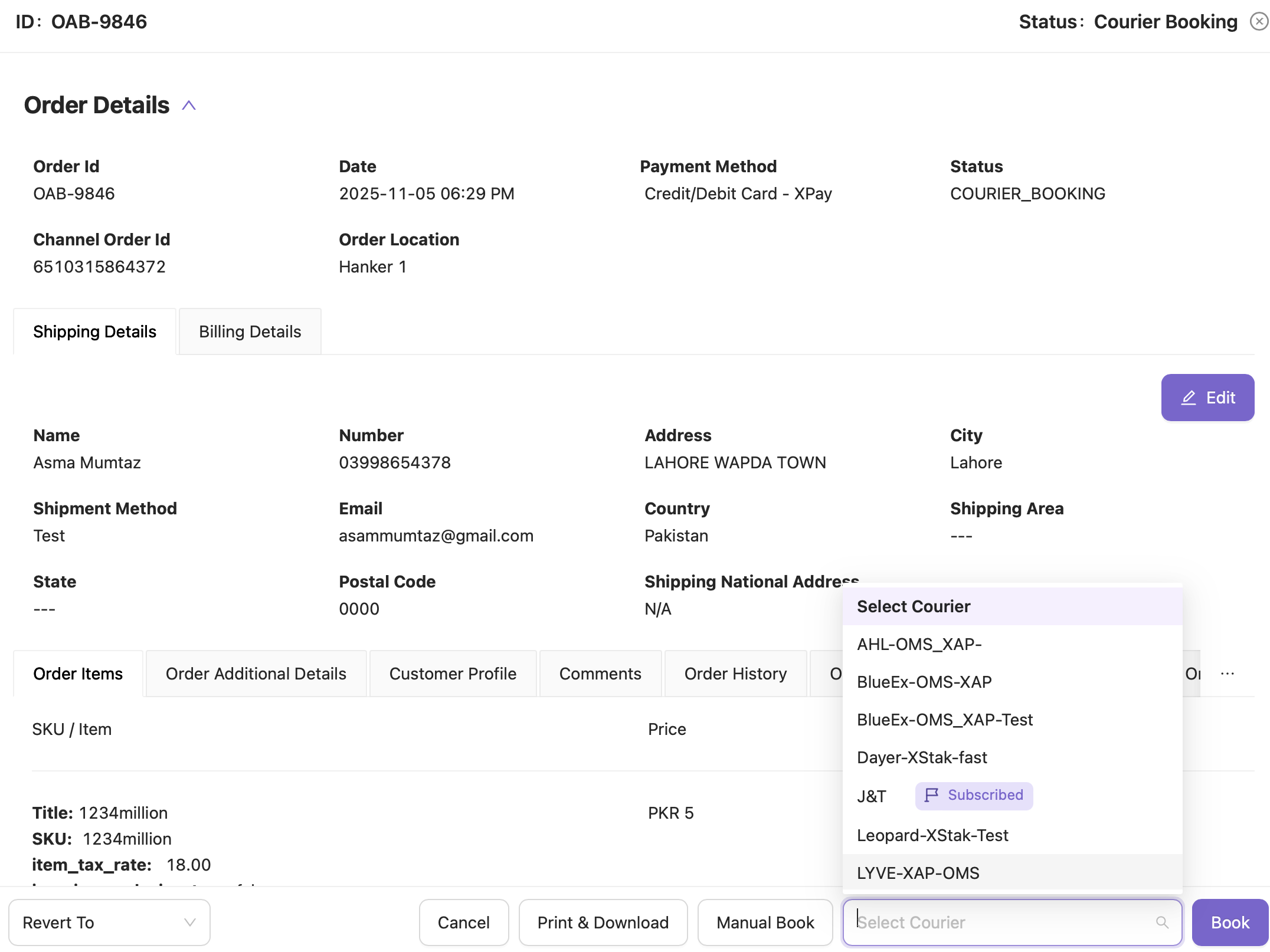
You can open any order from this screen.
-
Inside the order, you can manually assign a courier by choosing from the list.
Manual Booking
-
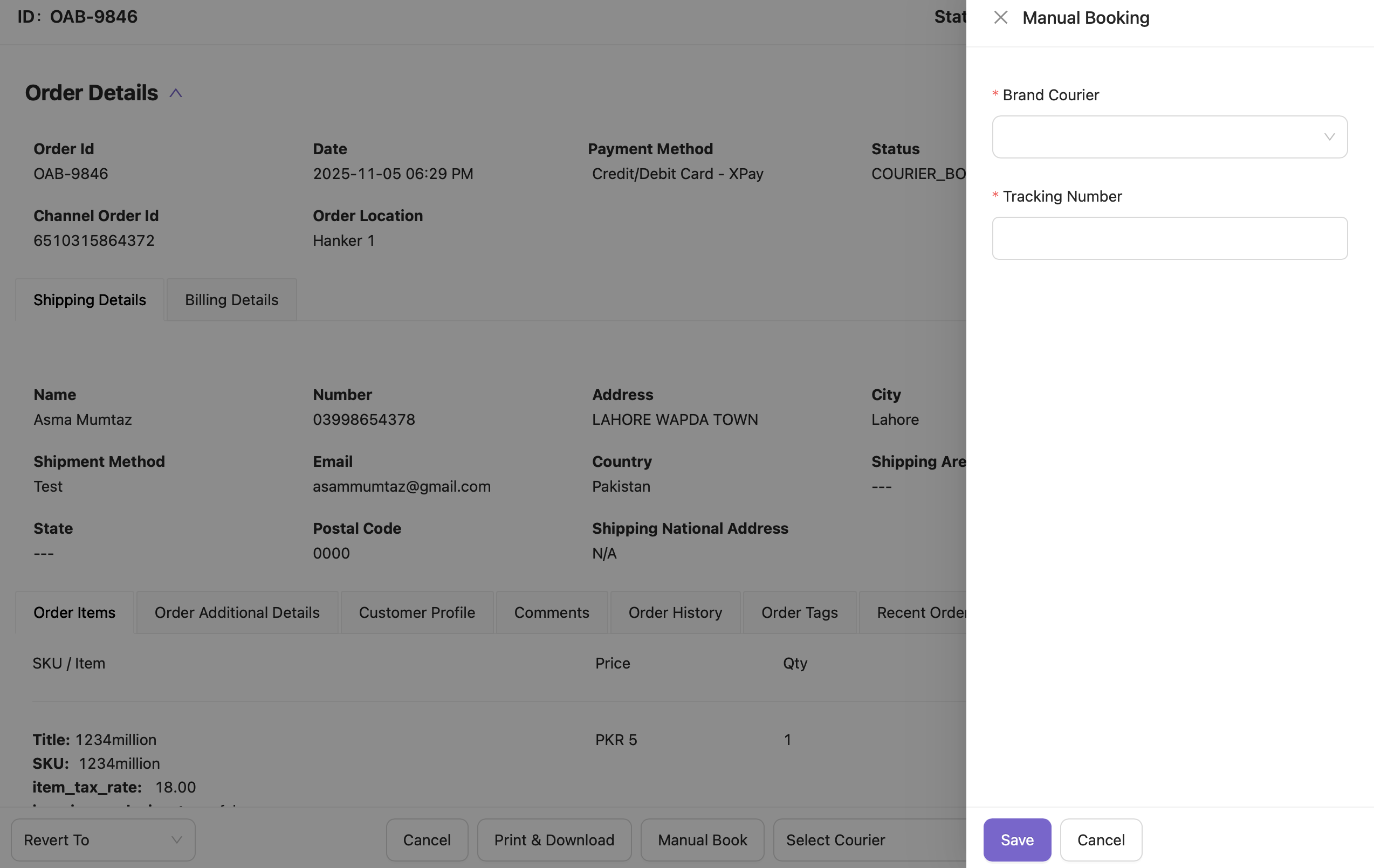
Using Manual Book, users can:
-
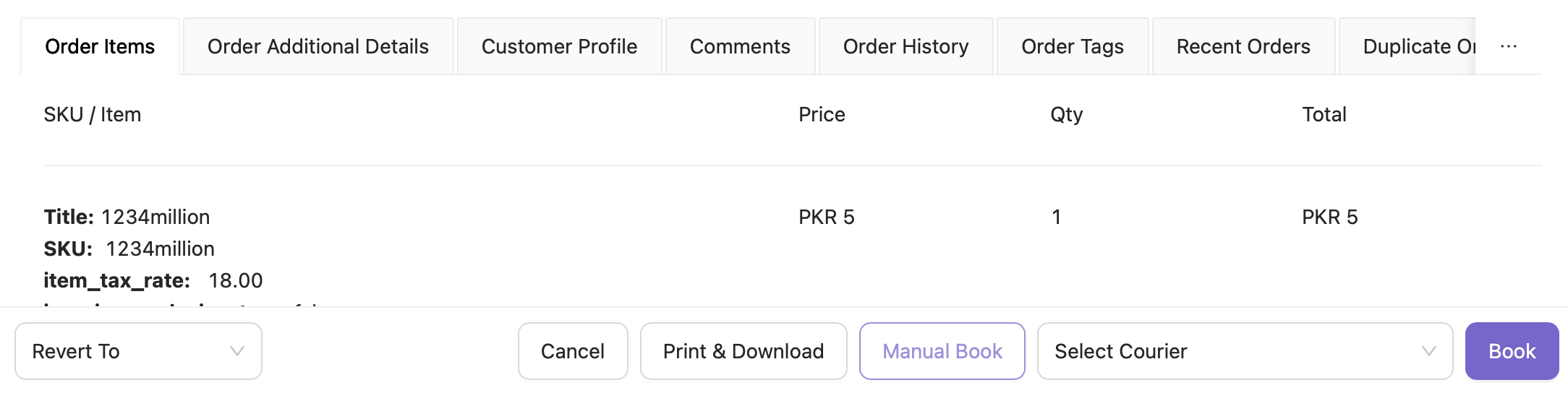
Click on the Manual Book button.
-
Select the courier.
-
Enter the courier tracking ID.
-
Book the order manually without using any auto rules.
-
Purpose:
Useful when:
-
The shipment is booked outside the OMS
-
A manual airway bill needs to be assigned
-
Kindly refer to the video attached below for a detailed demonstration
Manual Booking