
Editing Orders — How To Guide
This guide explains how OMS users can edit existing orders, update product/SKU details, reduce item quantity, adjust price, shipping and discounts, change payment method, and add new SKU/items before fulfillment.
Overview
The OMS allows users to edit orders during key operational stages to ensure accuracy before fulfillment. Order editing is supported in the following tabs:
-
Pending Orders
-
Assign Location
Users can modify customer details, product information, pricing, payment method, and other editable order information. These edits should be completed before the order moves into a non-editable fulfillment stage.
How to Edit an Existing Order
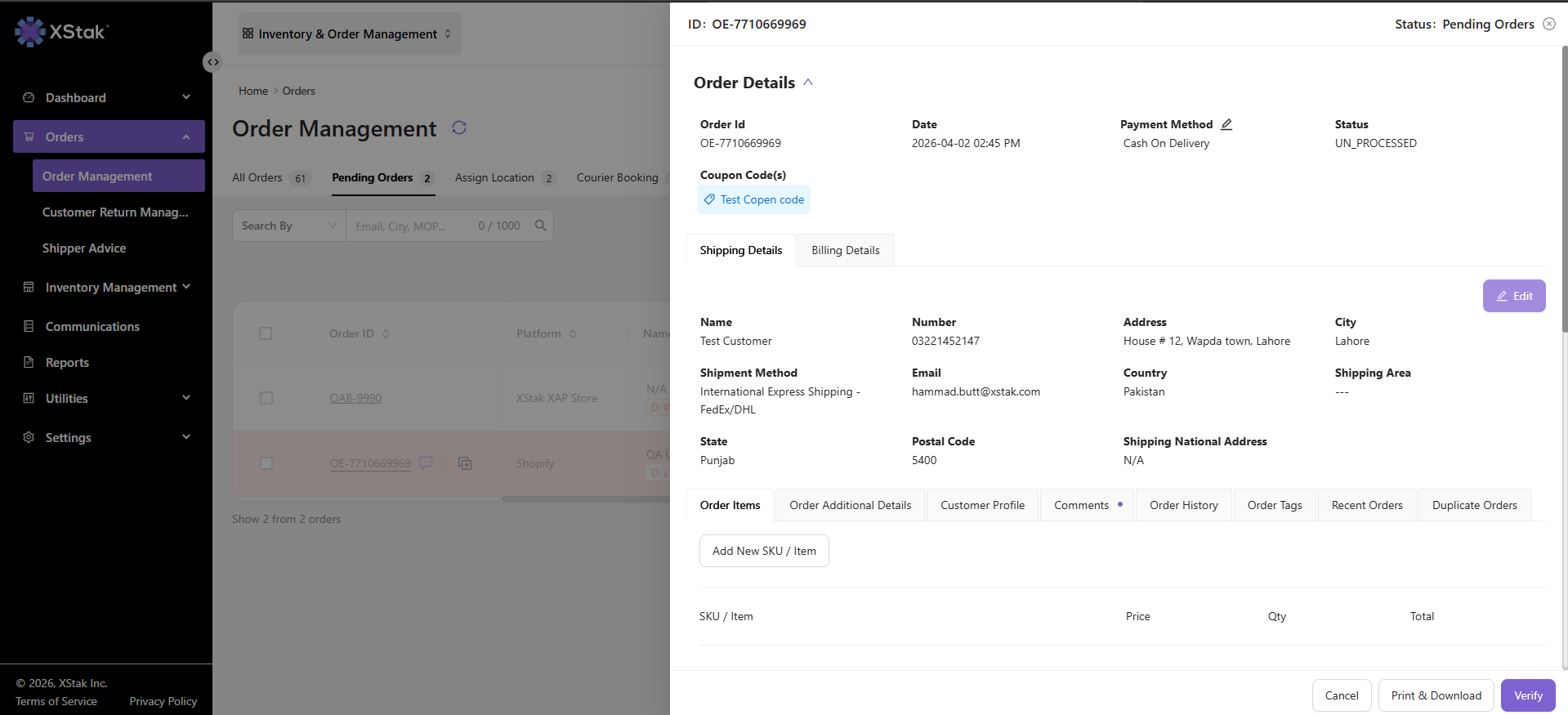
Step 1: Open the Order
-
Navigate to Order Management
-
Open any editable tab (Pending Orders, Assign Location, Courier Booking)
-
Click on the Order ID
Step 2: Click the Edit Button
-
Click on the Edit button
-
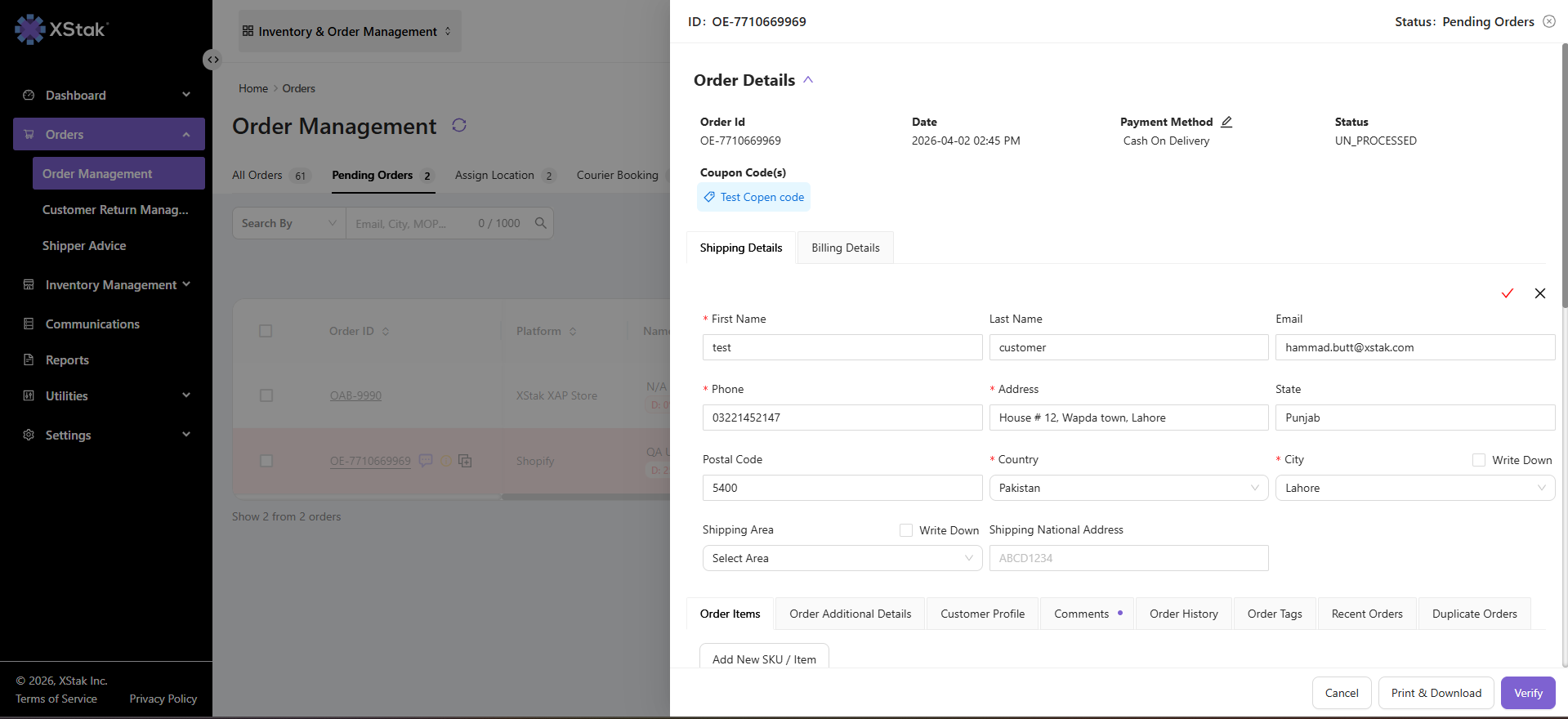
All editable fields will become active
Step 3: Update Required Details
You can update customer information such as name, phone number, address, city, and other available editable fields.
Step 4: Save or Cancel Changes
-
Click on the tick (✓) icon to save changes
-
Click on the cross (✕) icon to discard changes
Result
All changes will be saved and reflected in the order.
Editing Product (SKU / Item) Details
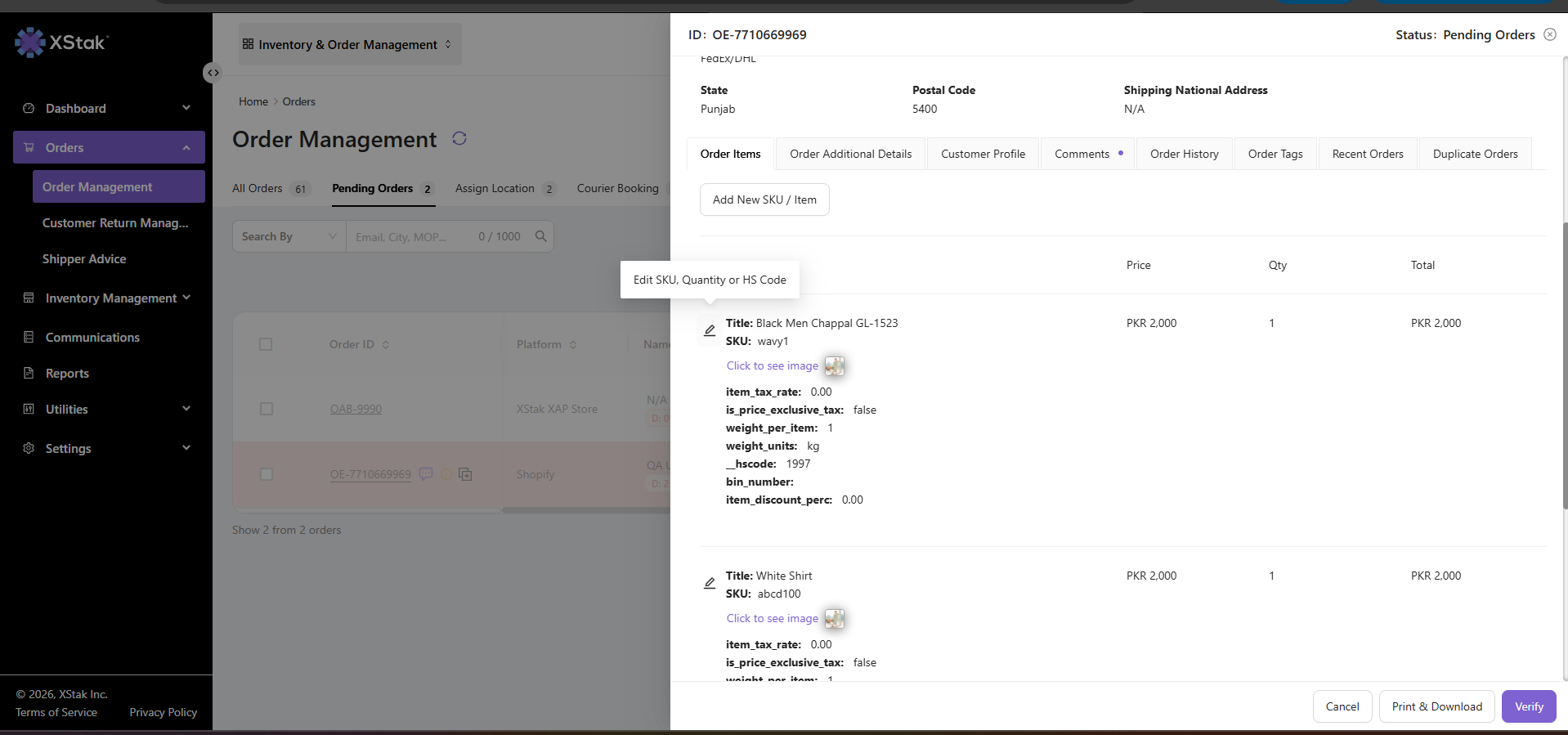
Step 1: Open the SKU Edit Option
-
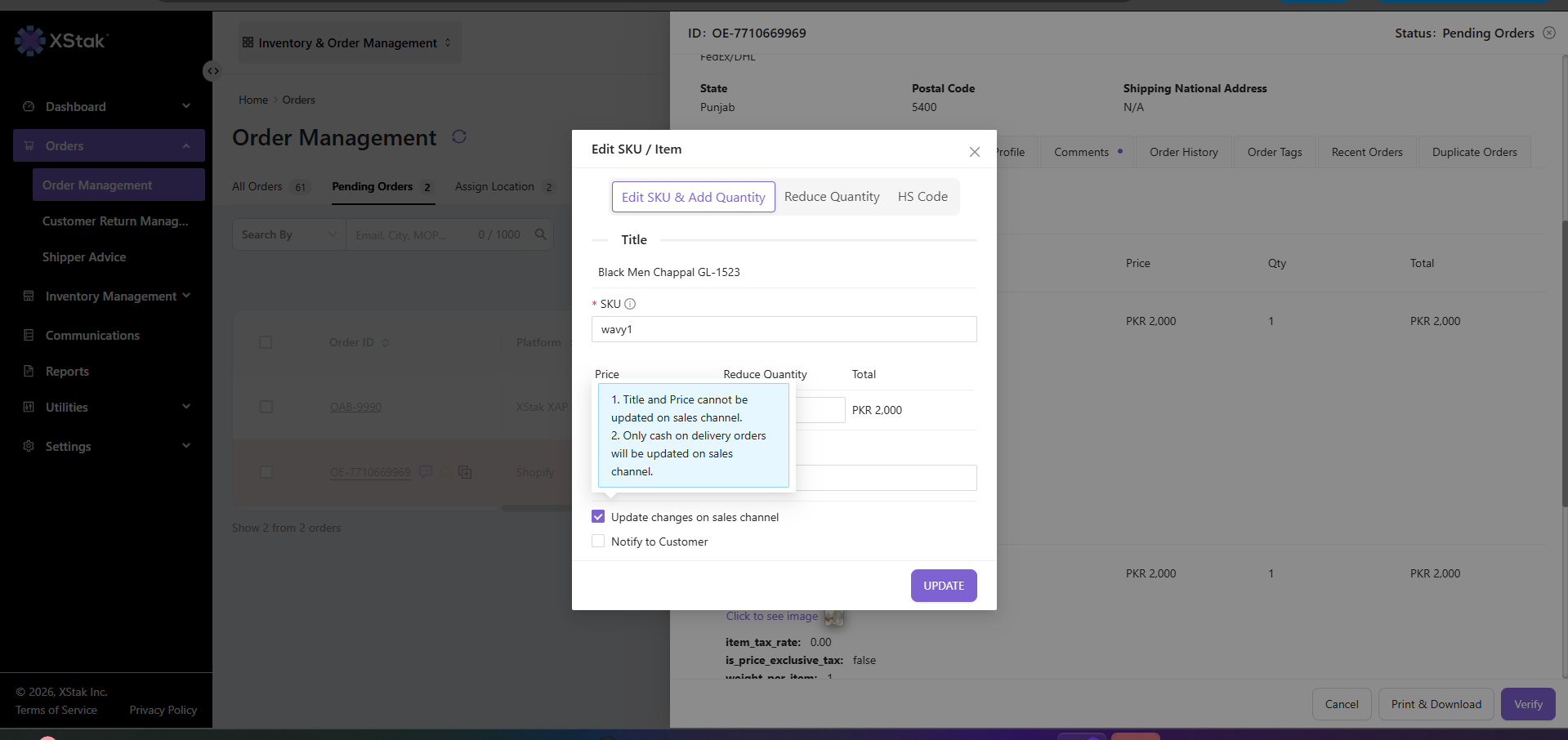
Inside the order, click on the Edit icon next to the product/SKU
Step 2: Modify Product Details
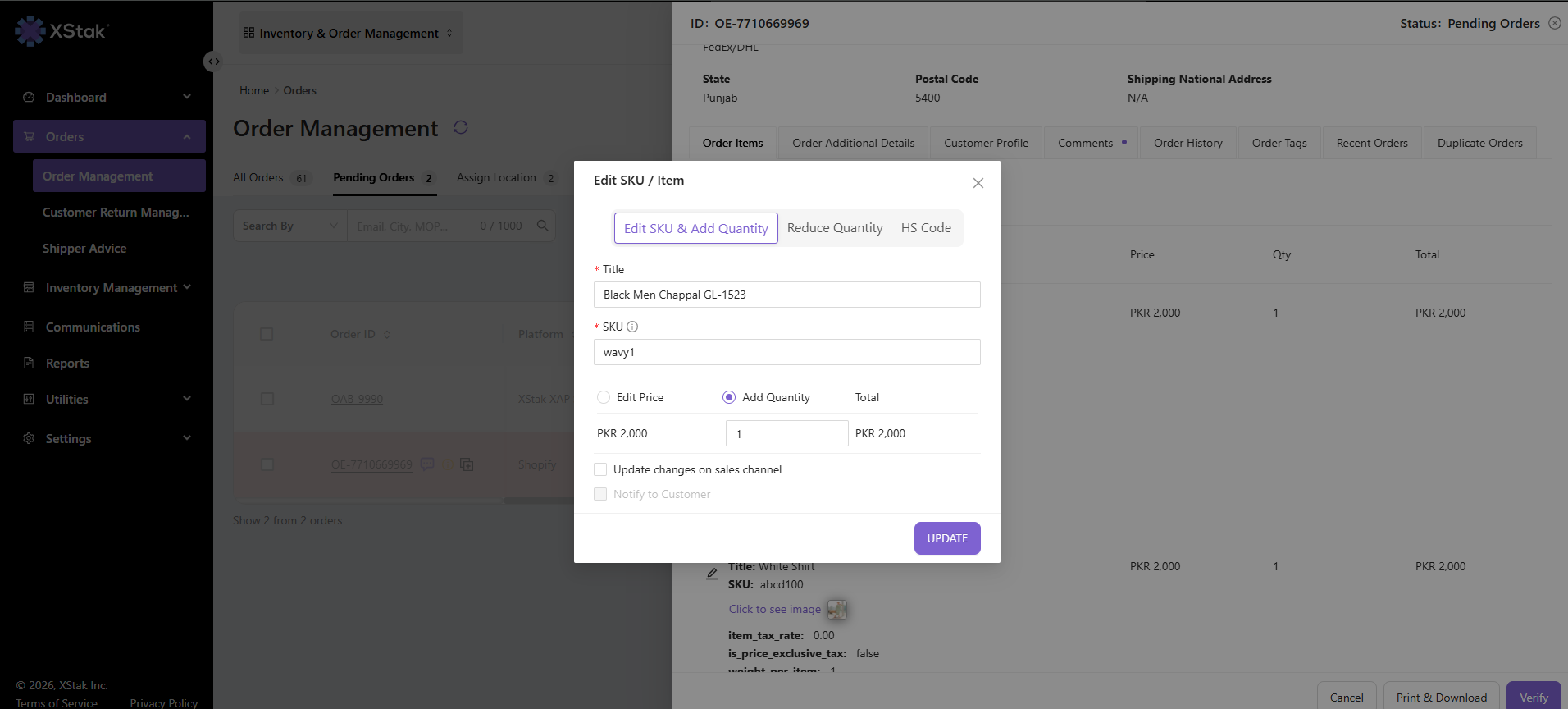
You can update:
-
SKU
-
Quantity To increase → Add quantity
-
Weight
-
Price
Additional Options
-
Update changes on sales channel
-
Notify to Customer
Important Notes:
-
SKU must exist on the sales channel (e.g., Shopify), otherwise update will fail
-
Only COD orders can be synced with sales channel
-
Title and price cannot be updated on sales channel
-
Click Update to apply changes
How to Reduce Item Quantity
-
Click on Reduce Quantity
-
Update Quantity
-
Enter the updated quantity
-
If you enter 0, the product will be removed from the order
Click on the Update button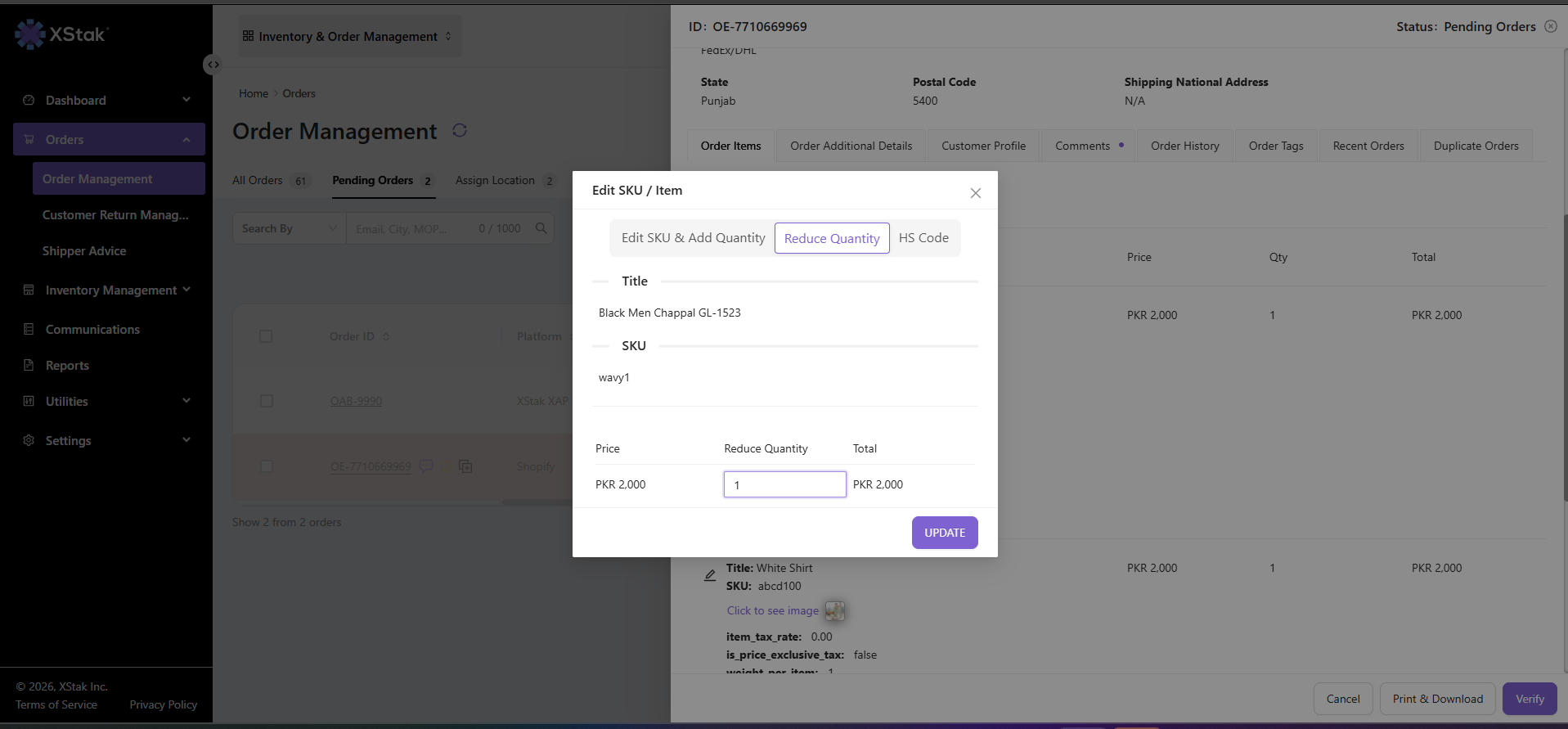
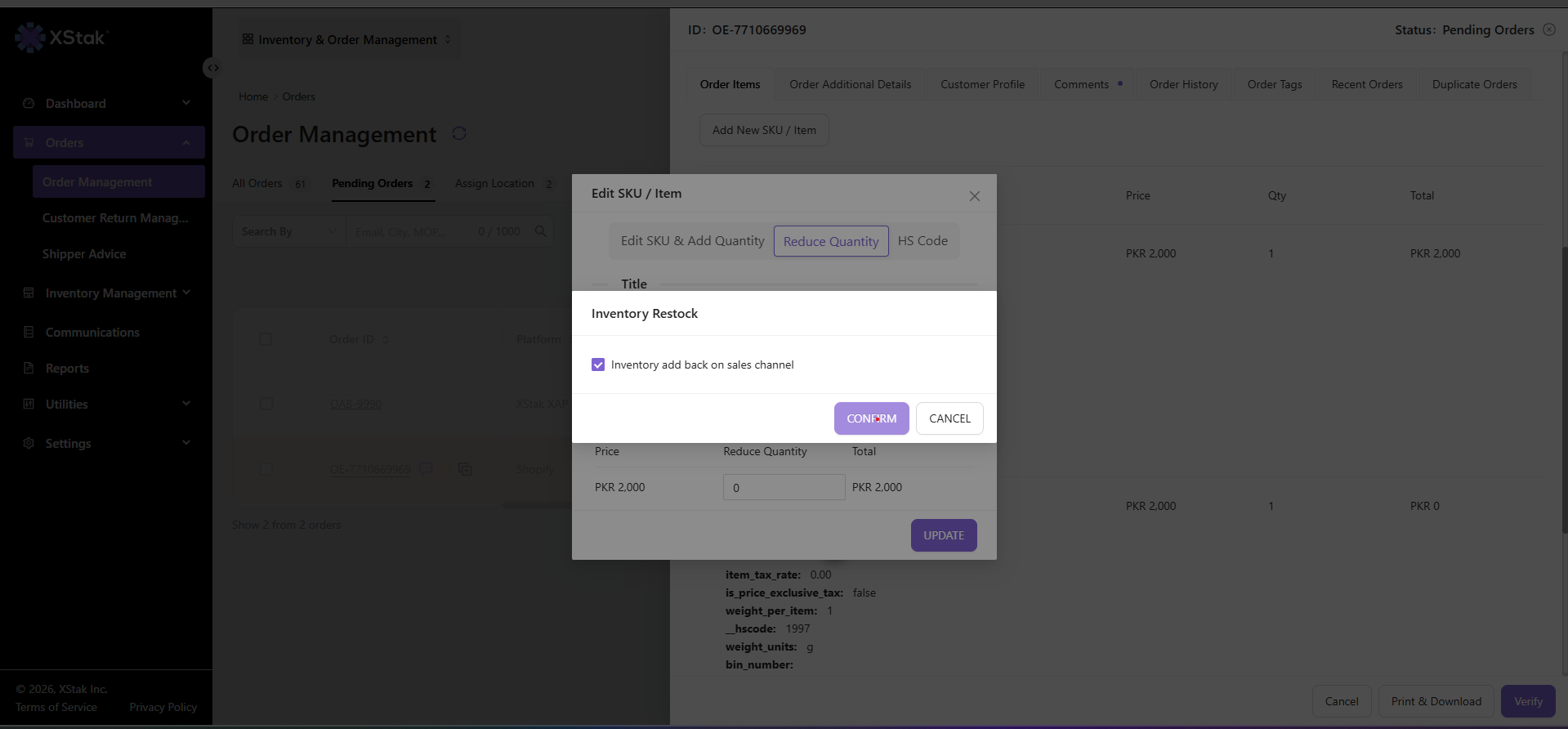
Step 2: Review the Confirmation Pop-up
-
A pop-up will appear asking whether the reduced quantity should be added back to the sales channel
-
Check the option
→ Reduced quantity will be added back to the sales channel inventory -
Uncheck the option
→ Quantity will only be reduced in the order
Final Outcome
-
If quantity is reduced → Order updates accordingly
-
If quantity is set to 0 → Product is removed from the order
-
Changes are saved based on your selection for sales channel sync
-
The product will appear highlighted (red outline) indicating removal
-
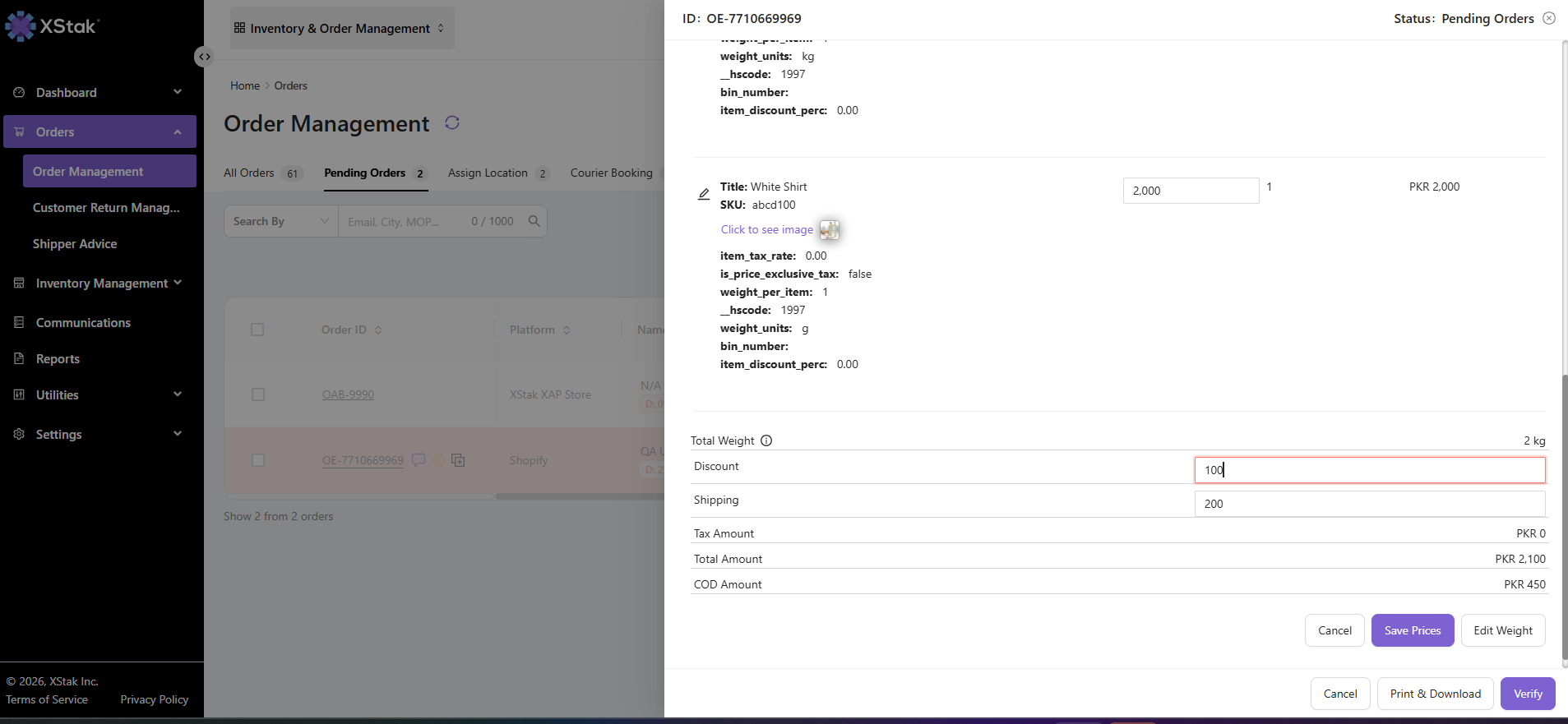
How To Edit Price, Shipping & Discounts
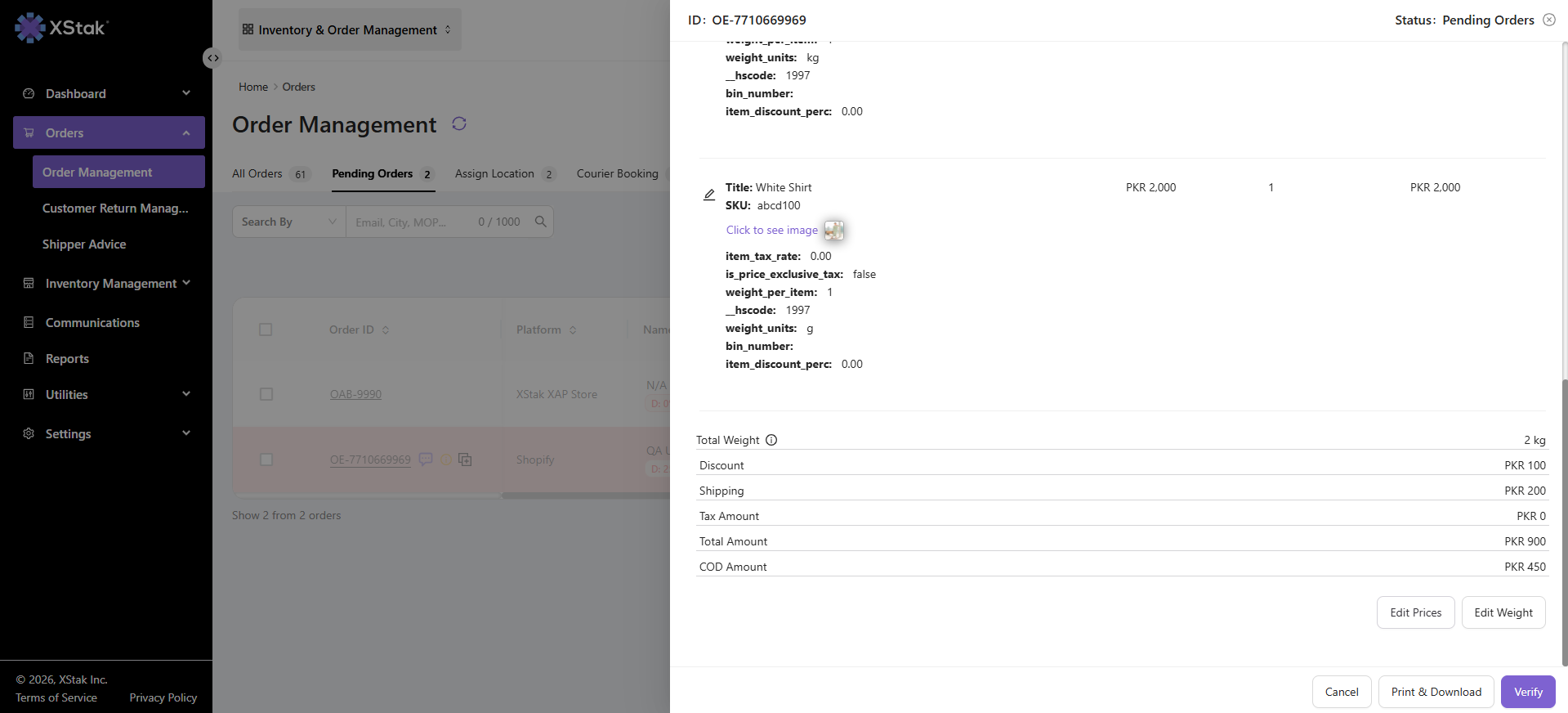
→ Click Edit Price
-
Open the order and click Edit Price
→ Modify Values
You can edit:
-
Shipping charges
-
Discounts
-
Click Save to apply updates
How to Edit Payment Method
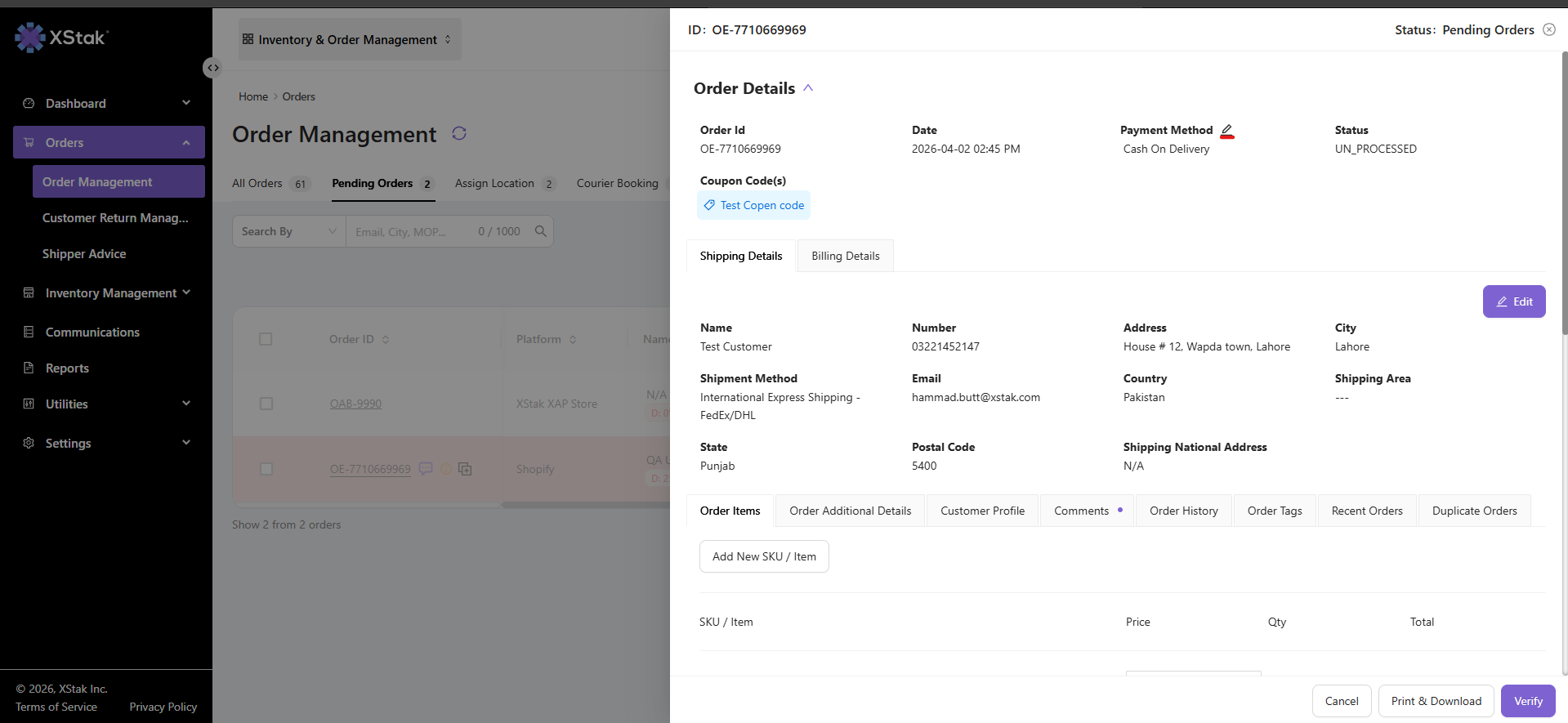
→ Click Edit Icon
-
Open the order and Click on Edit icon next to Payment Method
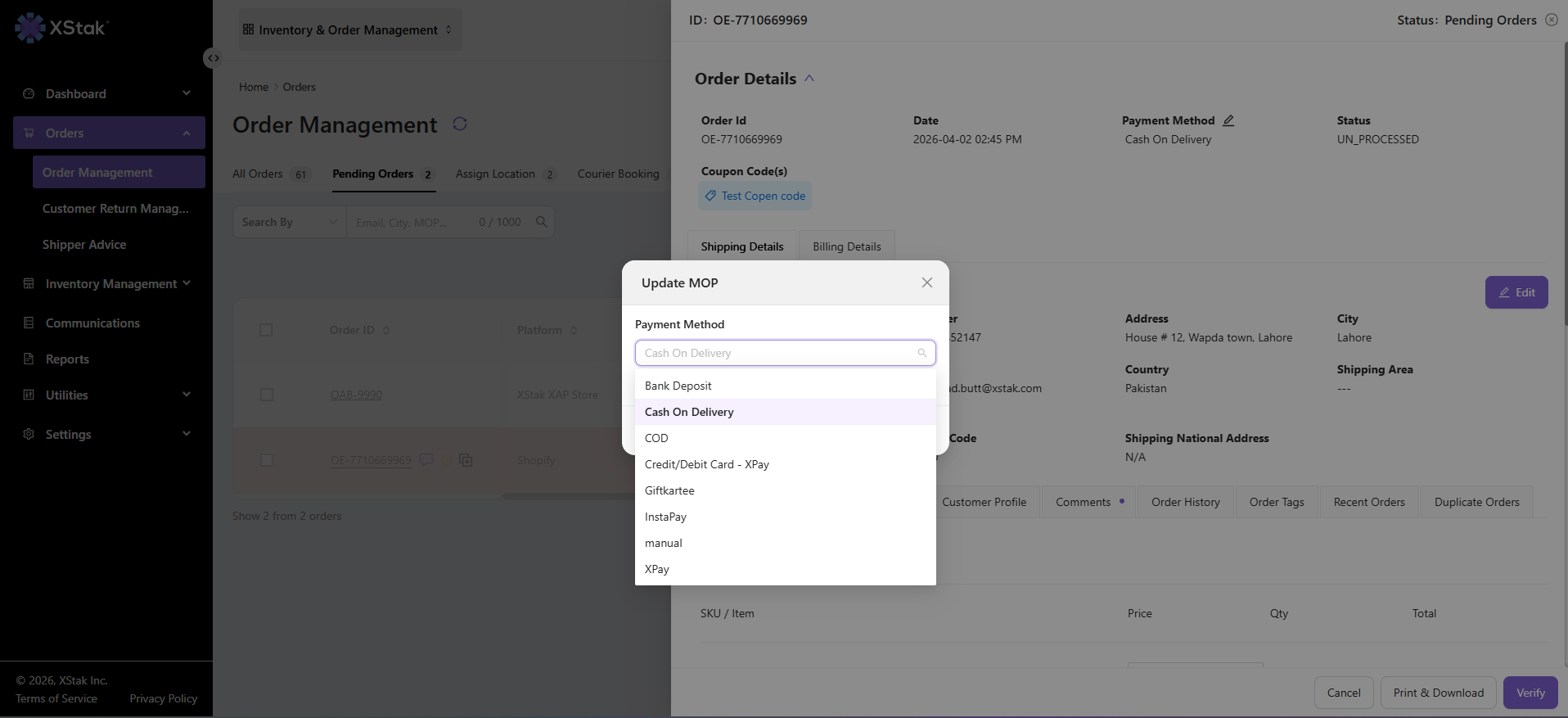
→ Select Payment Method
-
Choose from available payment options
→Enter COD Amount (if applicable)
-
System will prompt to enter COD amount
-
COD amount must be less than total order value
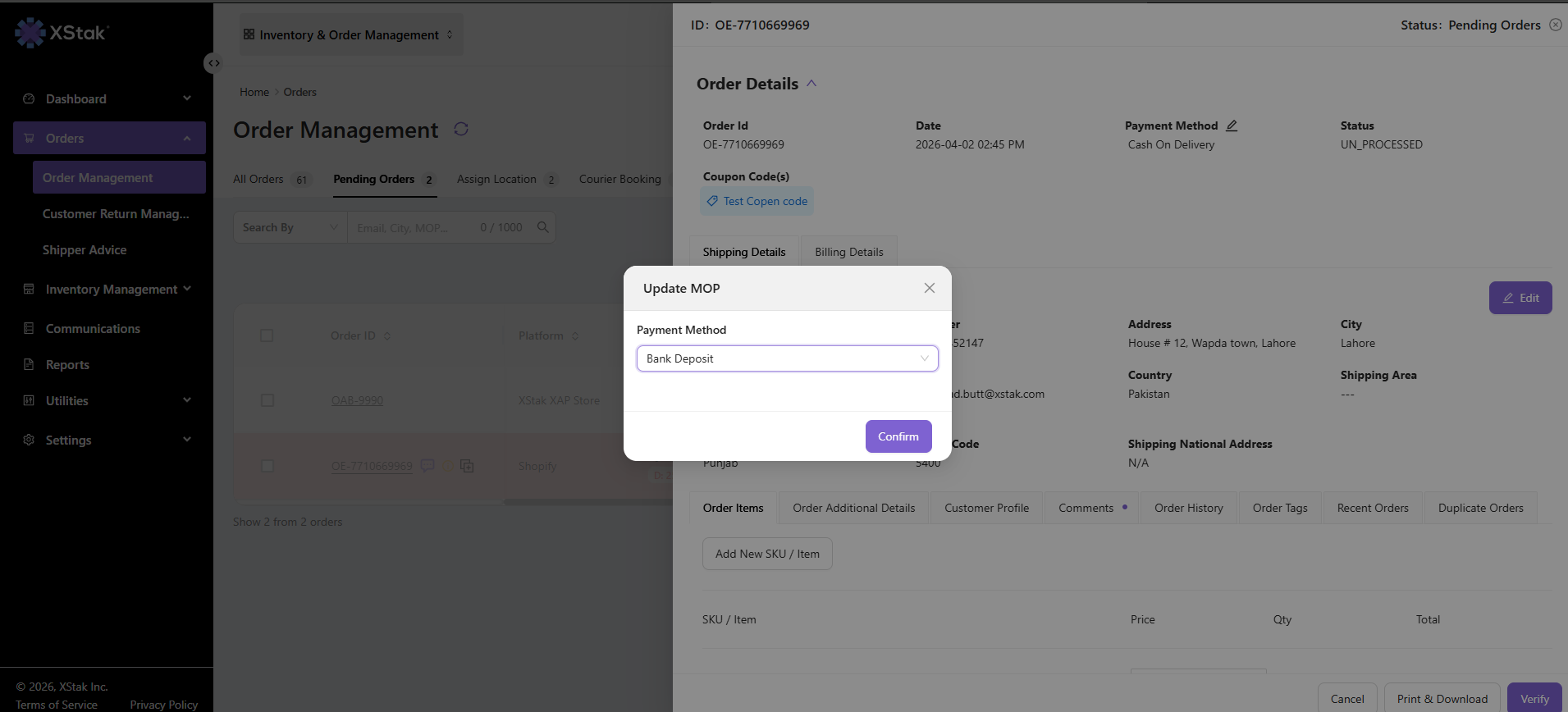
→ Confirm
-
Click Confirm to save changes
How to Add New SKU / Item
→ Open Order
-
Click on Order ID
→ Click Add New SKU / Item
-
Click on Add New SKU / Item button
→ Fill Product Details
Form fields:
-
Title
-
SKU
-
Price
-
Quantity
-
Tax Rate
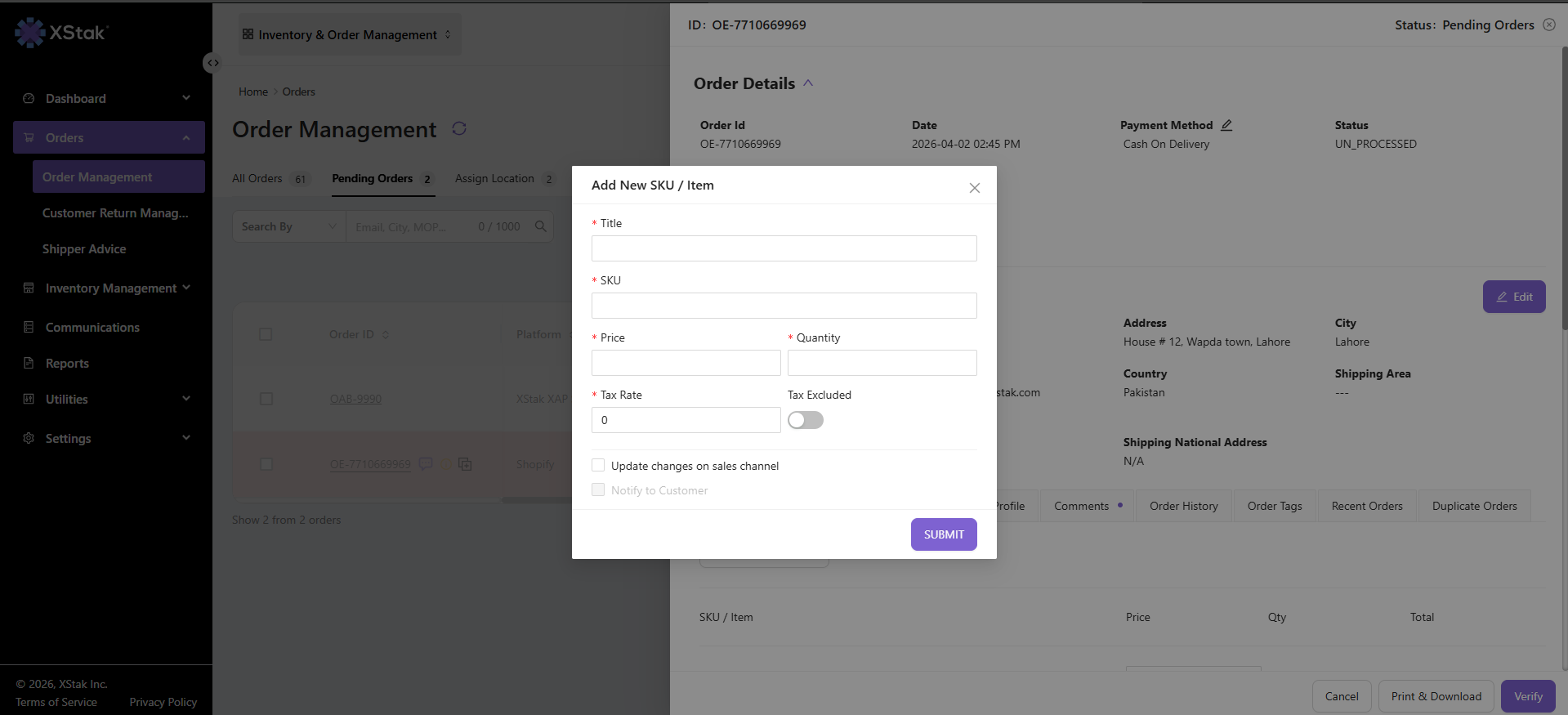
→ Sales Channel Sync (Optional)
If Update changes on sales channel is enabled:
-
Only SKU and Quantity are required
-
System will ask for a reason for update
→ Submit
-
Click Submit button
→ Result
-
SKU will be added to the order
-
Changes will reflect in OMS
-
If enabled, synced to sales channel