
Each tab in the OMS, including the All Orders Tab, supports advanced filtering capabilities. These filters help users refine large datasets into meaningful operational views based on business and workflow requirements.
Step 1: Open Any OMS Tab
Navigate to Order Management and open any tab (for example: All Orders, Pending Orders, Dispatched, Delivered, etc.).
Step 2: Open Filter Panel
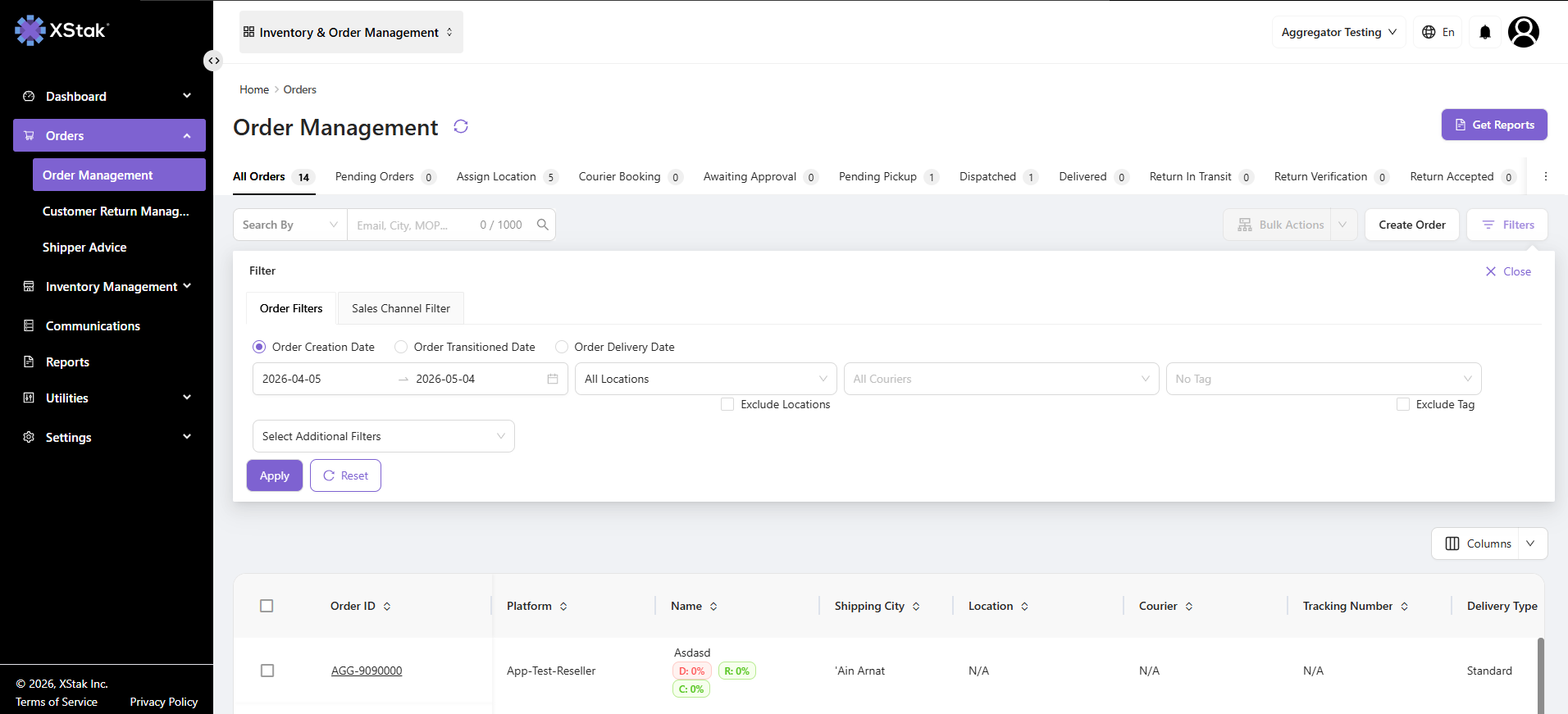
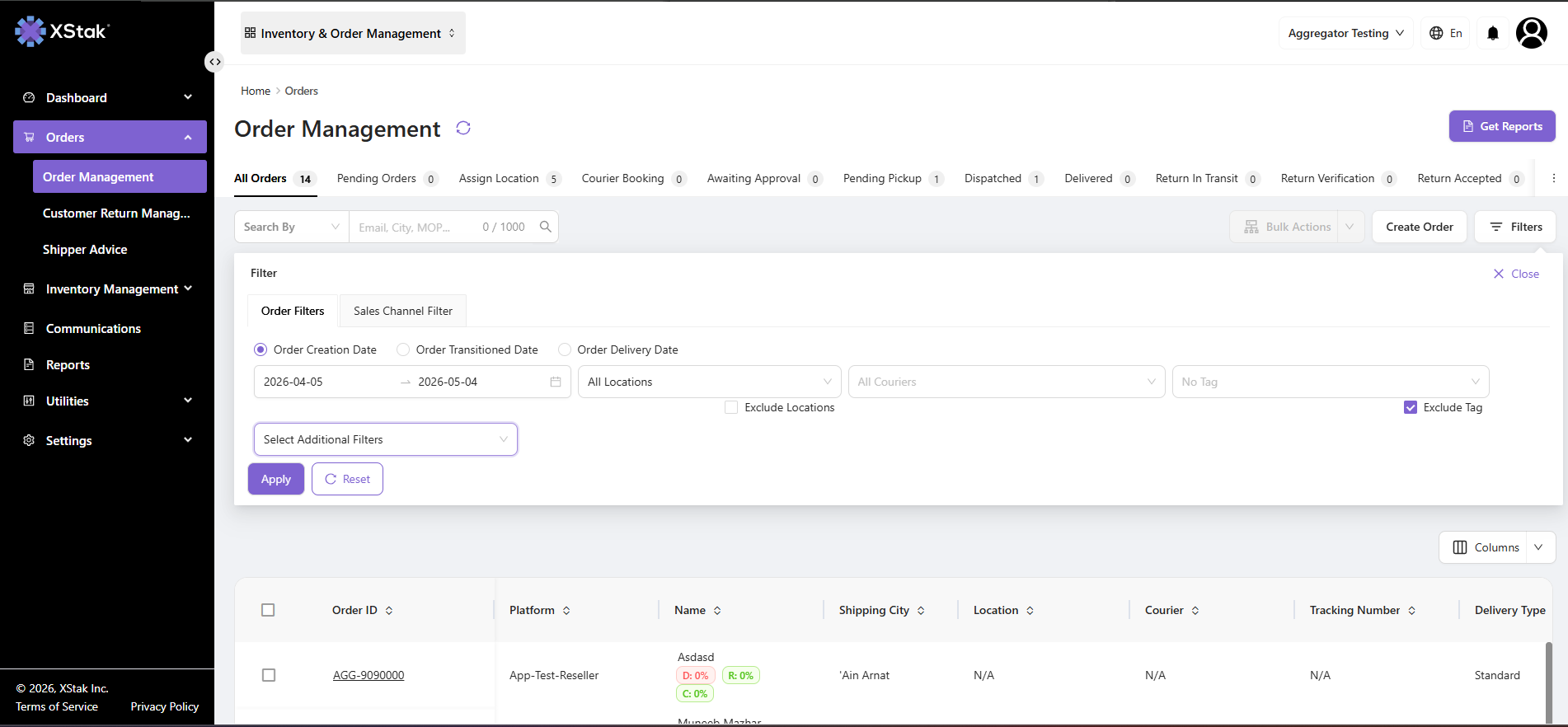
On the right side of the tab header, click on the Filter button.
-
This will open the complete filtering panel
-
All available filters will be displayed in structured sections
Step 3: Apply Standard Date Filters
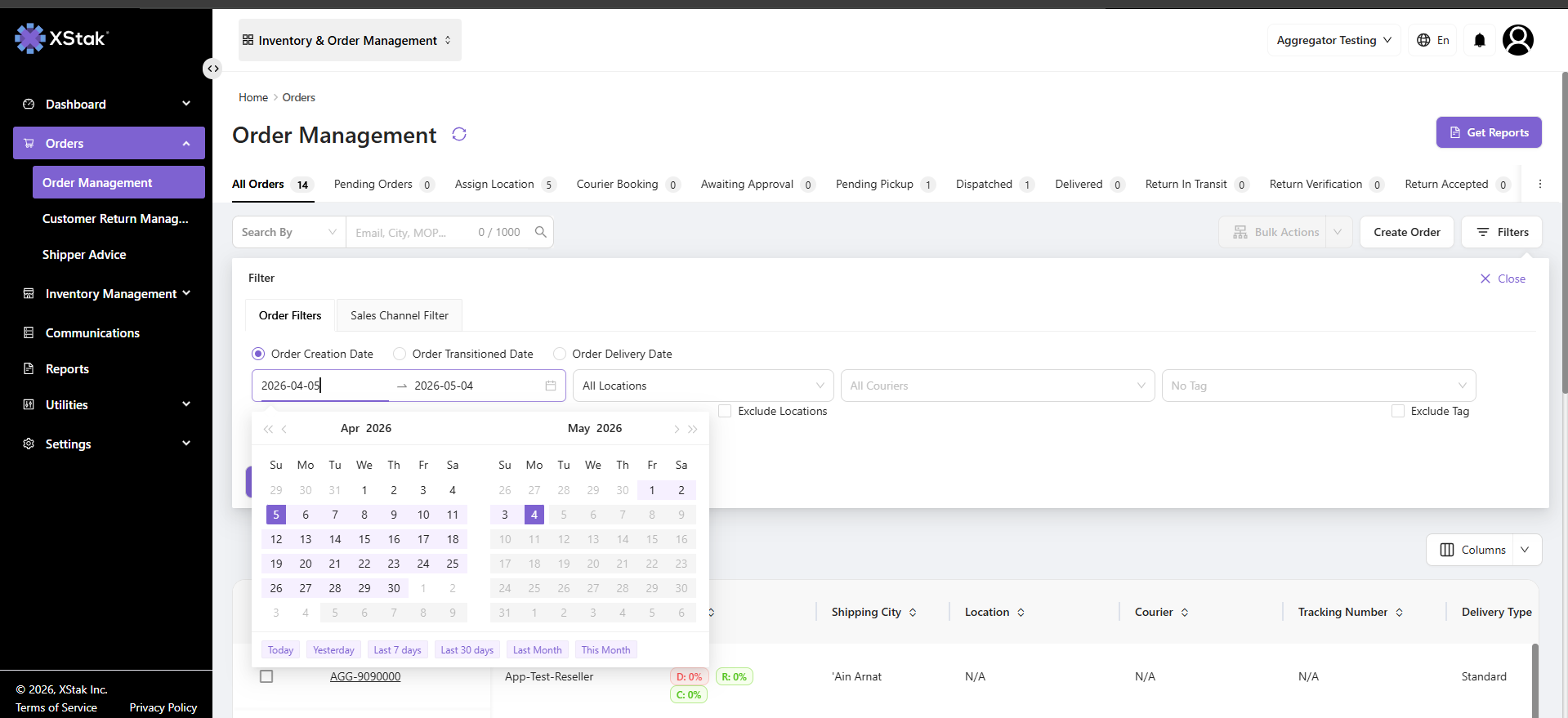
These filters are used to control the time-based order visibility.
1. Order Creation Date
Select this filter to view orders based on when they were originally created in the system.
Used for: sales tracking, order volume analysis, and historical reporting.
2. Order Transitioned Date
Select this filter to view orders based on when they changed status (for example, Pending → Approved).
Used for: workflow tracking, SLA monitoring, and operational efficiency analysis.
3. Order Delivery Date
Select this filter to view orders based on the final delivery date to customers.
Used for: delivery performance tracking and fulfillment analysis.
Step 4: Apply Operational Filters
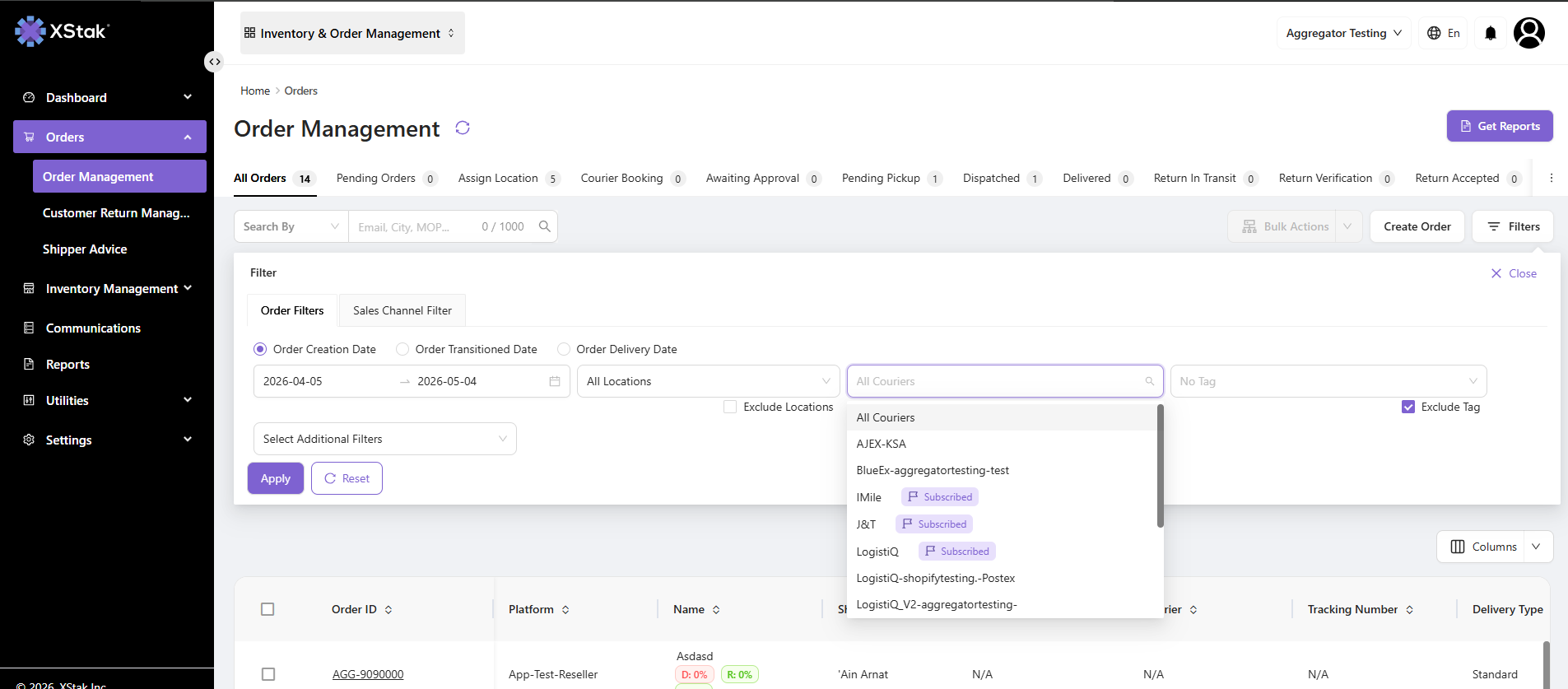
Operational filters help refine data based on logistics and execution parameters.
|
Filter |
Purpose |
|---|---|
|
All Locations |
Filters orders by warehouse, store, or fulfillment location |
|
All Couriers |
Filters orders based on courier partner |
|
No Tag |
Shows orders without any assigned operational tags |
|
Exclude Locations |
Removes selected locations from results |
|
Exclude Tag |
Removes orders containing specific tags |
These filters are mainly used for logistics segmentation and operational control.
Step 5: Apply Additional Advanced Filters
These filters allow deep-level data segmentation and business analysis.
-
Country & City
Used for geographic performance tracking and regional analysis -
MOP (Mode of Payment)
Filters orders by payment type such as COD, online payment, or wallet -
Order Item Count
Filters orders based on number of items per order -
Order Total
Used for revenue-based filtering and value segmentation -
SKU
Filters orders containing specific product SKUs for product-level analysis and inventory tracking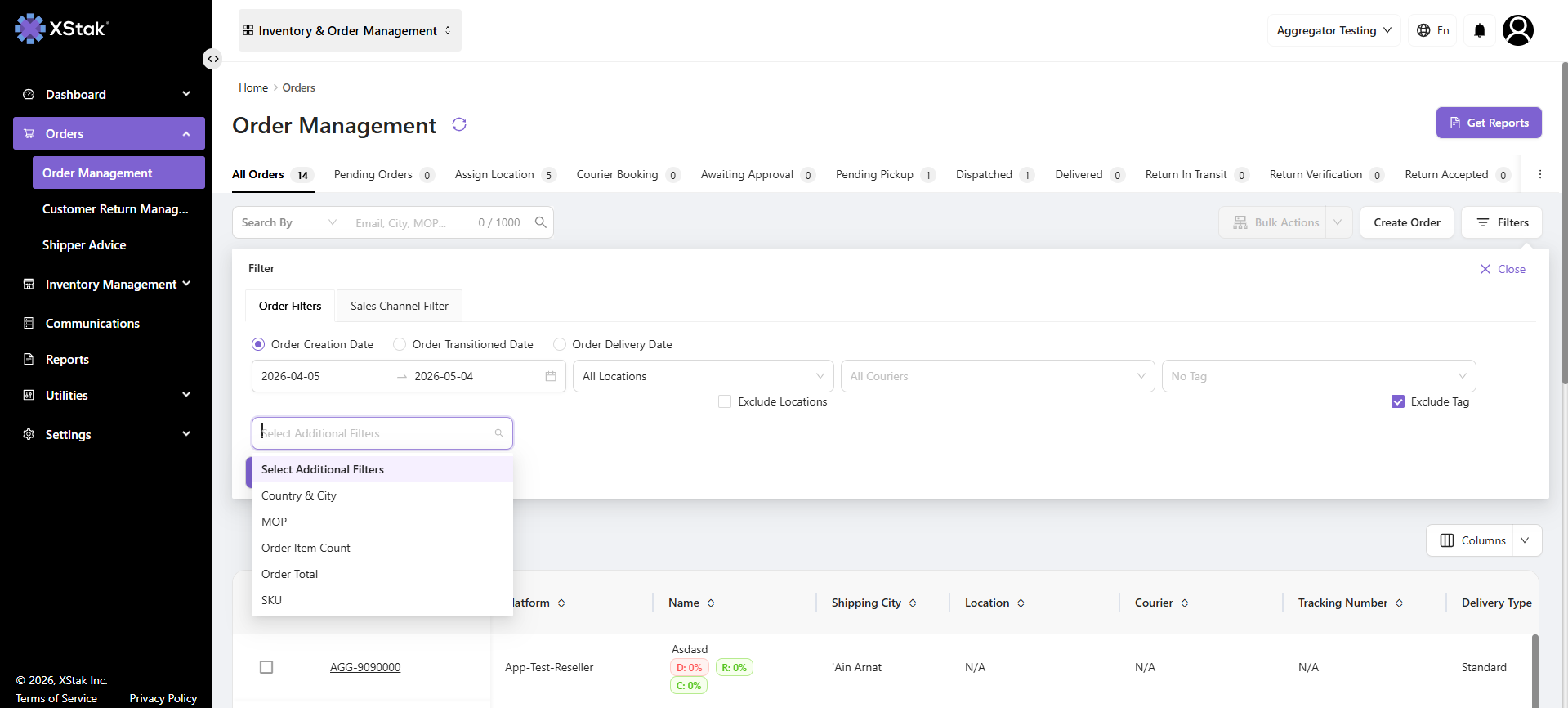
Step 6: Apply Filters Across Tabs
Once filters are selected:
-
Click Apply Filters
-
The same filter logic is applied to the All Orders tab view as well as other relevant tabs
This ensures a consistent and synchronized data view across the entire Order Management system.
Reset Filters Option
If you want to clear all applied filters and return to the default view:
-
Click the Reset button
This will:
-
Remove all currently applied filters
-
Restore the default dataset view
-
Reset the tab to its original state without any filtering conditions
This allows users to quickly restart their analysis without manually clearing each filter.