
In the Return Verification stage, the warehouse or operations team performs a physical inspection of the returned item before approving the return.
Verification Checklist
During inspection, scan the returned item and verify the following:
-
The returned item matches the original order.
-
The product condition aligns with the selected return reason.
-
The returned quantity matches the declared quantity.
-
The item is eligible for return according to company policy.
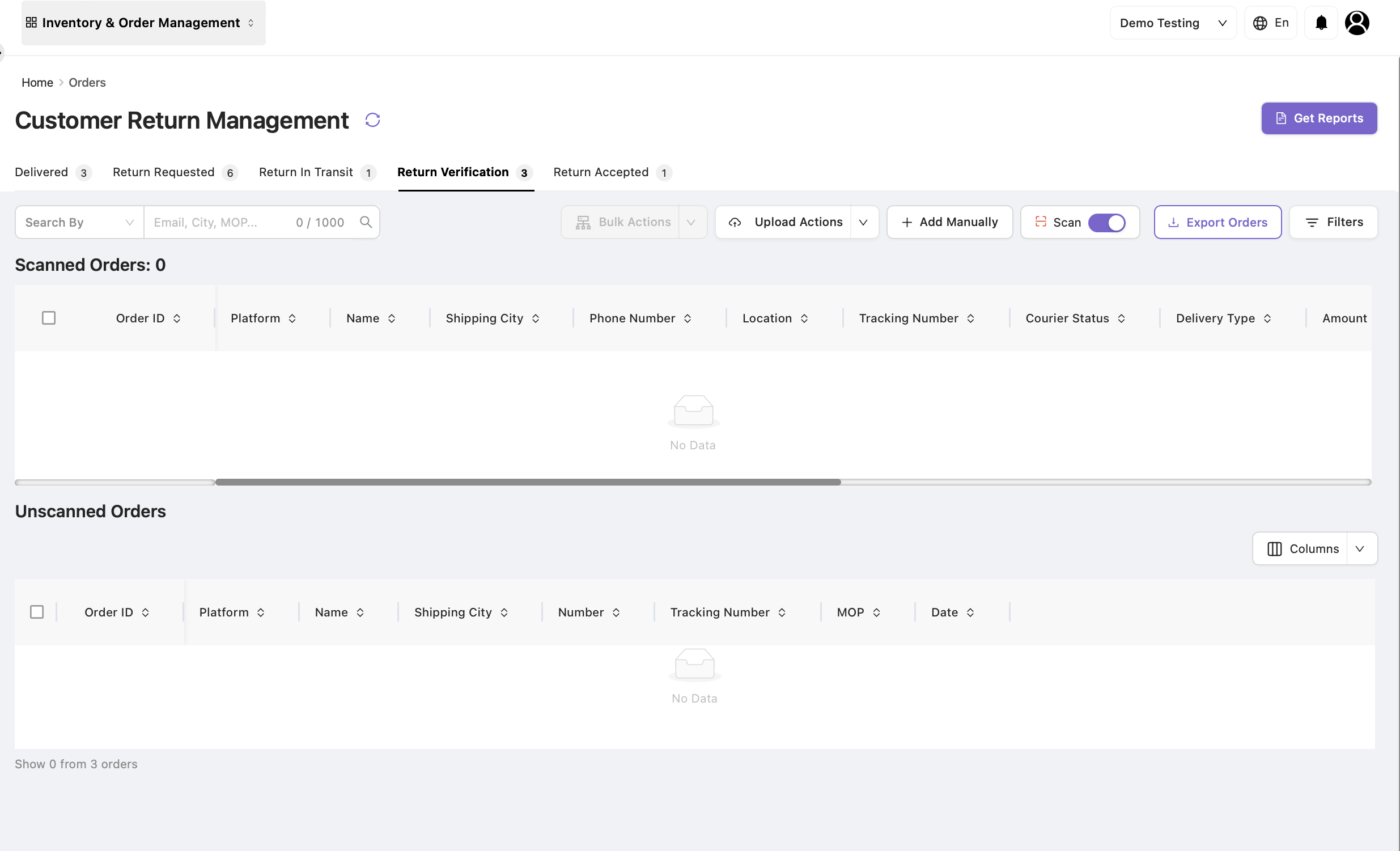
Option A — Return Accepted in Bulk
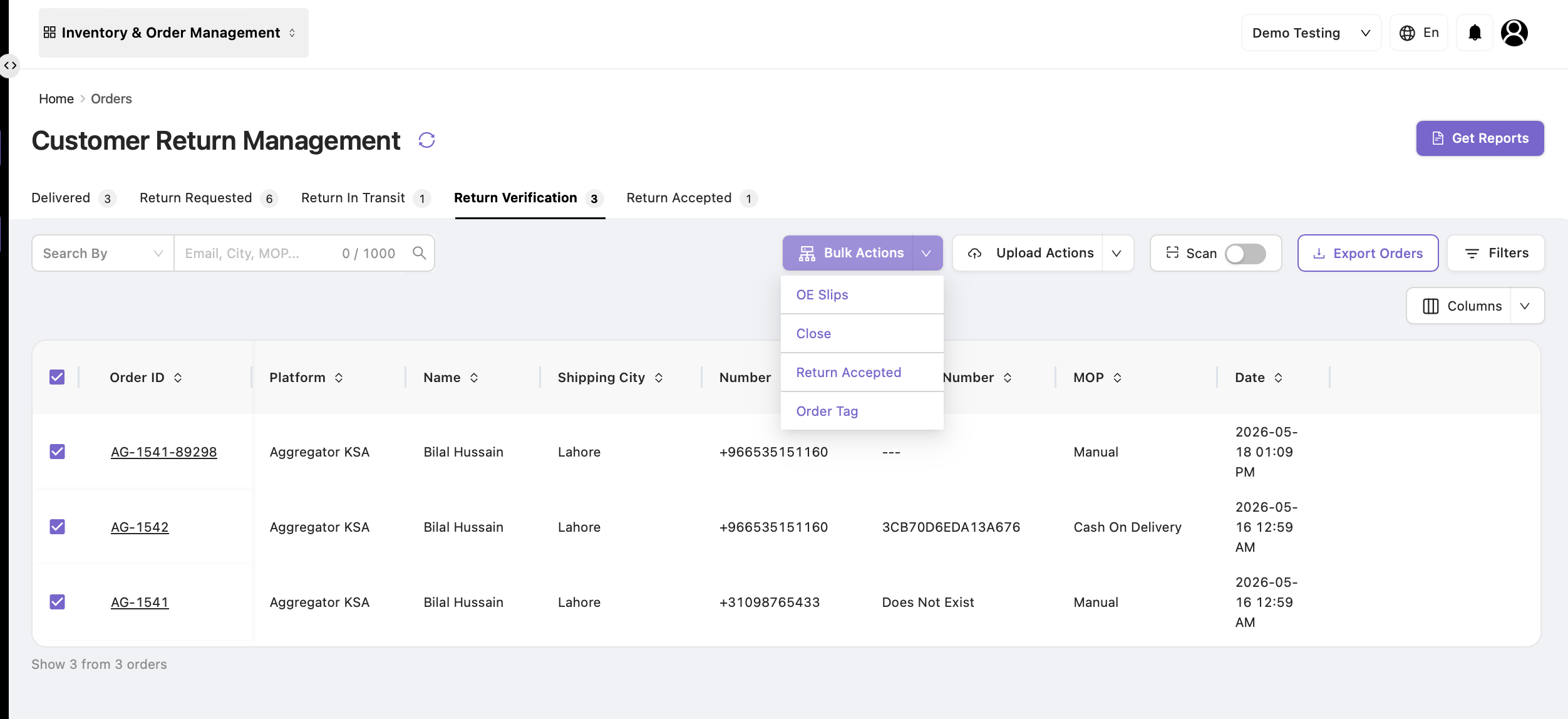
Users can mark multiple orders as Return Accepted using the Bulk Actions menu.
Steps
-
Select one or more orders from the Return Verification listing page.
-
Click Return Accepted from the Bulk Actions menu.
-
A confirmation dialog appears.
-
Confirm the action.
Once confirmed:
-
The selected orders are marked as Return Accepted.
-
The orders move to the Return Accepted tab.
-
The return lifecycle for those orders is completed.
Option B — Return Accepted Individually
Users can also mark a single order as Return Accepted.
Steps
-
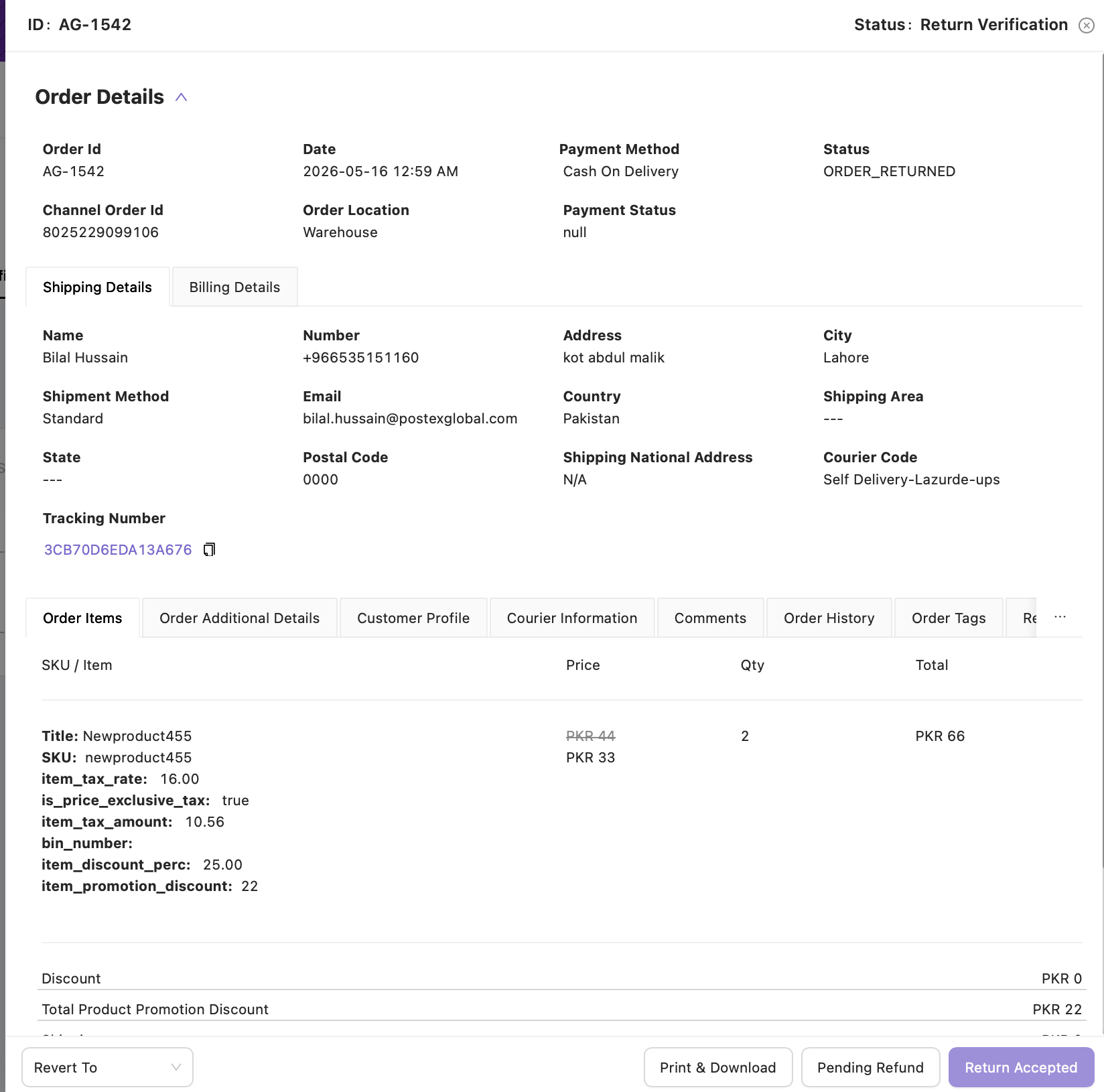
Click the Order ID to open the Order Details dialog.
-
Navigate to the bottom-right corner of the order details page.
-
Click Return Accepted.
-
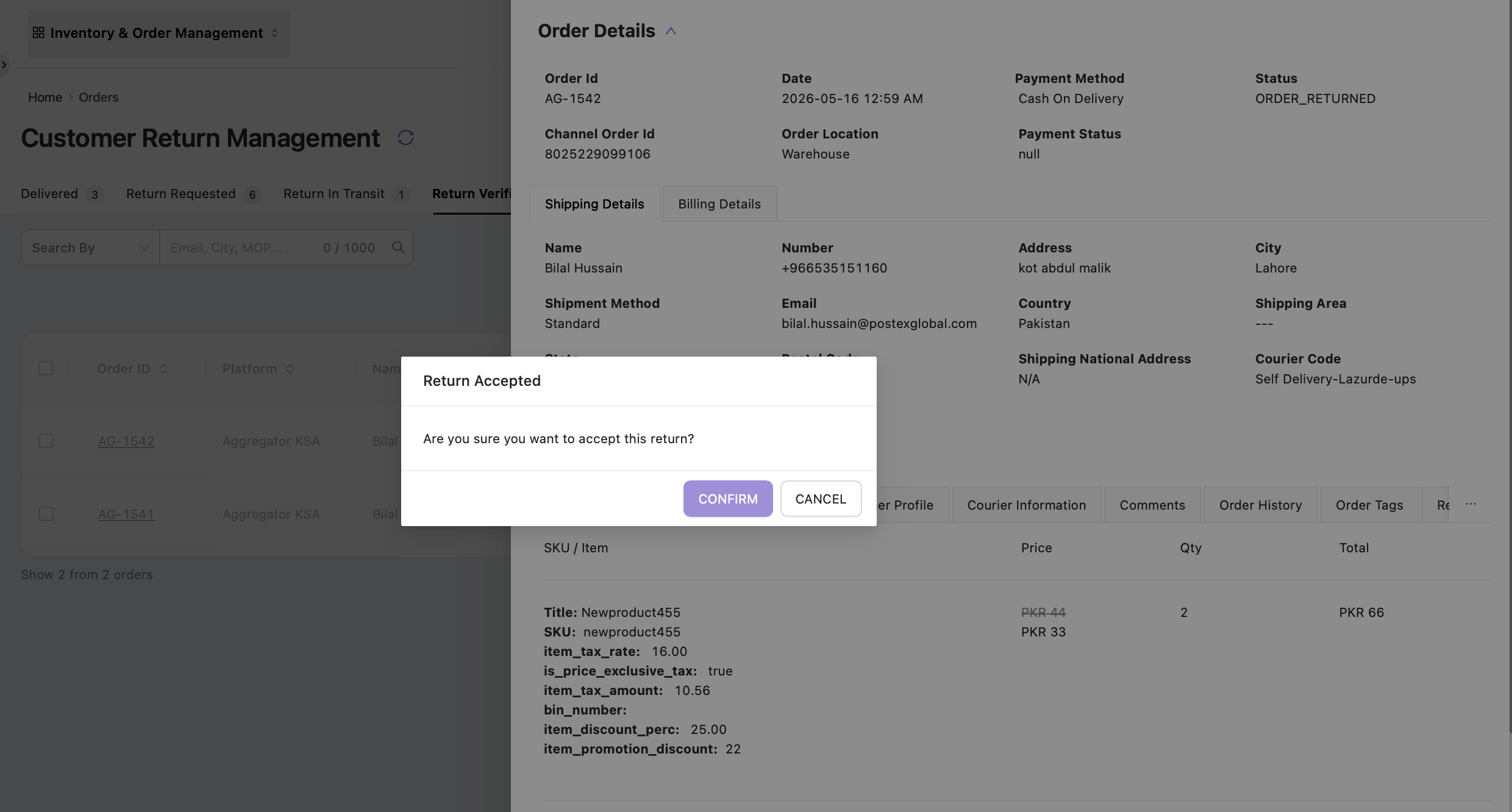
A confirmation dialog appears.
-
Confirm the action.
Once confirmed:
-
The order is marked as Return Accepted.
-
The order moves to the Return Accepted tab.
-
The return lifecycle for the order is completed.
Outcome After Return Accepted
After successful verification and acceptance:
Return Verification → Return Accepted
The order is considered fully verified and accepted by the warehouse team, and the return process is completed.