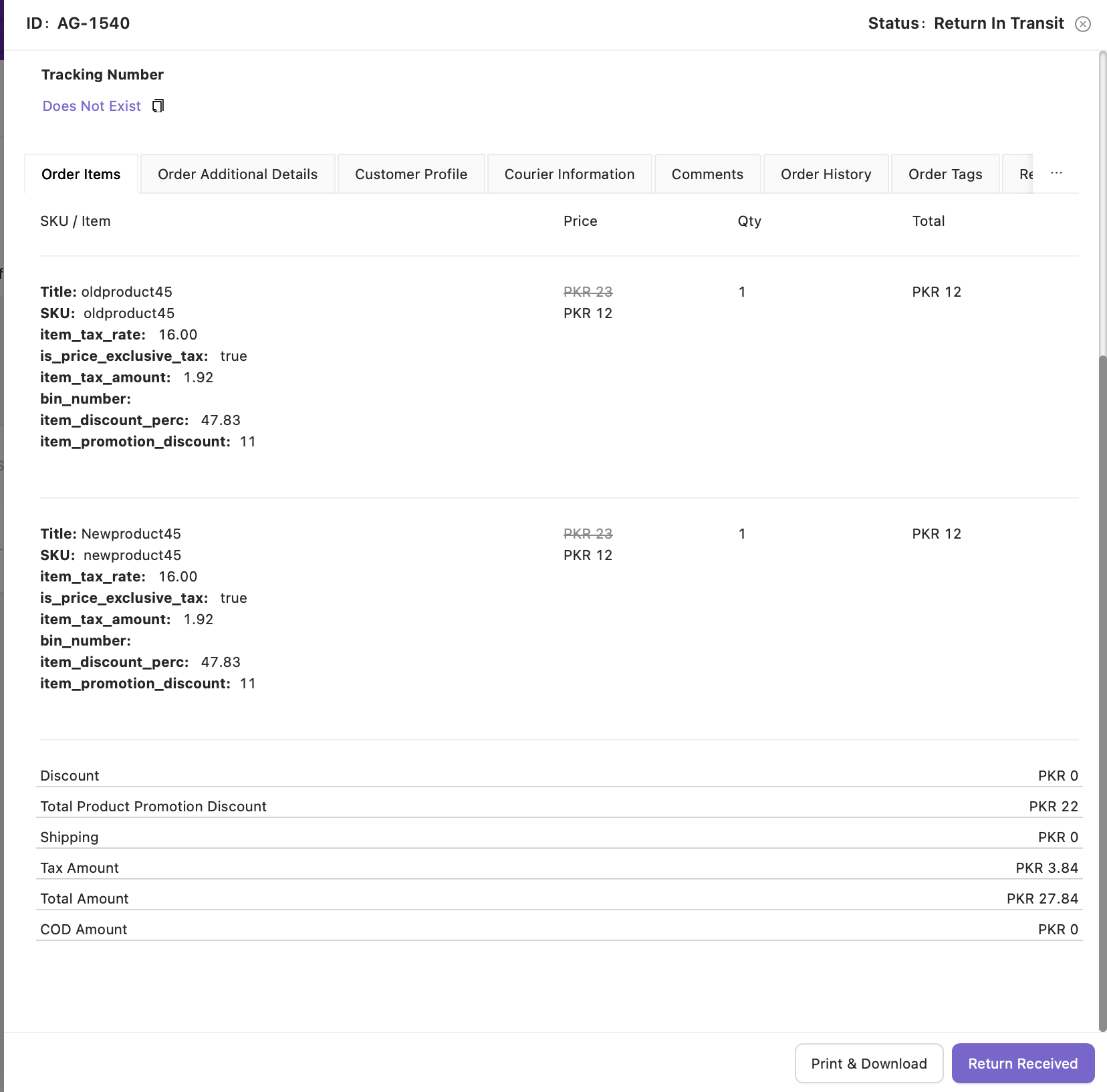
Return in Transit Tab
Once a returned item physically arrives at the warehouse or return facility, confirm the receipt in OMS.
Return Received
Mark orders as Return Received individually or in bulk after the merchant physically receives the returned shipment.
Option A — Mark Return Received in Bulk
-
Select one or multiple orders from the listing page.
-
Click Return from the Bulk Actions menu.
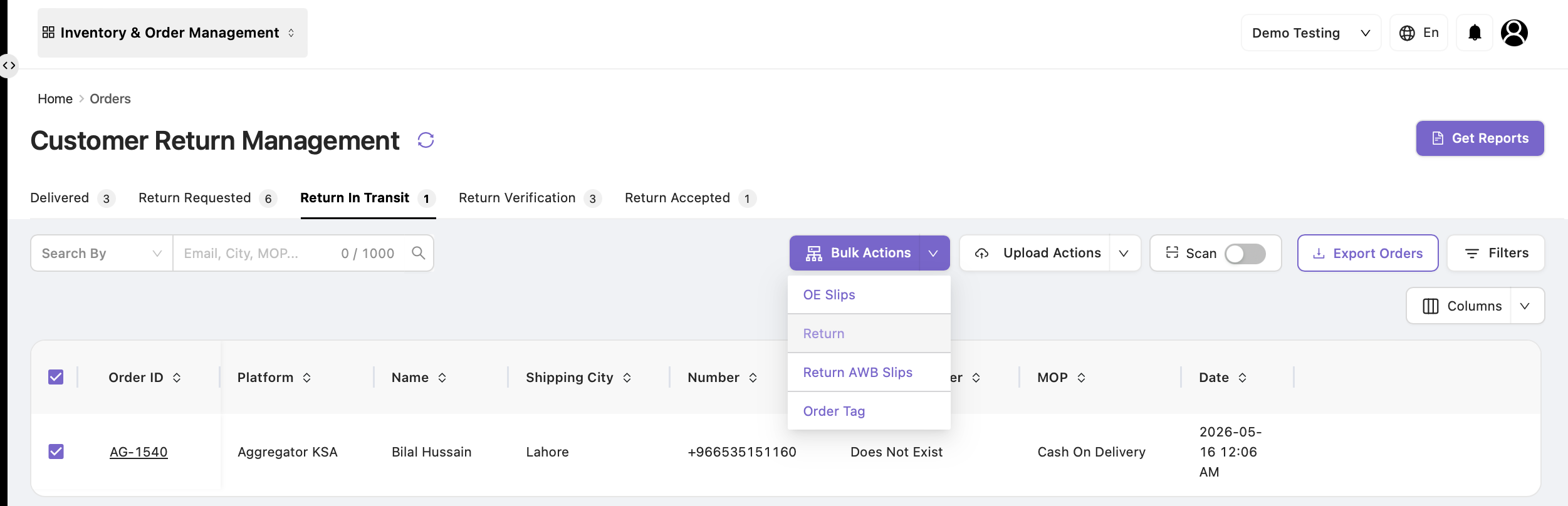
-
A confirmation dialog appears.
The system prompts:
Are you sure you want to return the selected order(s)?
Users must then:
-
Select a Reason for Return.
-
Optionally enable Return Stock to Sales Channel.
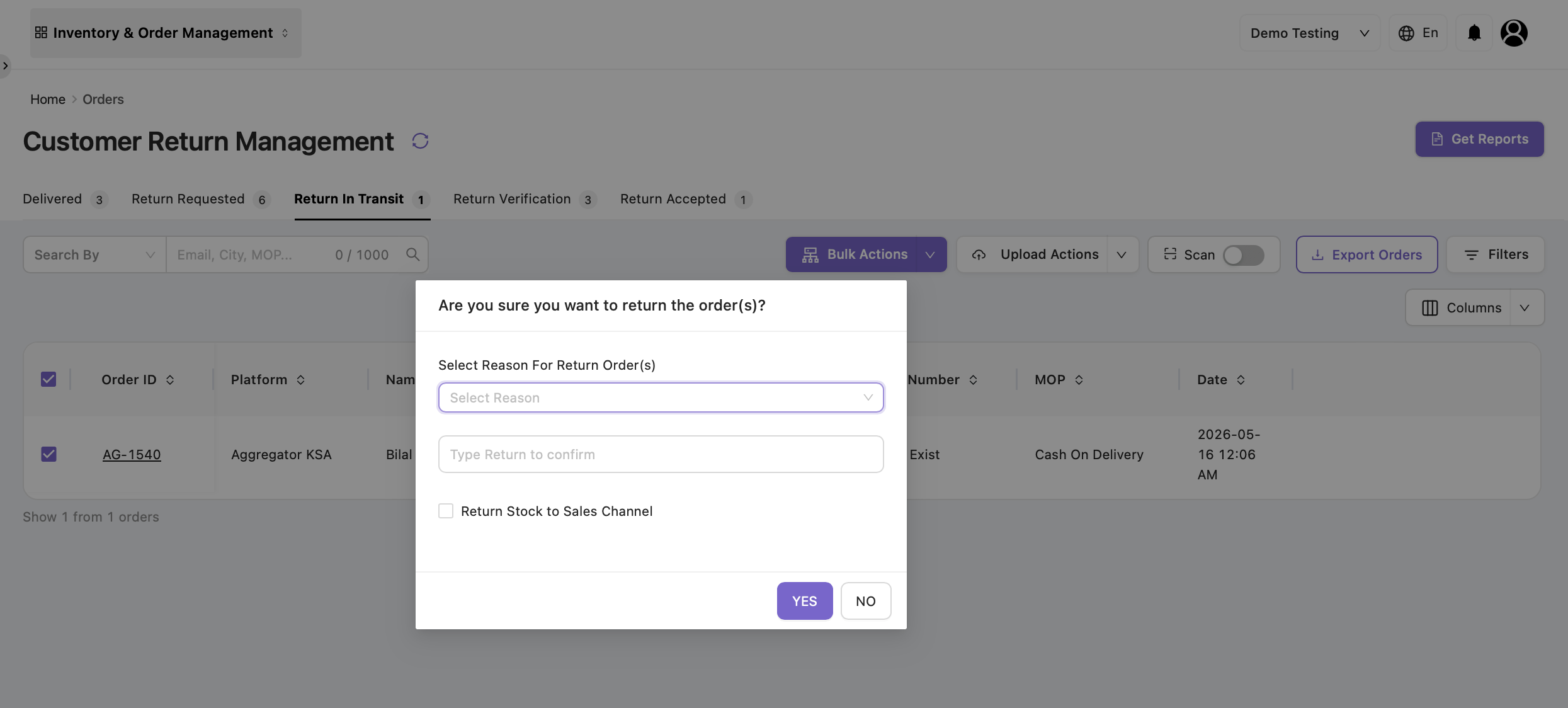
Fields Available
|
Field |
Description |
|---|---|
|
Select Reason for Return Order(s) |
Choose the appropriate return reason. |
|
Return Stock to Sales Channel |
If enabled, the returned inventory is added back to the sales channel stock. |
Once confirmed:
-
The selected orders are marked as Return Received.
-
Inventory is updated if stock add-back is enabled.
-
Orders move to the next return stage based on return settings.
Option B — Mark Return Received Individually
-
Click the Order ID to open the Order Details dialog.
-
Click Return Received from the bottom-right corner of the order details page.