
The Customer Blacklist feature allows brands to block customers who have repeatedly shown fraudulent or suspicious activity. To prevent future inconvenience and save operational time, OE enables brands to add a customer’s email ID and contact number to the blacklist, permanently restricting the customer from placing future orders.
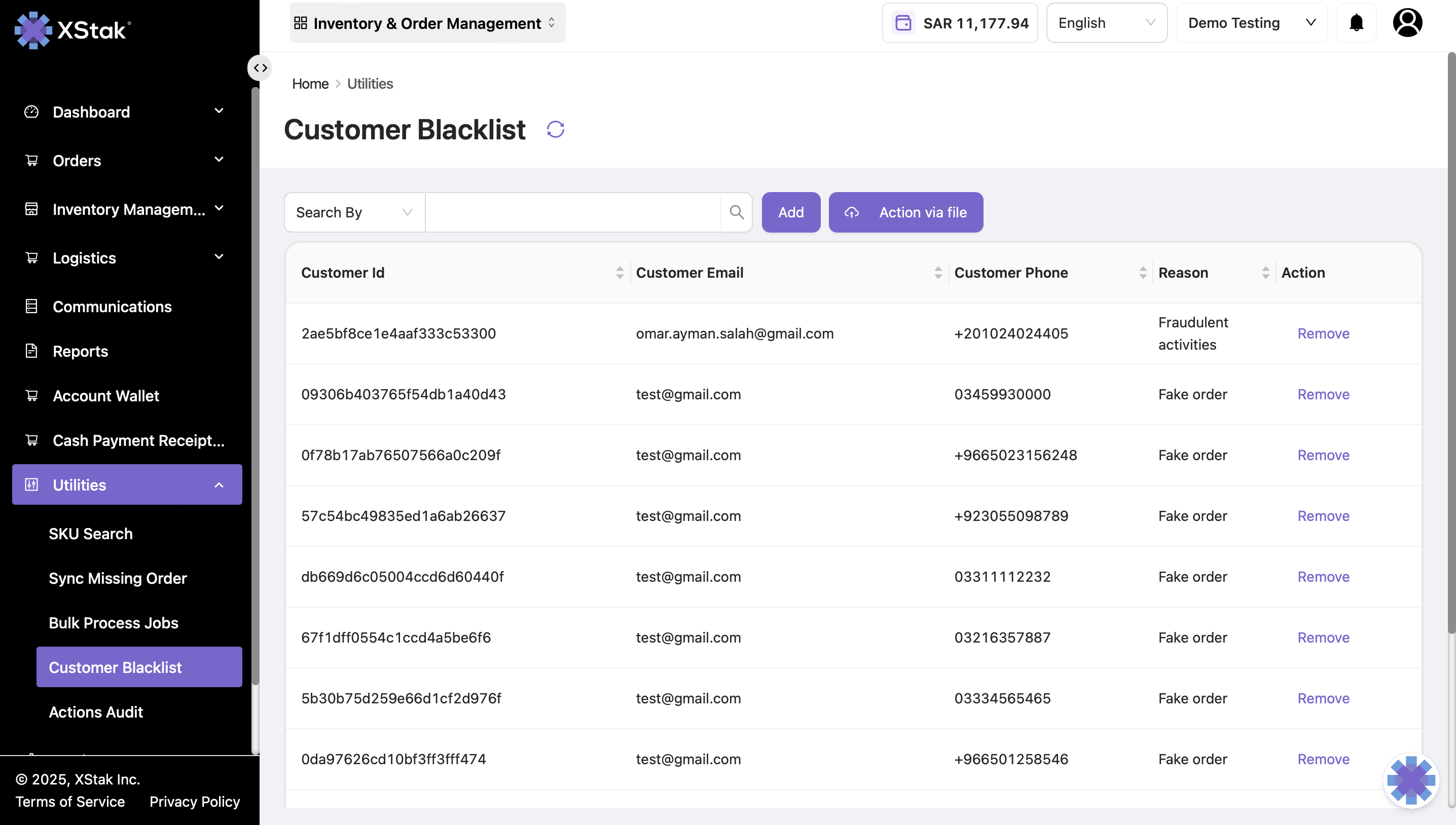
Steps to Add a Customer to the Blacklist
-
Click the Utilities module from the sidebar.
-
Click Customer Blacklist from the dropdown menu.
-
Click the Blacklist tab. You will land on the Blacklisted Customers section.
-
Click the Add button. A small window will appear.
-
Enter the customer’s contact number in the Phone Number field and email ID in the Email field. Then select the reason for blacklisting the customer from the Reason dropdown field.
-
Click the Save button. The customer will be added to the blacklist.
Instructional Video
Removing a Customer from the Blacklist
-
To remove a customer from the blacklist, click Remove next to the Customer ID. The customer will be removed from the blacklist.
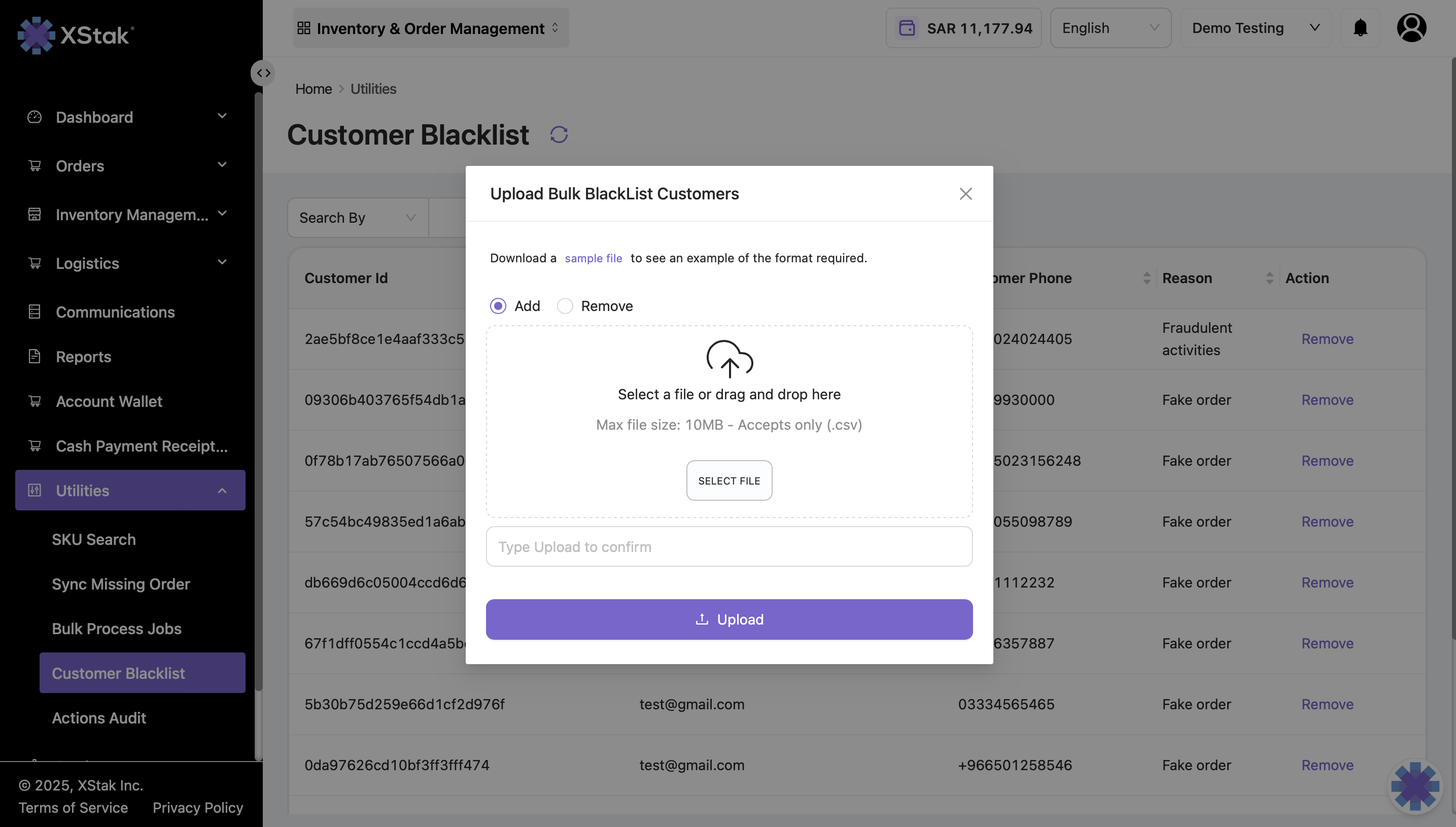
Bulk Action via File
-
Click Action via File.
-
To add customers to the blacklist, download the sample file.
-
To remove customers from the blacklist, check the Remove box.
-
Click Select File and choose the completed file.
-
Type Upload to confirm.
-
Click the Upload button.