
The Sync POS (Point of Sale) module is used to manage and validate barcodes synced from external POS systems such as Technosys, Bold POS, or other retail store POS integrations.
This module ensures that all barcodes received from POS systems match the correct SKUs in OMS, so product scanning at stores and warehouses remains accurate and consistent.
2. Where to Access Sync POS
-
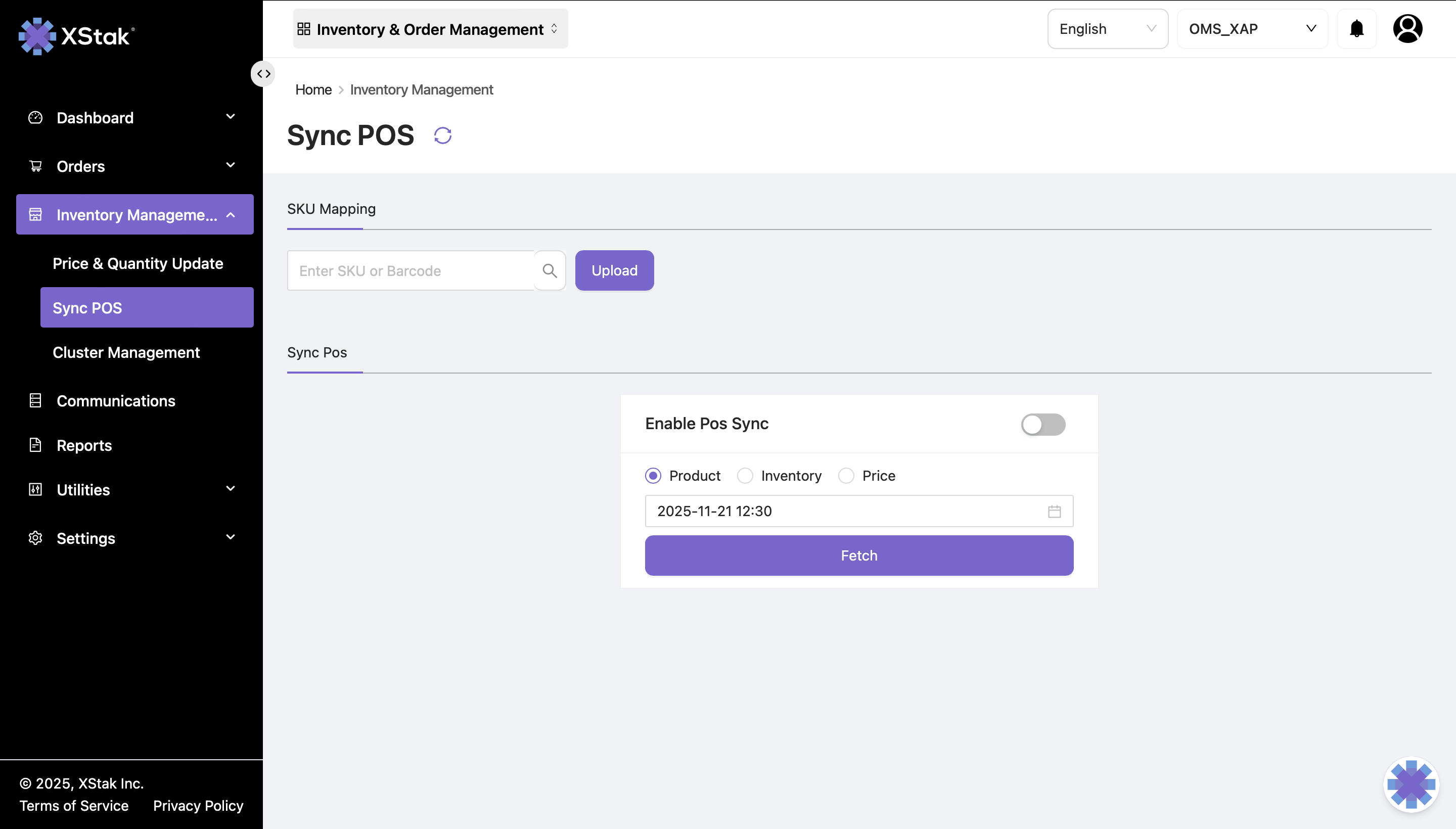
Open the Inventory module from the left sidebar
-
Click Sync POS
You will now see:
-
Search by SKU & by Barcode
-
Update (Upload File)
-
POS Sync Toggle (Enable / Disable)
3. Purpose of Sync POS
3.1 Barcode Verification
Many brands receive barcode data directly from their POS systems.
The Sync POS module allows you to:
-
Verify which barcode is assigned to which SKU
-
Check mismatches when barcode scanning fails at packing or at store counters
-
Confirm that Technosys-generated or POS-generated barcodes are received correctly in OMS
4. Search Functions
4.1 Search by SKU
-
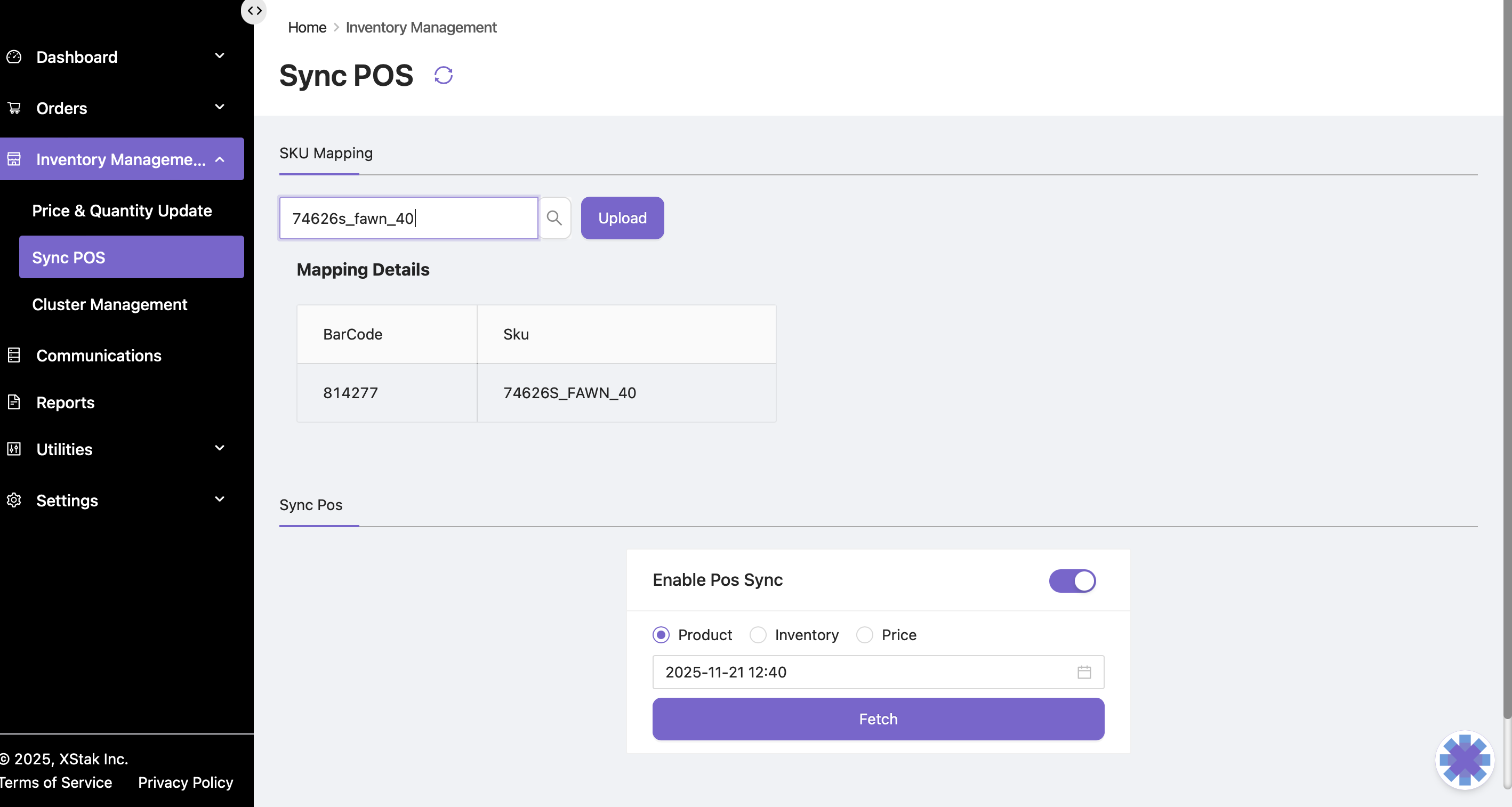
Enter the SKU in the search bar
-
The system displays all barcodes mapped to that SKU
-
Helps verify multiple barcodes for variants or color/size products
4.2 Search by Barcode
-
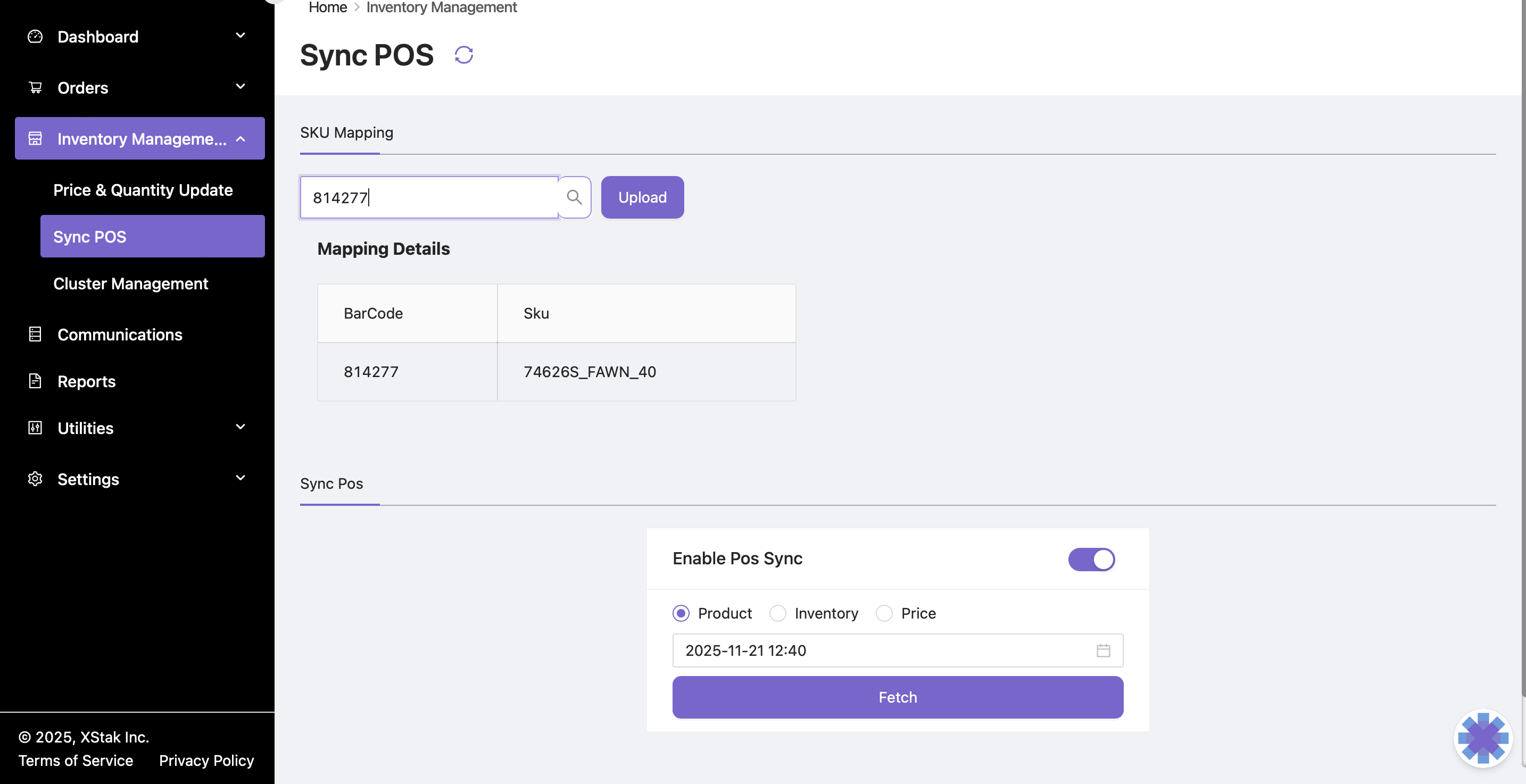
Enter a barcode number
-
The system returns the SKU associated with that barcode
-
Used when store or warehouse devices scan a barcode but cannot find the SKU
-
Helps quickly detect incorrect or broken barcode mappings
5. Mapping or Updating Barcodes (Upload File Method)
If a barcode is not mapped or needs correction, you can update it through the Update section.
Step-by-Step Process
Step 1 – Open Update Option
-
Go to Sync POS
-
Click on Update
Step 2 – Prepare File
Prepare a .csv file with the required format:
|
sku |
barcode |
|---|---|
|
SKU123 |
1234567890123 |
|
SKU789 |
9988776655443 |
Rules:
-
SKU must already exist and be active in OMS
-
Barcode must be numeric only; do not include letters, spaces, or special characters
-
Do not include duplicate SKUs or duplicate barcodes
-
Do not leave blank rows in the file
-
File must be saved in
.csvformat before upload
Step 3 – Upload File
-
Click Select File
-
Choose the file
-
Click Upload
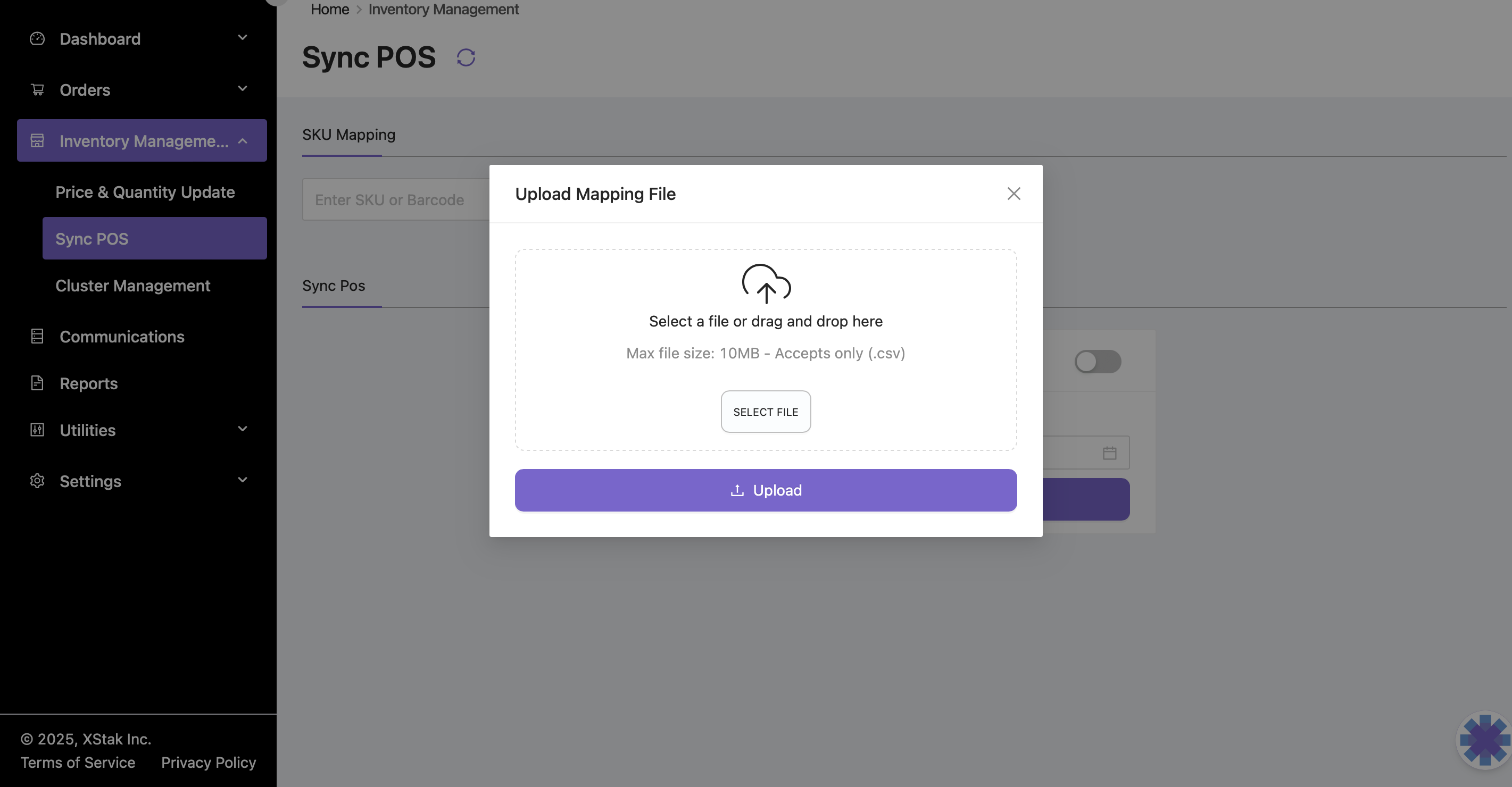
The system maps each barcode to its respective SKU after upload.
After the upload is complete, verify the mappings using Search by SKU or Search by Barcode before enabling or relying on POS synchronization.
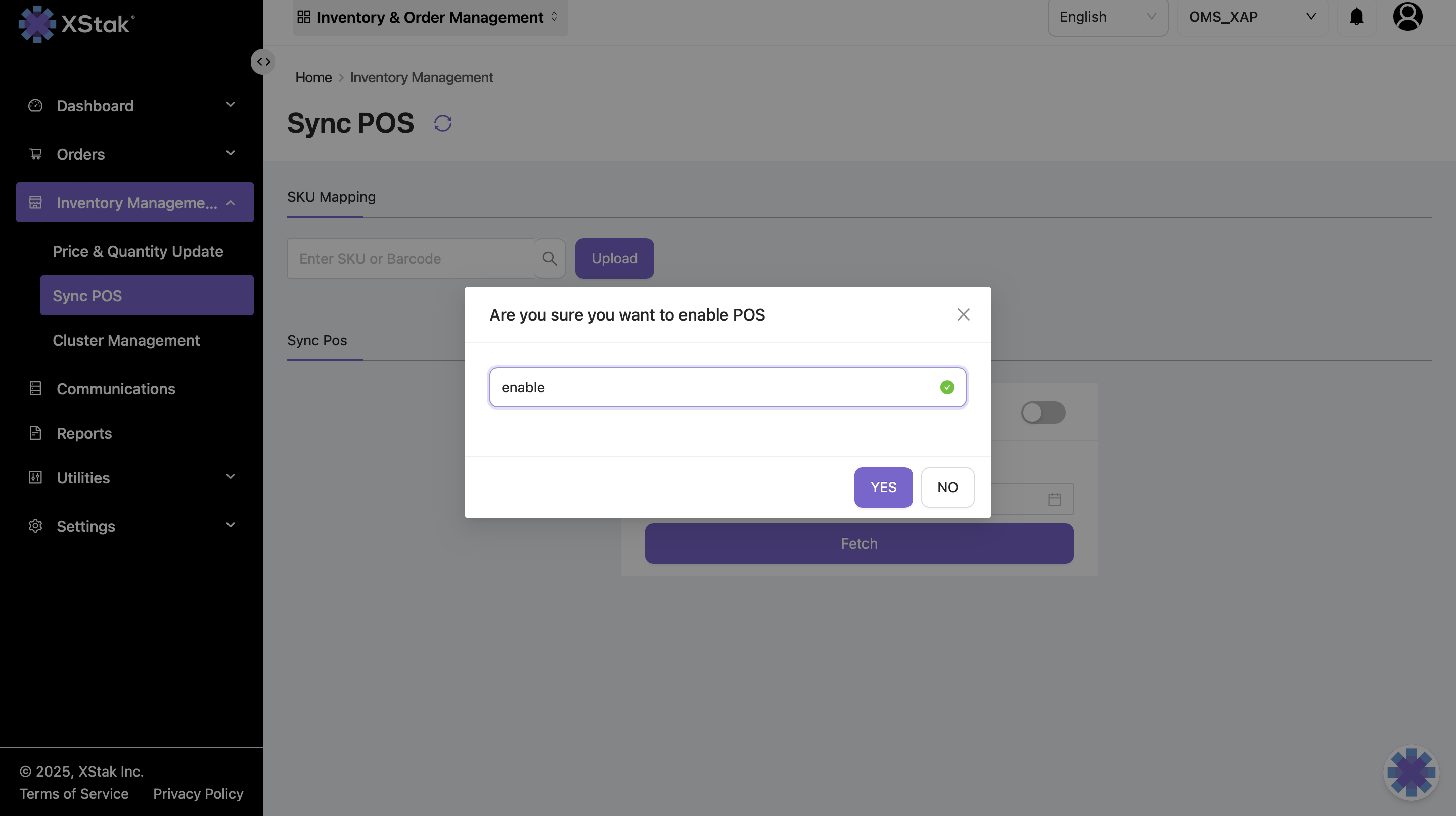
6. POS Sync Toggle – Enable Sync
During audits, maintenance, bulk updates, or POS system failures, the team may need to temporarily pause POS synchronization to prevent incorrect barcode updates from being applied.
How to Enable POS Sync Again
-
Toggle the button back to ON
-
Sync resumes immediately
-
All pending POS barcode updates will start syncing again
7. Operational Use Cases
|
Scenario |
How Sync POS Helps |
|---|---|
|
Barcode scanned at warehouse showing “SKU not found” |
Search barcode → verify correct SKU |
|
POS sending incorrect barcode mappings |
Disable sync → Fix → Re-enable sync |
|
Onboarding a new season’s products |
Upload barcode file for bulk mapping |
|
Barcode mismatch between website & store |
Use SKU search to identify wrong links |
|
POS team sends new barcodes daily |
Upload file regularly to update mappings |
|
Picking errors reported |
Search by barcode and validate SKU assignments |