
Order Booking Rules let you define the logic that automatically assigns couriers to orders. Rules can use a wide range of order attributes, giving you precise control over courier allocation.
Step 1: Access Order Booking Rules
-
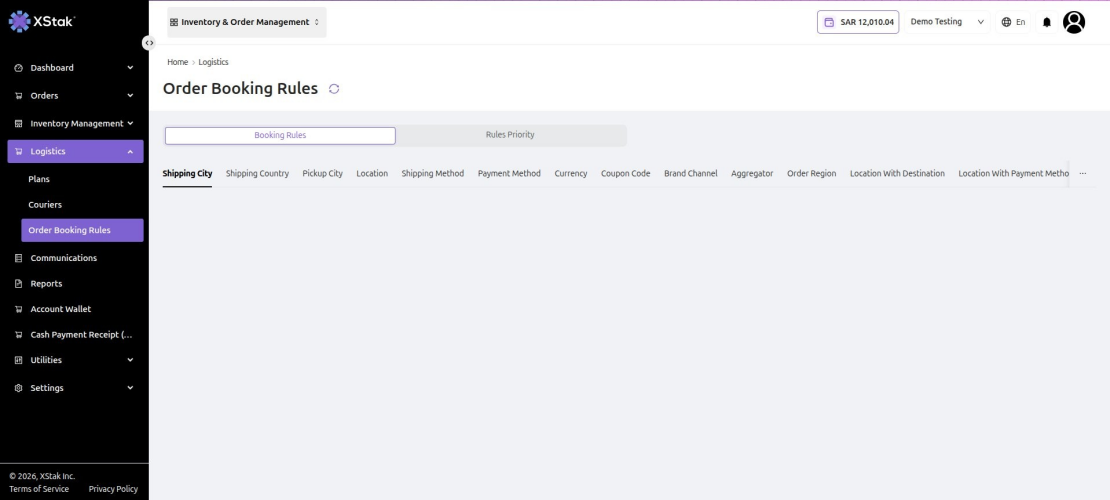
Click Logistics from the left sidebar.
-
Select Order Booking Rules from the submenu.
Step 2: Understand the Two Tabs
The Order Booking Rules screen is divided into two tabs:
-
Booking Rules — Create and manage individual rules for courier assignment.
-
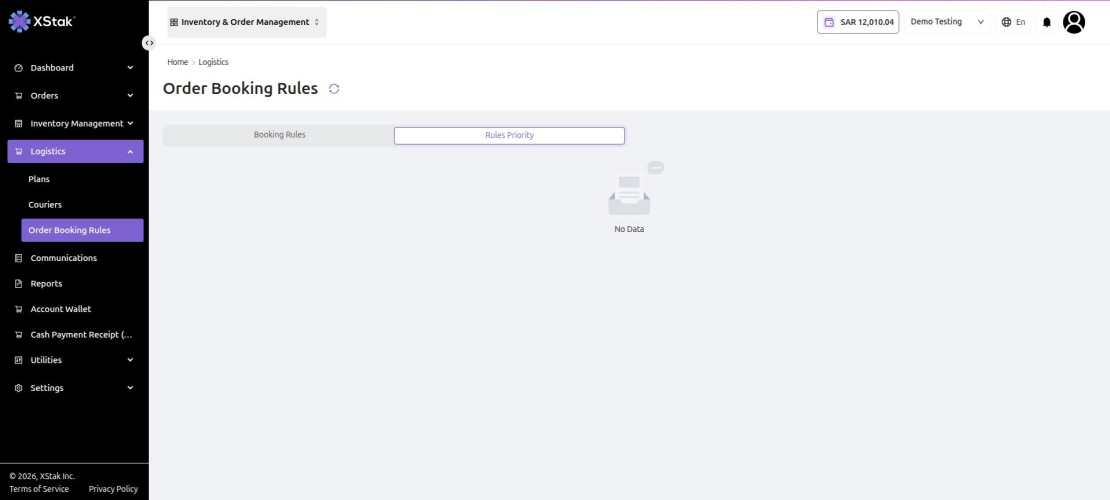
Rules Priority — Define the order in which rules are evaluated when multiple rules apply to the same order.
Step 3: Review Available Rule Types
Within the Booking Rules tab, rules can be created based on the following order attributes:
-
Shipping City — Assign a courier based on the customer's city.
-
Shipping Country — Assign a courier based on the destination country.
-
Pickup City — Assign a courier based on the order's pickup city.
-
Location — Assign a courier based on the fulfillment location.
-
Shipping Method — Assign a courier based on the selected shipping method (e.g., Standard or Express).
-
Payment Method — Assign a courier based on how the customer is paying (e.g., COD or Prepaid).
-
Currency — Assign a courier based on the order currency.
-
Coupon Code — Assign a courier when a specific coupon code is applied.
-
Brand Channel — Assign a courier based on the sales channel brand.
-
Aggregator — Assign a courier based on the aggregator platform.
-
Order Region — Assign a courier based on the geographical region of the order.
-
Location With Destination — Combine the fulfillment location and delivery destination to assign a courier.
-
Location With Payment Method — Combine the fulfillment location and payment method to assign a courier.
-
Shipping Country With Payment Method — Combine the destination country and payment method to assign a courier.
|
Detailed steps for creating and managing individual Booking Rules and configuring Rules Priority will be covered in the next section of this guide. |