
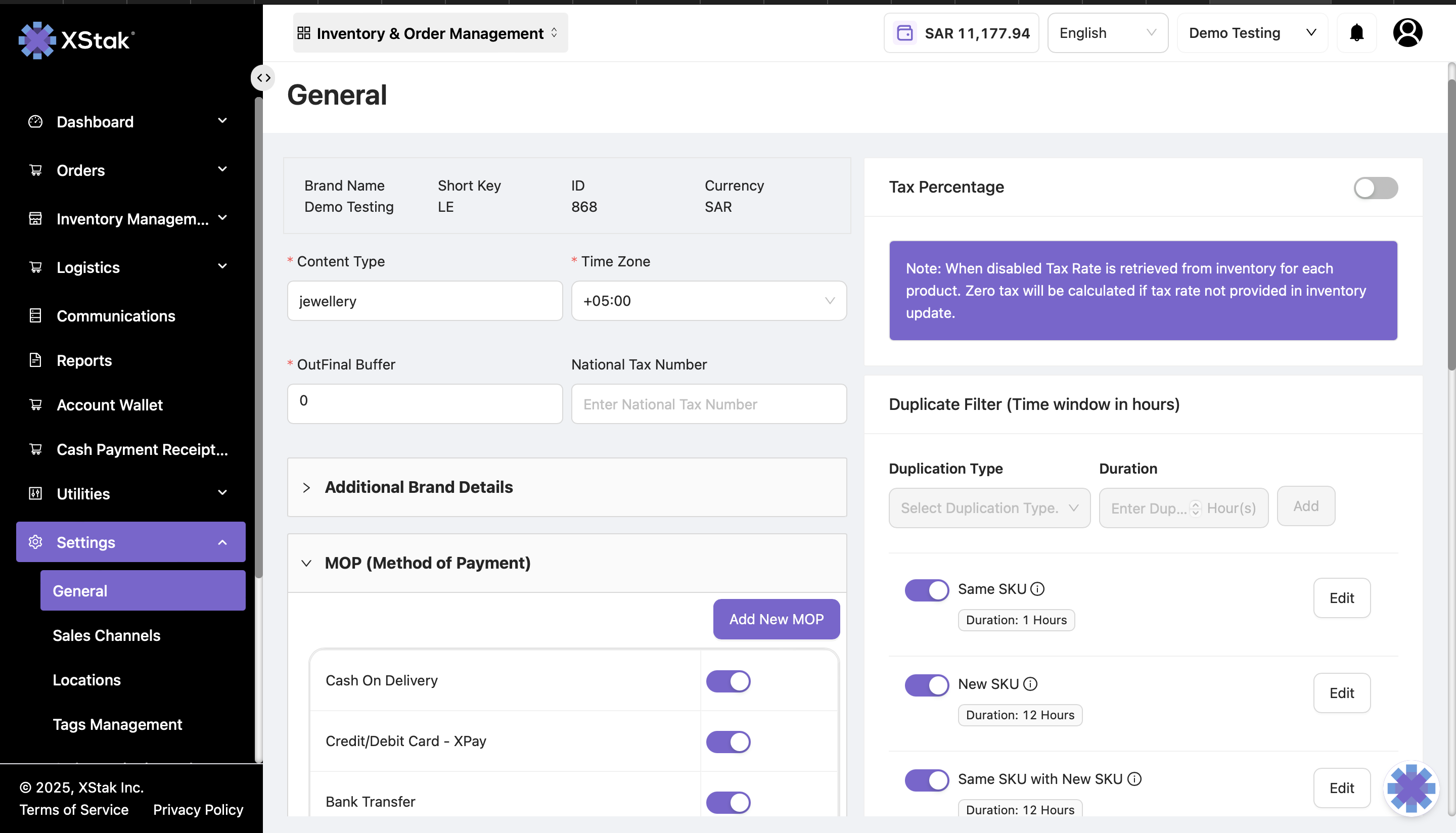
Step 1: Navigate to General Settings
-
Click Settings from the sidebar.
-
Select the General submodule from the dropdown.
-
Scroll down to the Method of Payment (MOP) section.
All preset MOPs will be visible here, such as Cash on Delivery and Bank Transfer.
Step 2: Add a New MOP
-
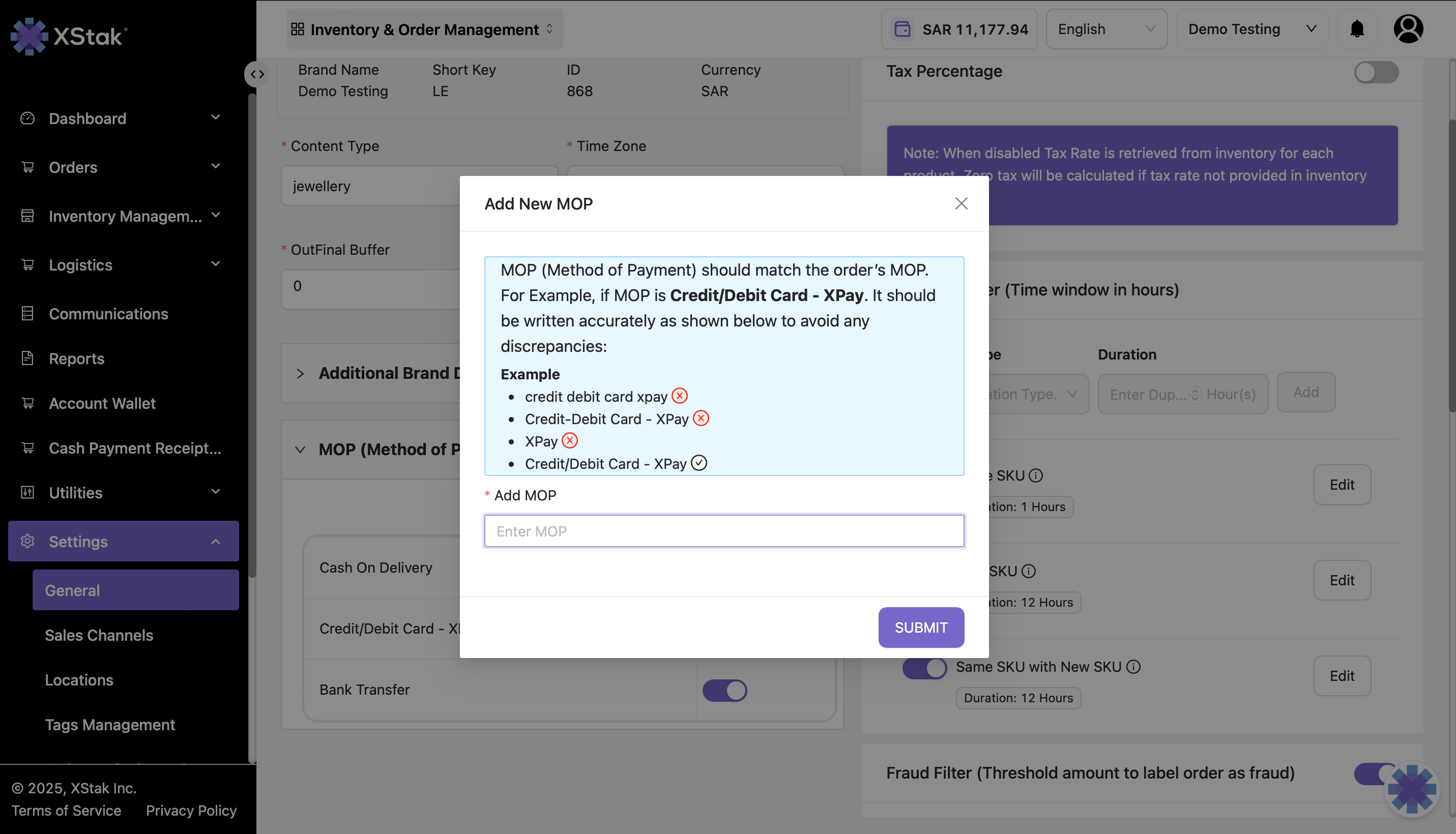
Click Add New MOP.
-
Enter the name of the new payment method that should appear in filters.
-
Click Submit to save the new MOP.
Step 3: Filter Orders by the New MOP
-
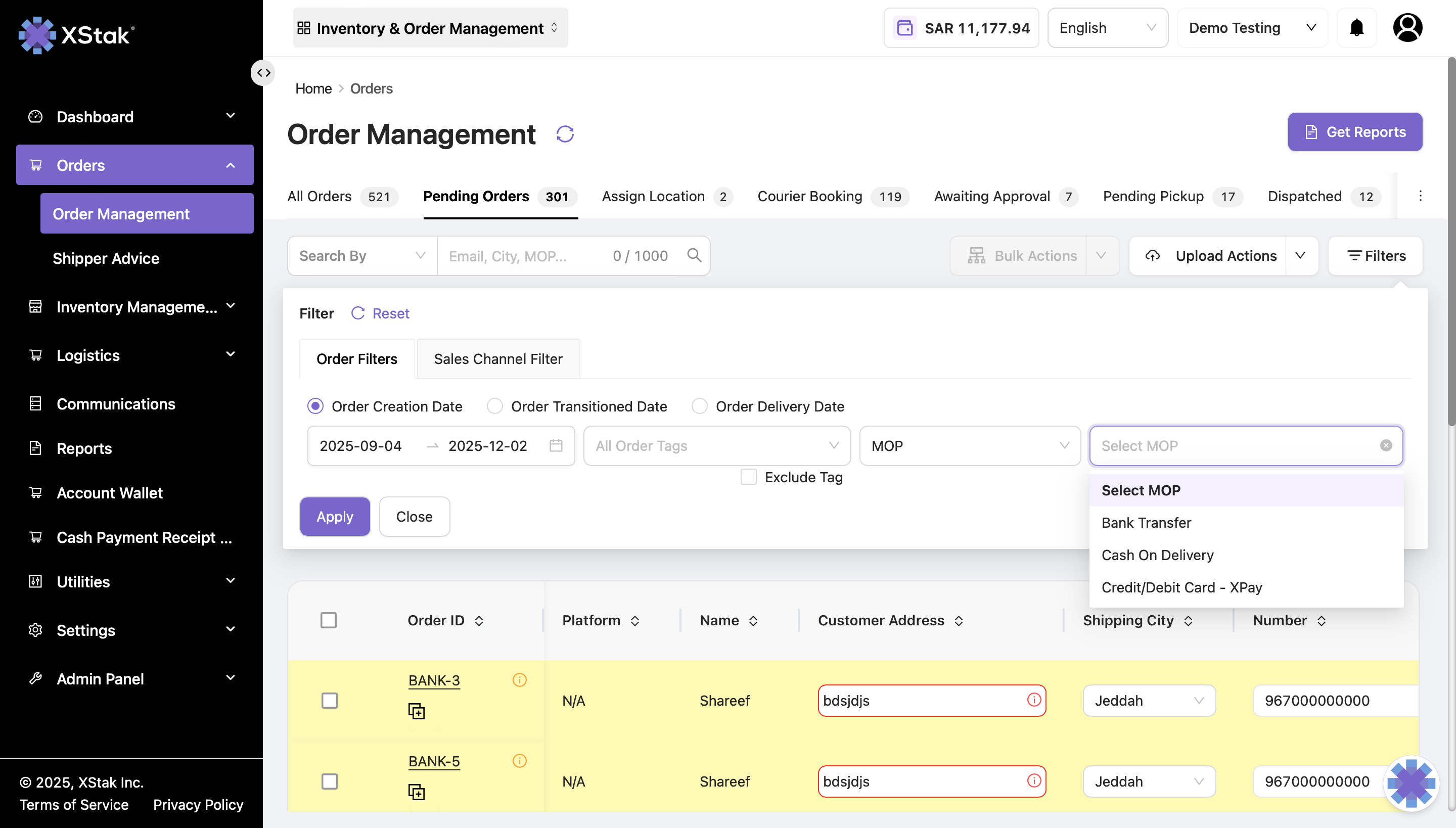
Go to the Filters section in the Order Management module.
-
Click Select Additional Filters → MOP.
-
All newly added MOPs will appear in this list. Select the desired MOP to filter orders.