How to Use the Locations Module in OMS
Step 1: Access the Locations Module
-
Click Settings from the sidebar.
-
Select Locations from the dropdown menu.
Step 2: Overview of the Locations Module
The Locations module provides visibility and control over all fulfillment locations integrated with OMS.
Brands can view and manage their operational locations from a single interface.
You can view the following details for each location:
-
Location ID
-
Location name
-
City
-
Location code
-
Enable/disable toggle
-
Halt toggle
-
Online/offline toggle
-
Location users (add or remove users for each location)
-
Edit icon (update location details)
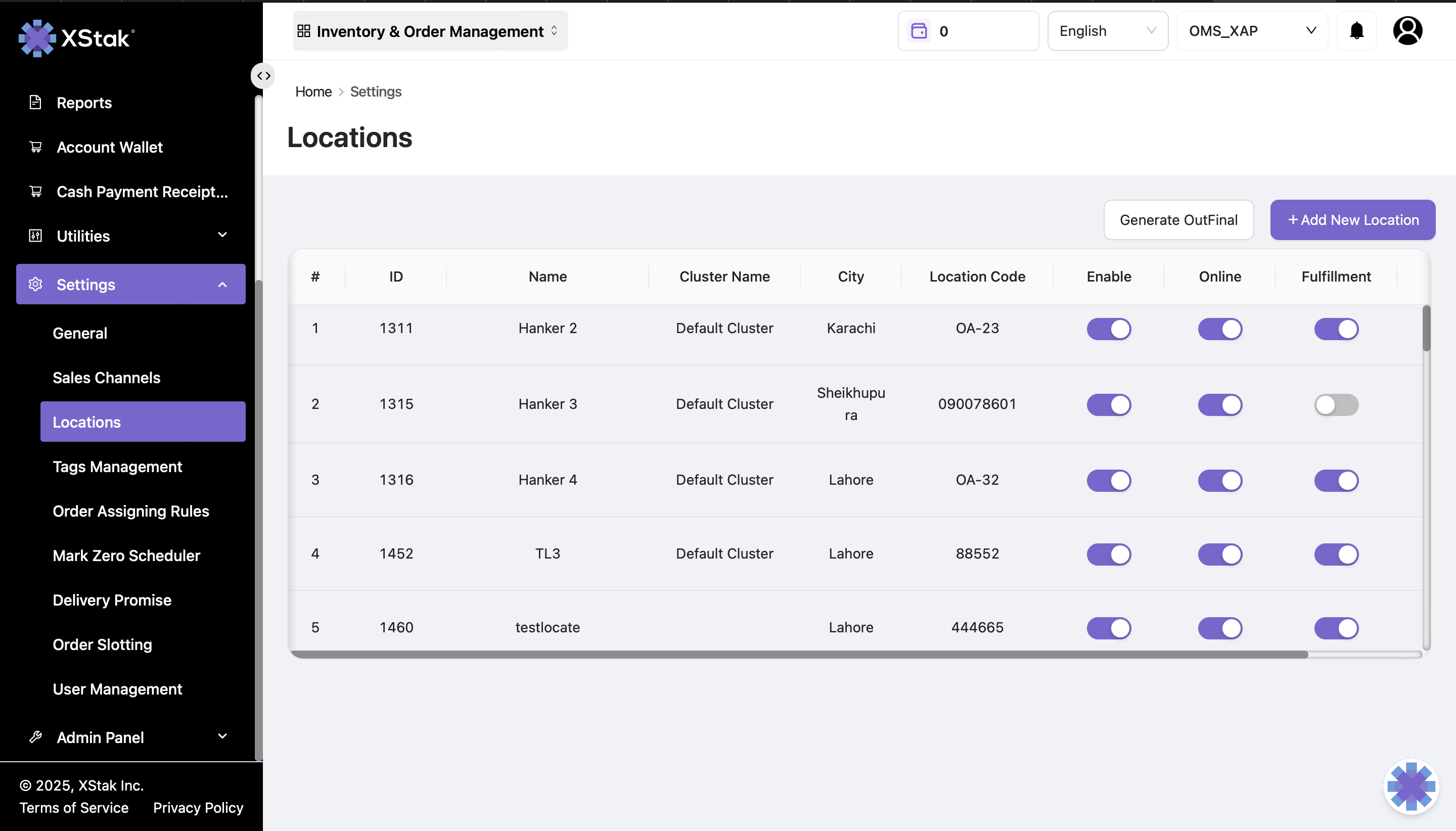
This helps brands quickly understand how many locations they have added and each location’s current status.
Step 3: Add a New Location
To add a new fulfillment location:
-
Click Add New Location.
-
Fill in the required details:
-
Location name
-
Location buffer
-
Location code
-
Email
-
Phone
-
Location address
-
City
-
Country
-
-
Click Save to create the new location.
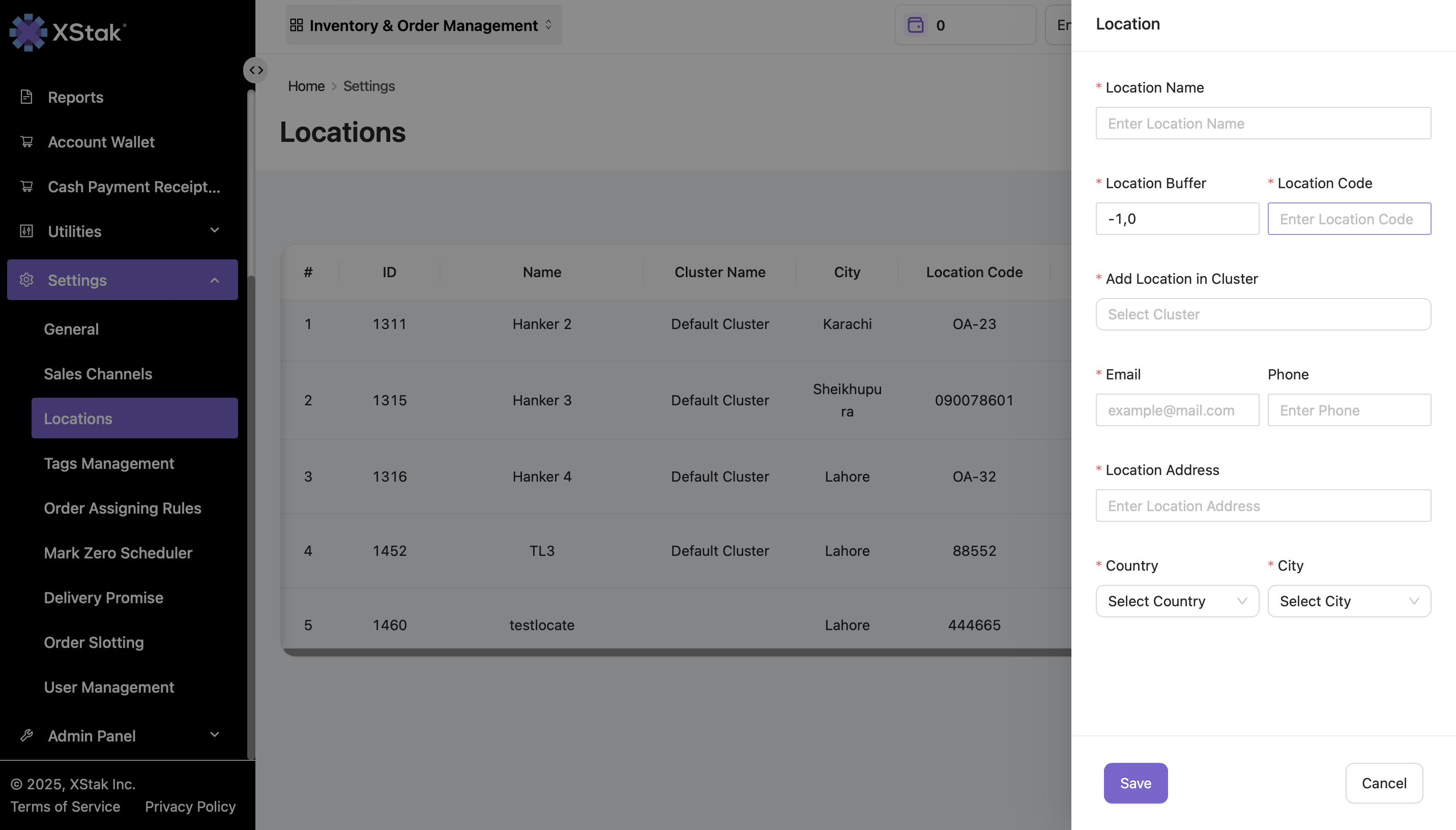
This ensures the location becomes fully operational within OMS.
Step 4: Edit an Existing Location
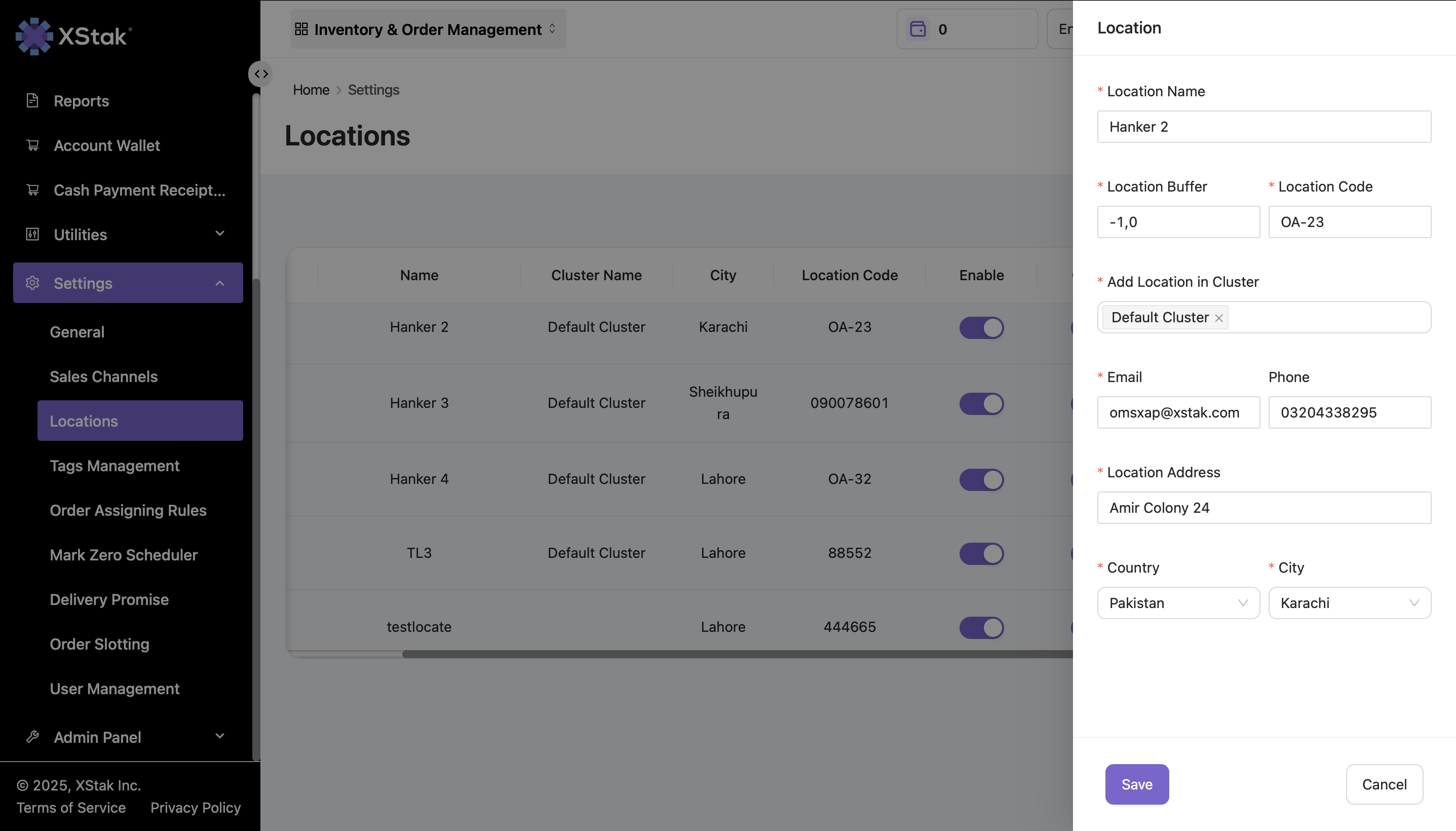
To update any details of an existing location:
-
Click the Edit icon beside the location.
-
Modify the necessary fields.
-
Click Save to apply the changes.
Understanding Location Controls
1. Enable Toggle
-
Enable → The location is active and can fulfill orders.
-
Disable → The location will not be used for order fulfillment.
-
Inventory updates for price, quantity, or stock will also not affect a disabled location.
This is useful when a location is temporarily non-operational.
-
2. Online Toggle
The Online toggle determines whether inventory from a location is visible to sales channels.
-
Online → Inventory is pushed to sales channels.
-
Offline → Inventory remains hidden from sales channels.
Brands use this feature to manage rush hours or sales spikes.
Example:
If online locations run out of inventory, brands can bring additional stock from offline locations to continue order fulfillment without overselling.
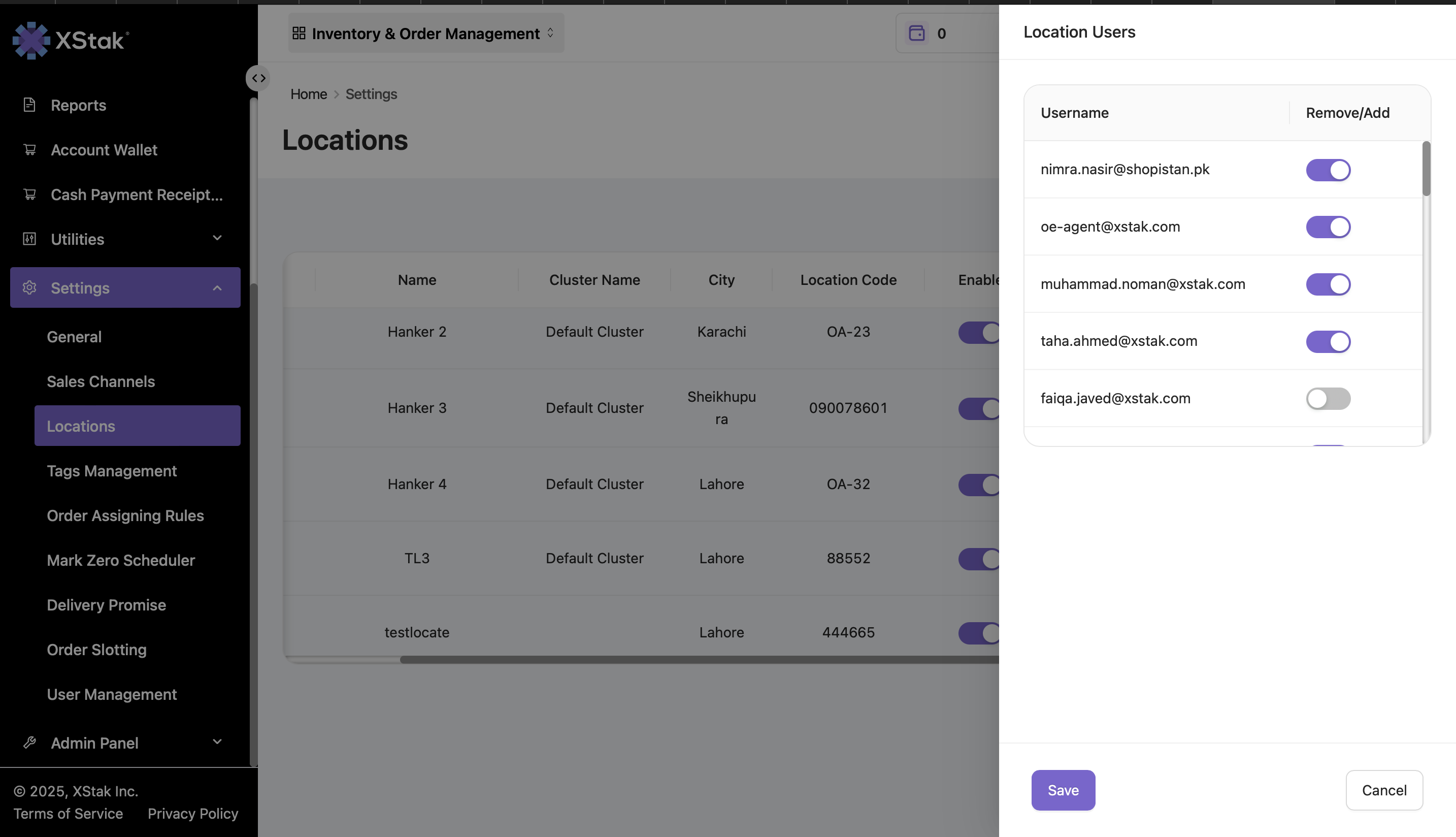
3. Location Users
Each location can have multiple associated stakeholders, such as email users.
From this section, you can:
-
View all assigned user emails.
-
Enable or disable email users as needed.
This helps manage who receives updates, alerts, and notifications for each location.