
How to add new MOP and filter order ?
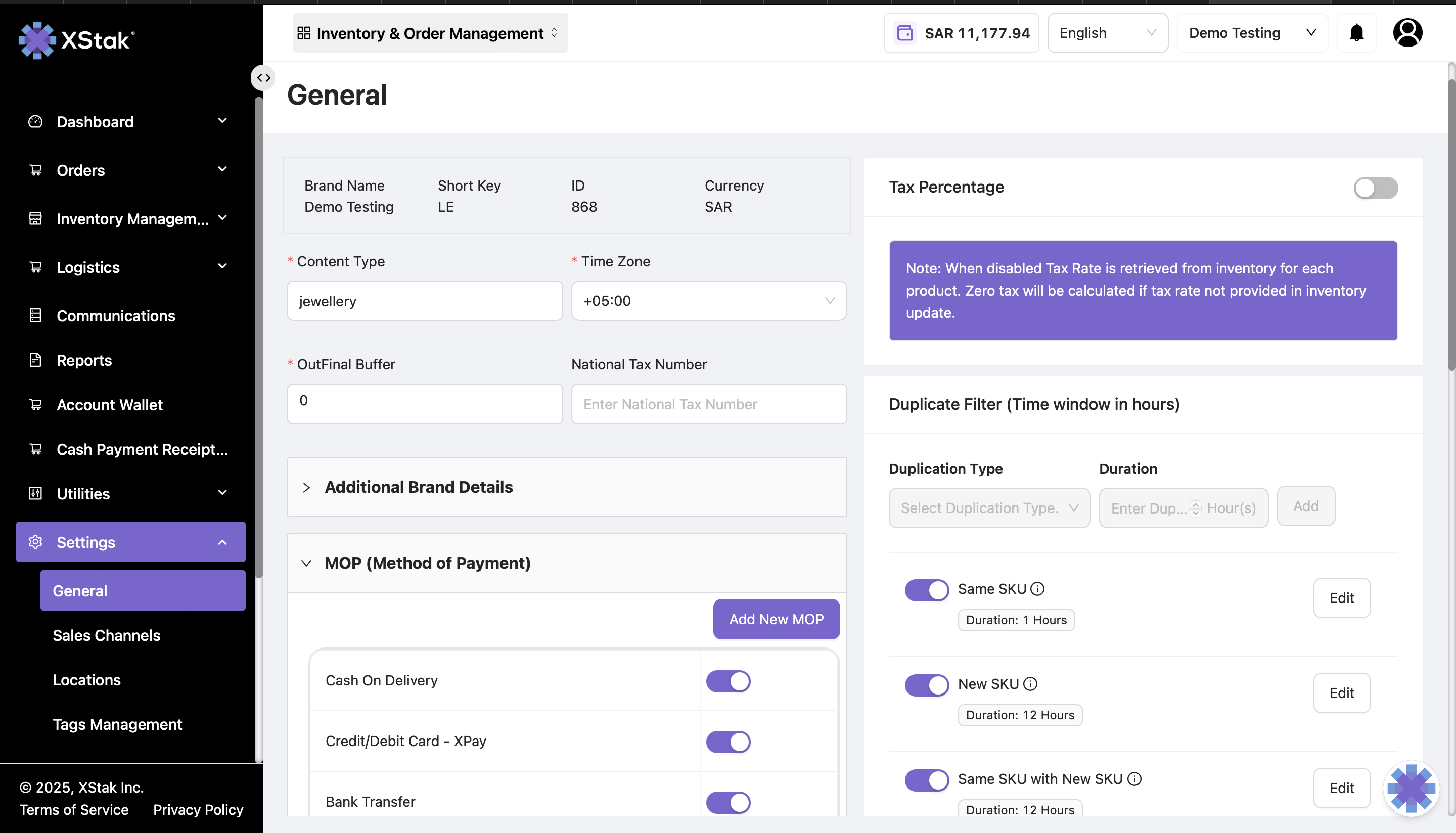
Step 1: Navigate to General Settings
Click on Settings from the sidebar.
Select the General submodule from the dropdown.
Scroll down to the Method of Payment (MOP) section.
All pre-set MOPs will be visible here, such as Cash on Delivery, Bank Transfer, etc.
Step 2: Add a New MOP
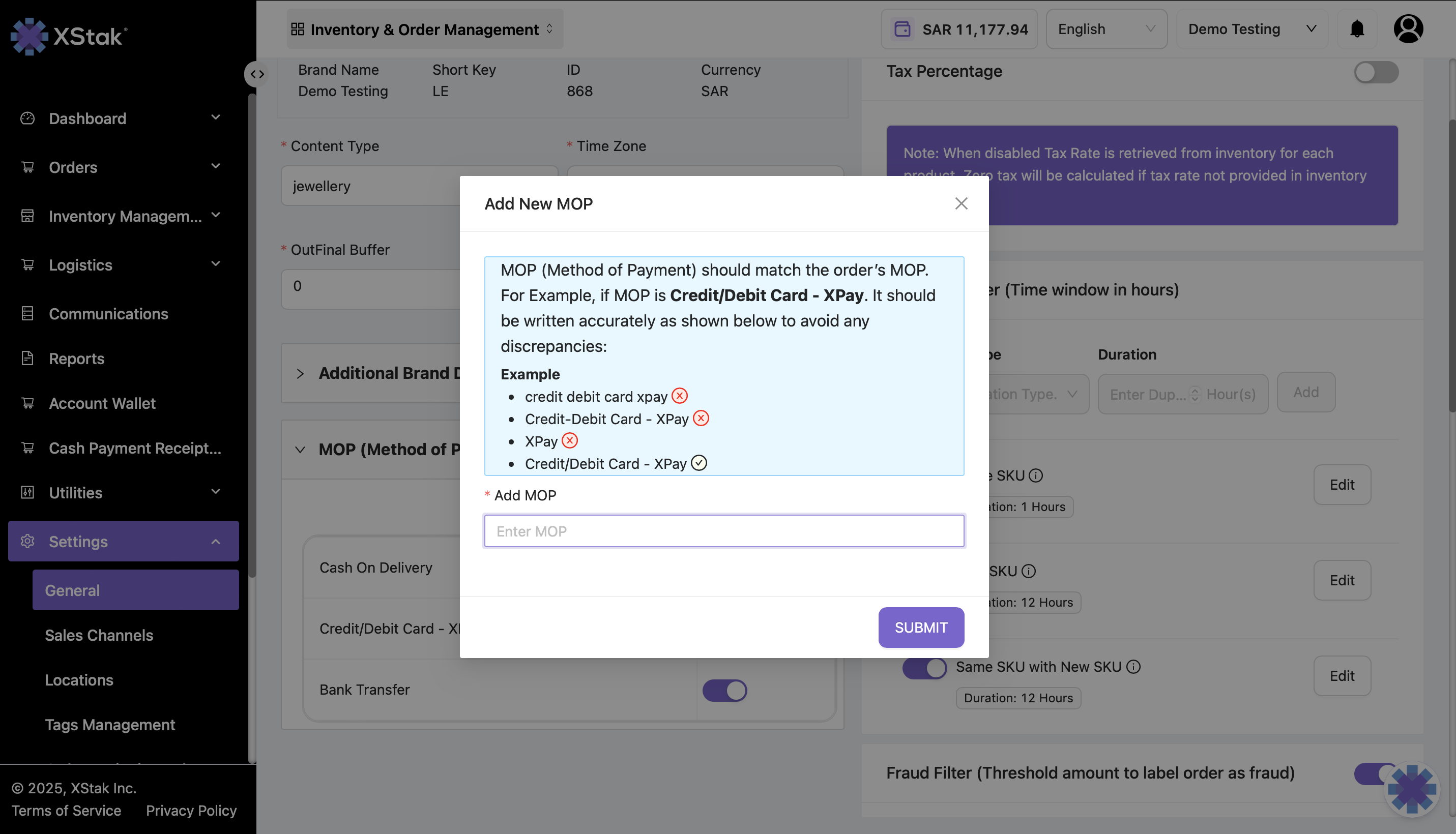
Click on Add New MOP.
Enter the name of the new payment method that you want to appear in filters.
Click Submit to save the new MOP.
Step 3: Filter Orders by the New MOP
Go to the Filters section in the Order Management module.
Click Select Additional Filters → MOP.
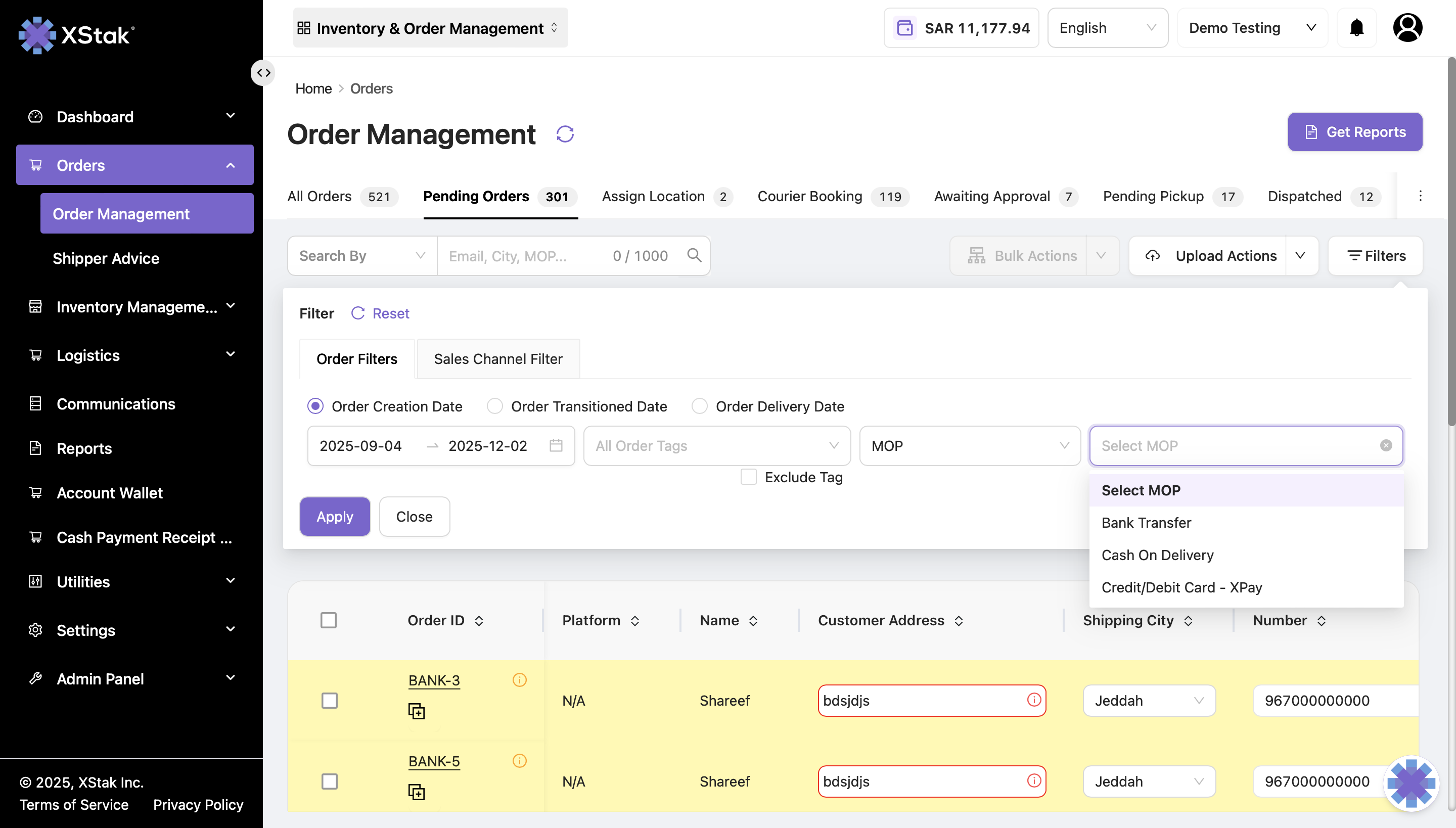
All newly added MOPs will appear in this list. Select the desired MOP to filter orders accordingly.