The General Settings Module in OMS provides a comprehensive overview of your brand and key operational settings. It allows you to view, edit, and configure important brand details, automation preferences, tax settings, packaging, and return management in a user-friendly interface.
Step 1: Access the Settings Module
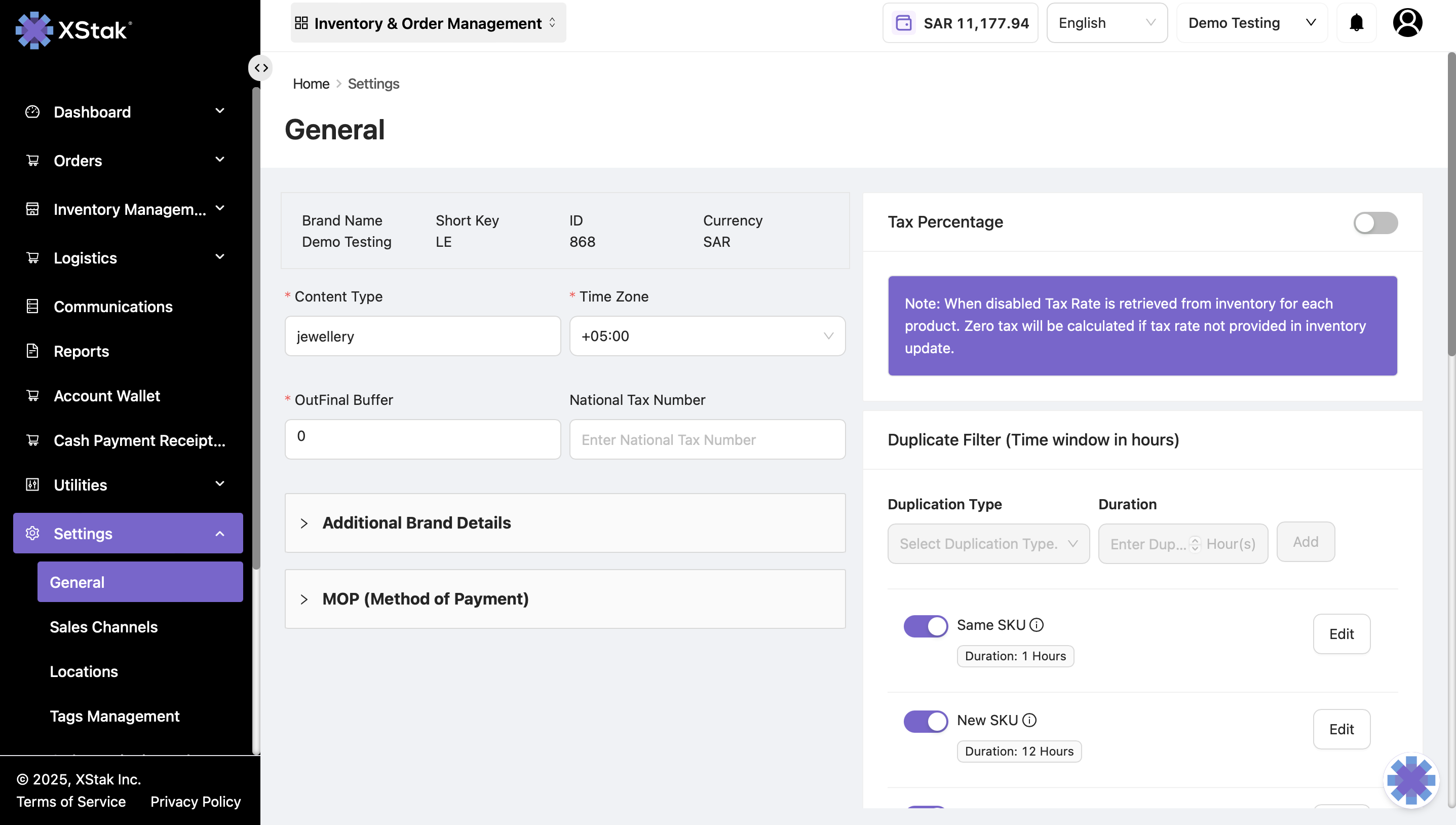
From the sidebar, click on Settings.
From the dropdown menu, select General.
This opens the General Settings module where all brand-level configurations can be managed.
Step 2: Overview of General Settings
The General Settings module provides essential information about your brand and allows you to edit key fields.
View-only fields:
Brand Name: Displays the official name of the brand.
Short Key: A unique short identifier for internal use.
Brand ID: A system-generated ID for reference.
Editable fields:
Content Type: Define the type of content or catalog used by the brand.
Time Zone: Set the operational time zone for order processing and reporting.
OutFinal Buffer: The OutFinal Buffer allows brands to reserve a portion of inventory in OMS before sending the rest to the sales channels. This ensures that some stock is always retained in case of cancellations, bad orders, or other unexpected scenarios.
Example:
If the OutFinal Buffer is set to 10 units and the current inventory is 100 units, OMS will send 90 units to the sales channel.
The remaining 10 units are retained in OMS as a buffer for contingencies such as returns, damaged stock, or manual adjustments.
Properly configuring the buffer helps maintain operational stability and prevents overselling on sales channels.
Step 3: Additional Brand Settings
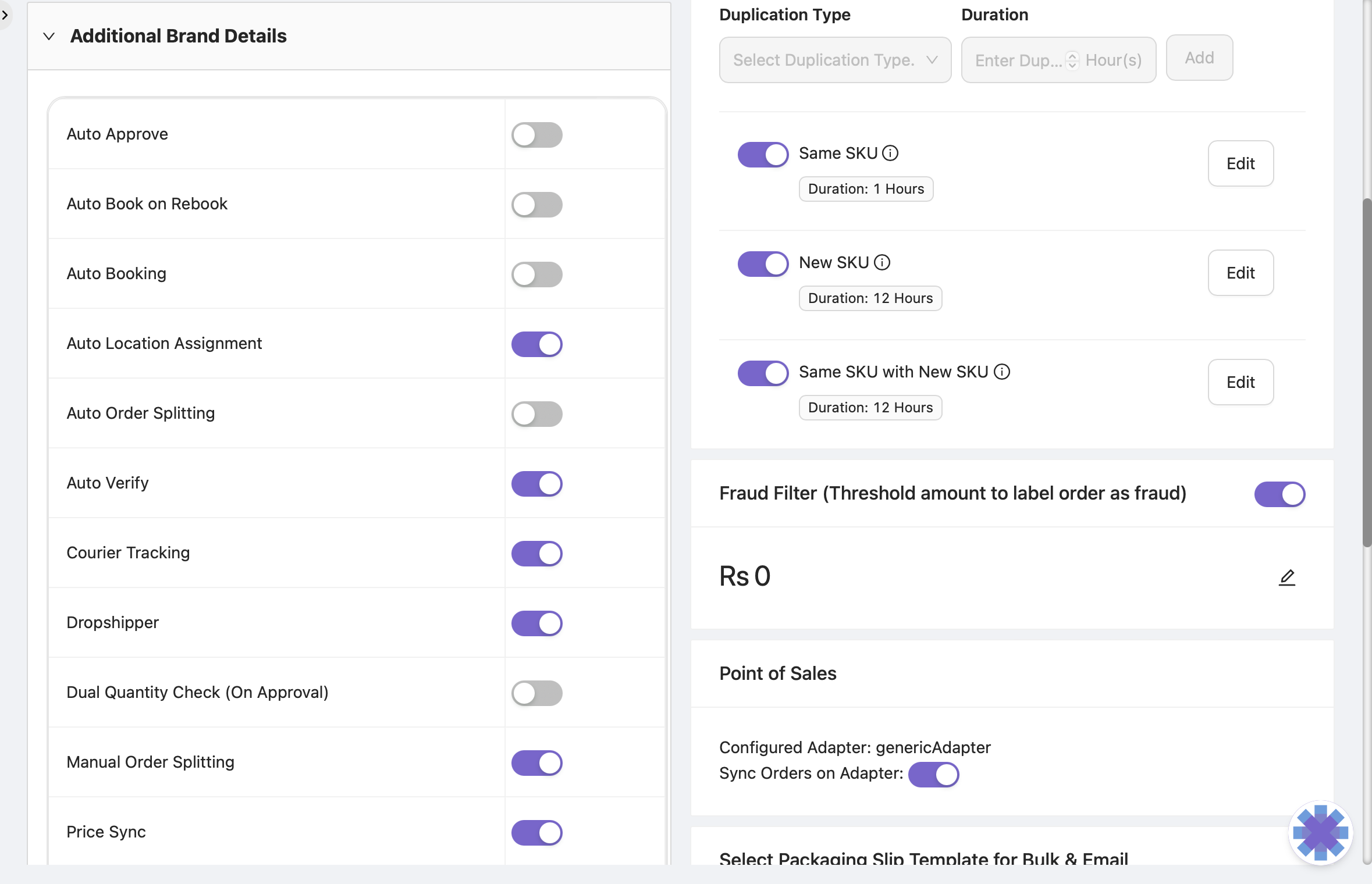
The General tab includes several toggle buttons that control automation and operational behavior in OMS.
Toggle Buttons:
Auto Order Splitting: Automatically splits large or multi-item orders based on your rules.
Manual Auto Splitting: Provides manual control over auto-splitting rules.
Dual Quantity Check: Ensures quantity consistency between orders and stock.
Shopify Support: Enables special handling for Shopify integrations.
Auto Location Assignment: Automatically assigns orders to specific locations.
Auto Booking: Enables automatic booking for couriers or deliveries.
Auto Processing: Automates order processing steps for efficiency.
Note: Toggling these buttons ON/OFF directly affects how orders are handled in the Order Management tab. Always verify your automation preferences before enabling/disabling.
Other Configurable Options:
Tax Percentage: Enter the percentage of tax to be included in each order.
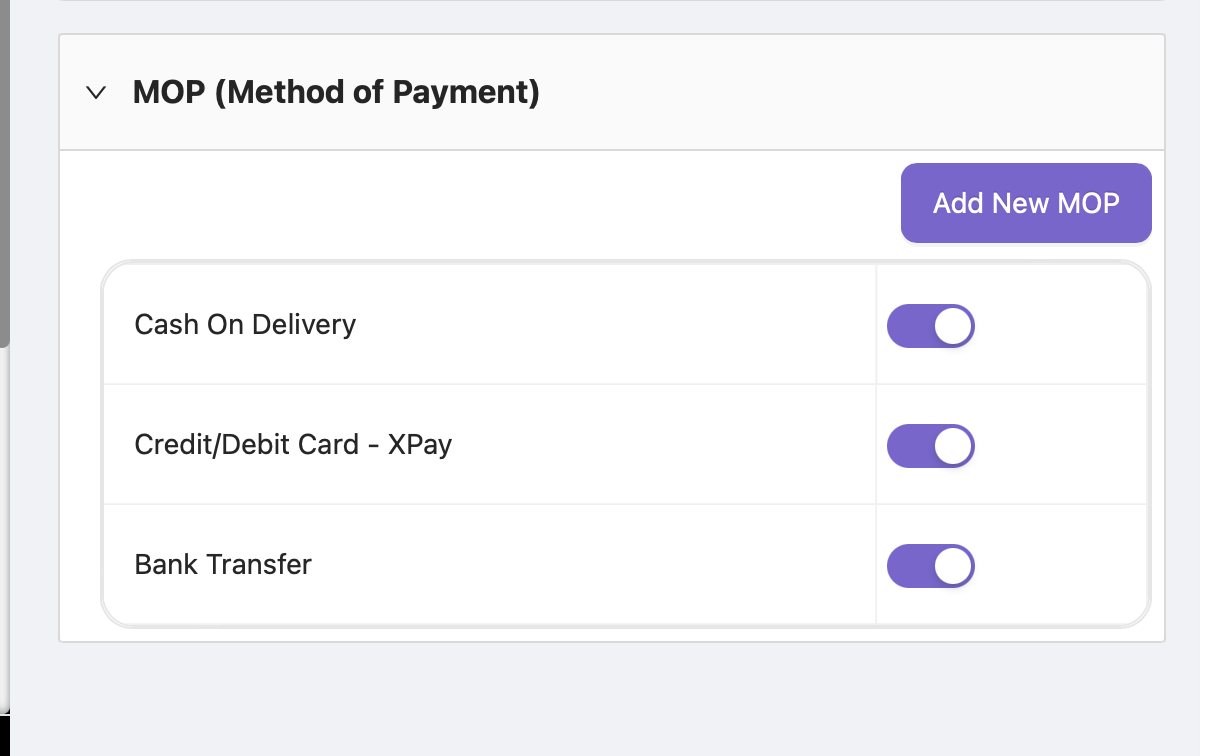
MOP (Method of Payment): Configure the payment methods your brand supports:
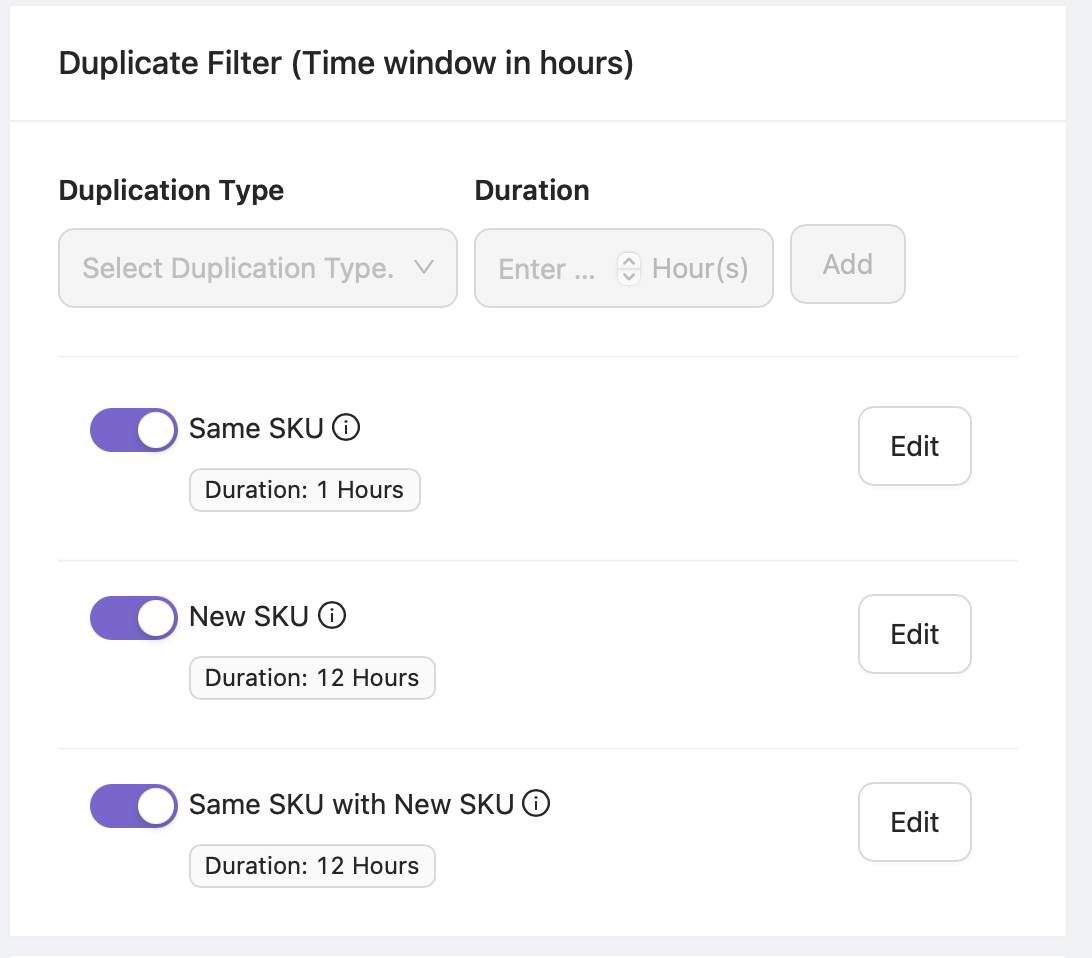
Duplicate Filter: Enable or disable duplicate order checking. You can also define the time interval during which OMS checks for potential duplicates.
Correctly configuring these options ensures accurate billing, prevents duplicate orders, and maintains operational efficiency.
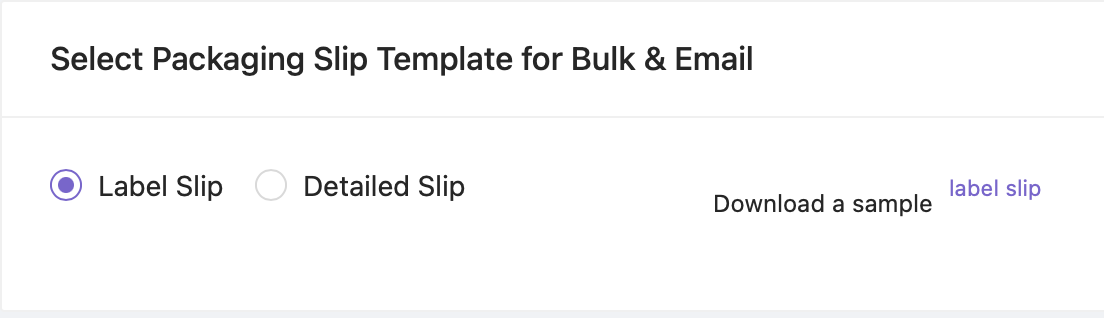
Step 4: Packaging Slip Template
The module allows brands to manage packaging and shipping slips:
Detailed Slip Check: Download a detailed slip for review.
Sample Label Slip: Download a sample label for verification and printing tests.
Packaging slip templates ensure consistency in branding and accuracy in shipping information.
Step 5: RMA Settings – Toggle Configuration Guide
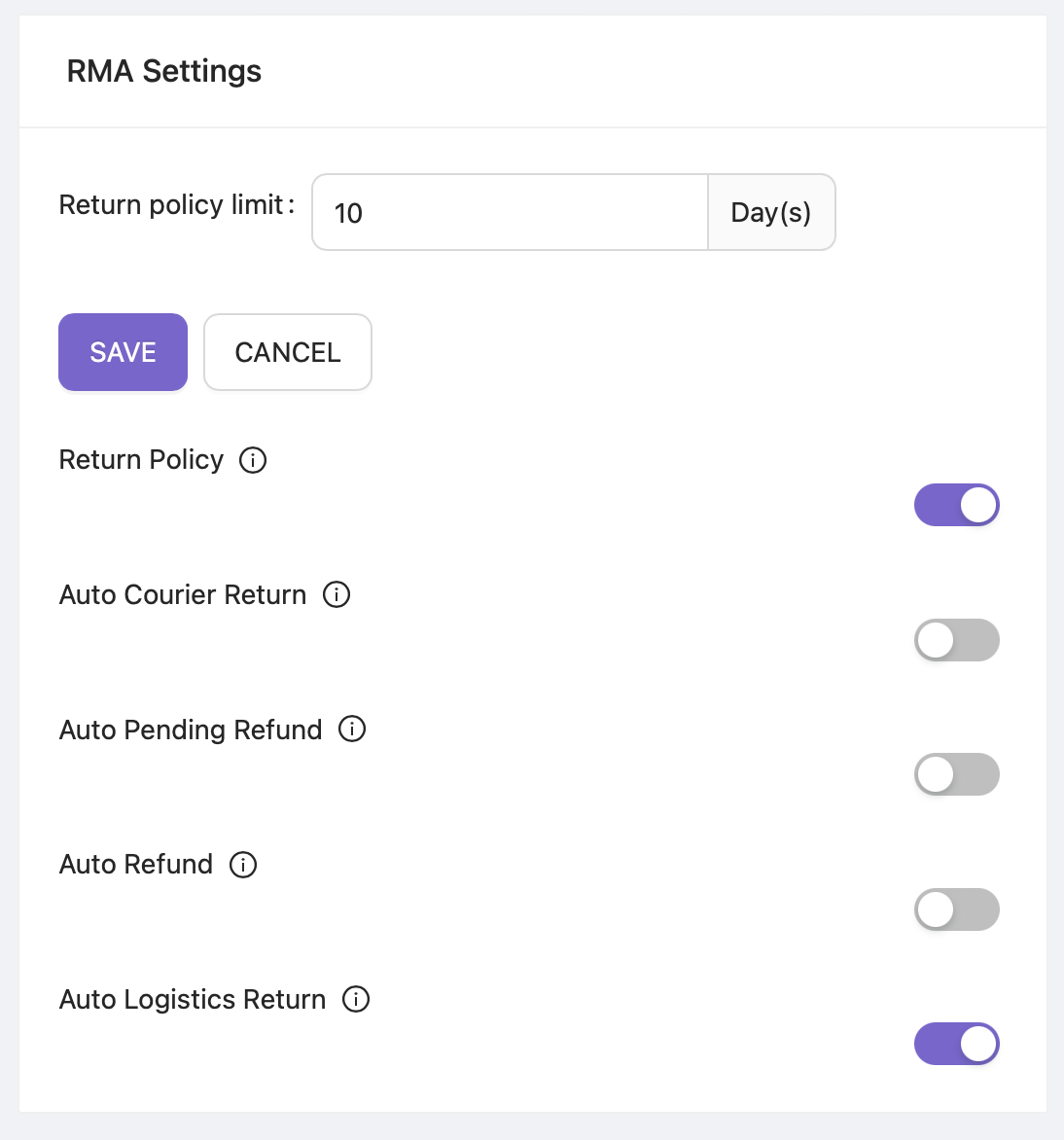
The RMA (Return Merchandise Authorization) module includes configurable toggles that allow you to automate and control your return workflow. Below is a detailed explanation of each setting and its functionality.
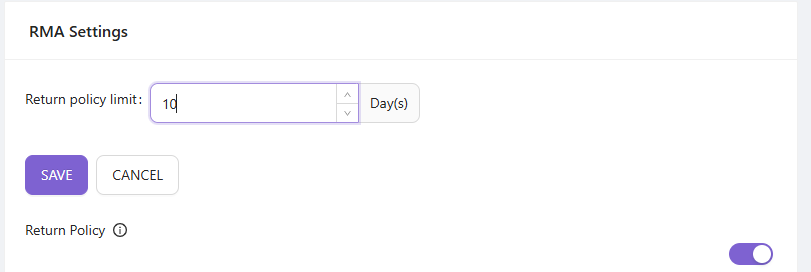
1️⃣ Return Policy
Purpose: Define Customer Return Eligibility
Functionality: Activate this toggle to configure your return policy within the system. You can define the allowed return time frame (e.g., 7 days, 14 days, etc.) during which customers are eligible to request a return after delivery.
How It Works:
Once enabled, the system validates return requests based on the configured time window.
Return requests submitted after the allowed period will be restricted according to the defined policy.
This ensures compliance with brand return guidelines and prevents unauthorized return requests.
2️⃣ Auto Courier Return
Purpose: Automate Return Status Based on 3PL Confirmation
Functionality: When enabled, the system automatically marks the order as “Returned” as soon as confirmation is received from the courier (3PL).
How It Works:
The order skips the “Pending Return” stage.
Upon courier confirmation, the status directly transitions to Returned.
Reduces manual intervention and speeds up return processing.
Use Case: Recommended for operations where courier confirmations are reliable and no internal verification step is required.
3️⃣ Auto Pending Refund
Purpose: Automate Refund Processing Workflow
Functionality: When this toggle is enabled, the system automatically moves the order to “Pending Refund” as soon as it enters the Return state.
How It Works:
Eliminates the need to manually change the status to Pending Refund.
Ensures the finance/refund team is notified immediately for further action.
Streamlines the refund workflow.
Use Case: Ideal for merchants who follow a structured refund process after return confirmation.
4️⃣ Auto Refund
Purpose: Enable Automatic Refund Processing
Functionality: When activated, the system automatically processes the refund once the return is confirmed, without requiring manual approval.
How It Works:
Refund is triggered automatically after the order reaches the required return status.
Reduces manual effort from the operations or finance team.
Ensures faster refund turnaround time for customers.
Use Case: Best suited for merchants with automated payment gateway integrations.
5️⃣ Auto Logistics Return
Purpose: Automate Courier Assignment for Returns
Functionality: When enabled, the system automatically assigns the return shipment to the same courier that originally delivered the parcel.
How It Works:
The original delivery courier is auto-assigned for return pickup.
Ensures operational consistency and simplifies return logistics.
Reduces manual courier selection errors.
Use Case: Recommended for merchants who prefer maintaining the same logistics partner for both forward and reverse shipments.
JavaScript errors detected
Please note, these errors can depend on your browser setup.
If this problem persists, please contact our support.