
Order Assigning Rules
The Order Assigning Rules module in OMS allows brands to configure automated order assignment rules based on location prioritization and destination city rules. This ensures that orders are routed efficiently to the most appropriate locations for fulfillment.
You can access the module by navigating to:
Sidebar → Settings → Order Assigning Rules
The module is divided into two main segments:
Locations Plain Priority
Destination Country and City Assigning Rules
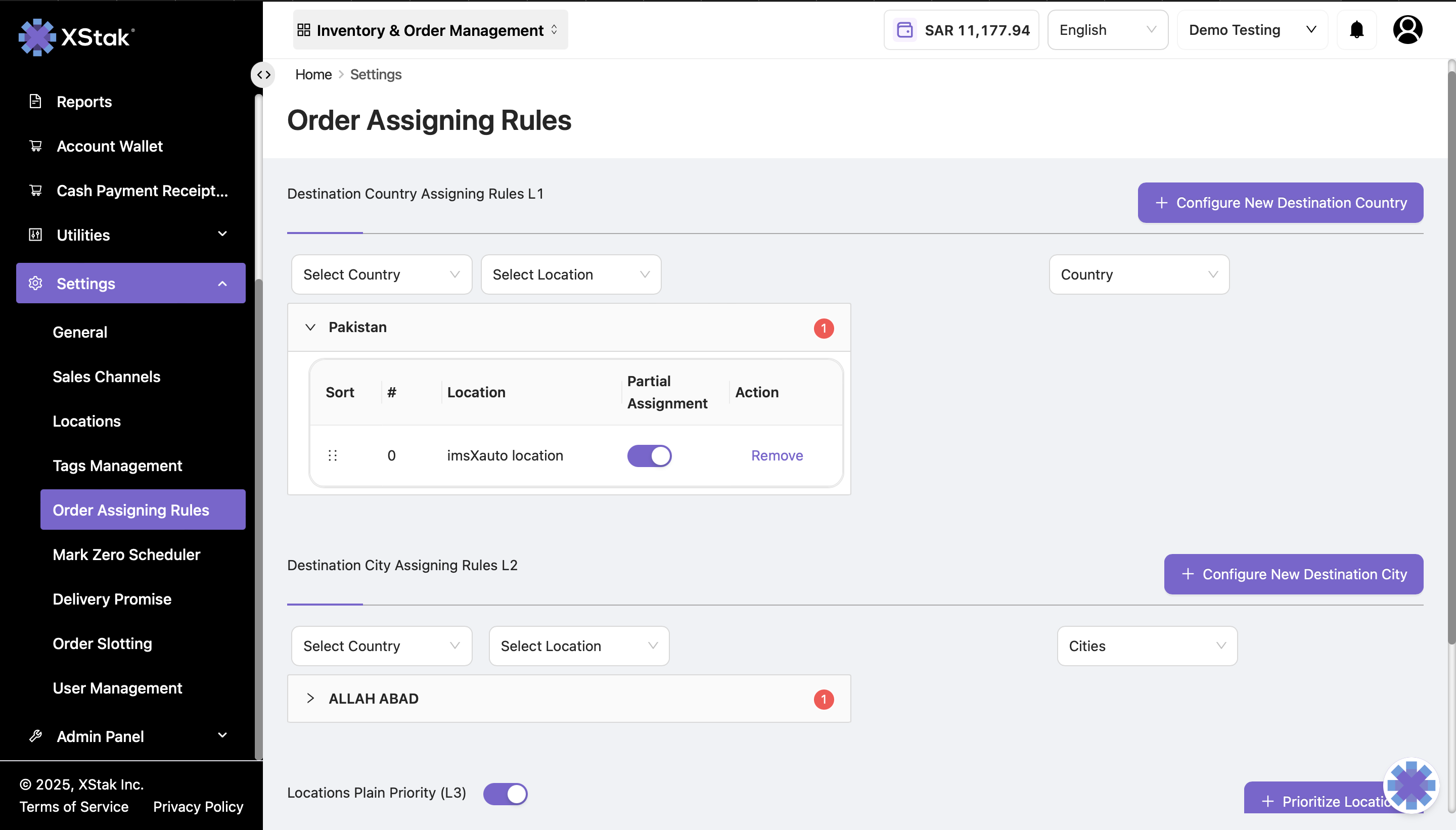
1. Locations Plain Priority
This section allows brands to set the priority of all integrated locations for order fulfillment.
Key Steps:
Click on the Prioritize Locations button.
A list of all locations integrated with your brand will appear, each with a checkbox.
Check a location to add it to the priority list.
Uncheck a location to remove it from the priority list.
Locations in the list are arranged by priority:
The location at the top has the highest priority.
To change a location’s priority:
Click and hold the location’s bar.
Drag it to the desired position and drop it.
The system automatically updates the priority order.
This ensures that orders are automatically assigned to locations according to your defined priorities.
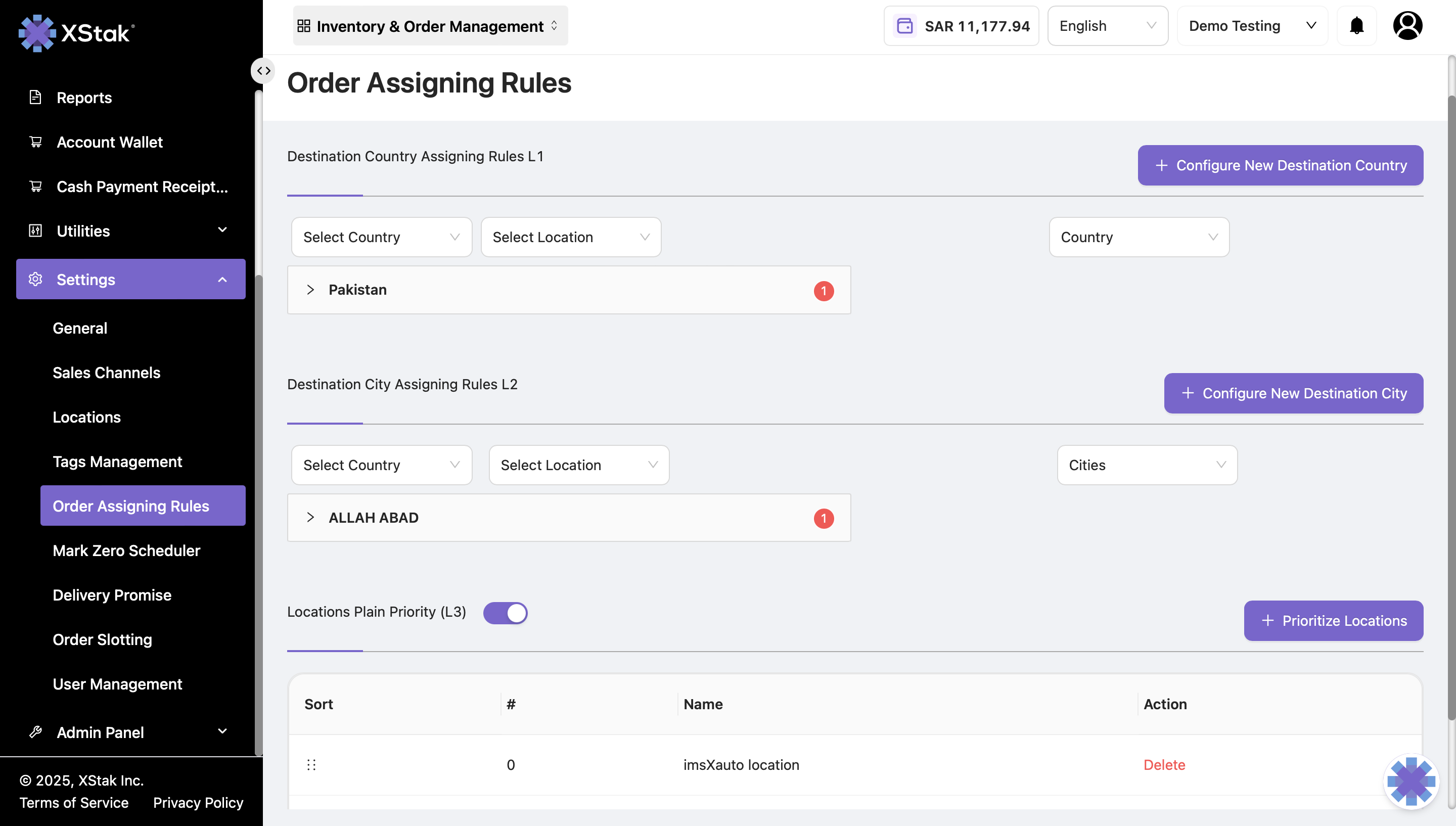
2. Destination Country Assigning Rules
This section allows brands to define rules for order assignment based on the destination country.
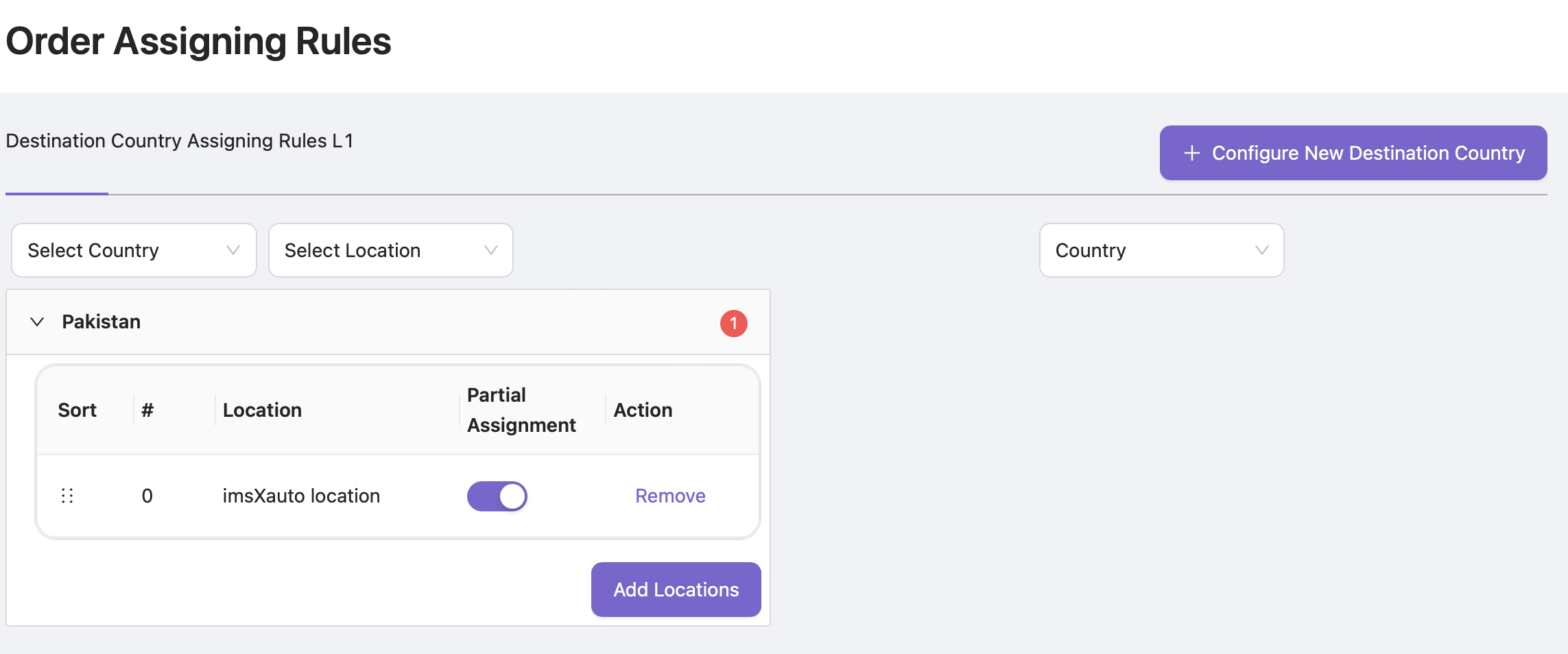
Key Features:
Add or remove locations for specific countries.
Prioritize locations for each country.
Ensure only valid locations (those in Locations Plain Priority) are available for assignment.
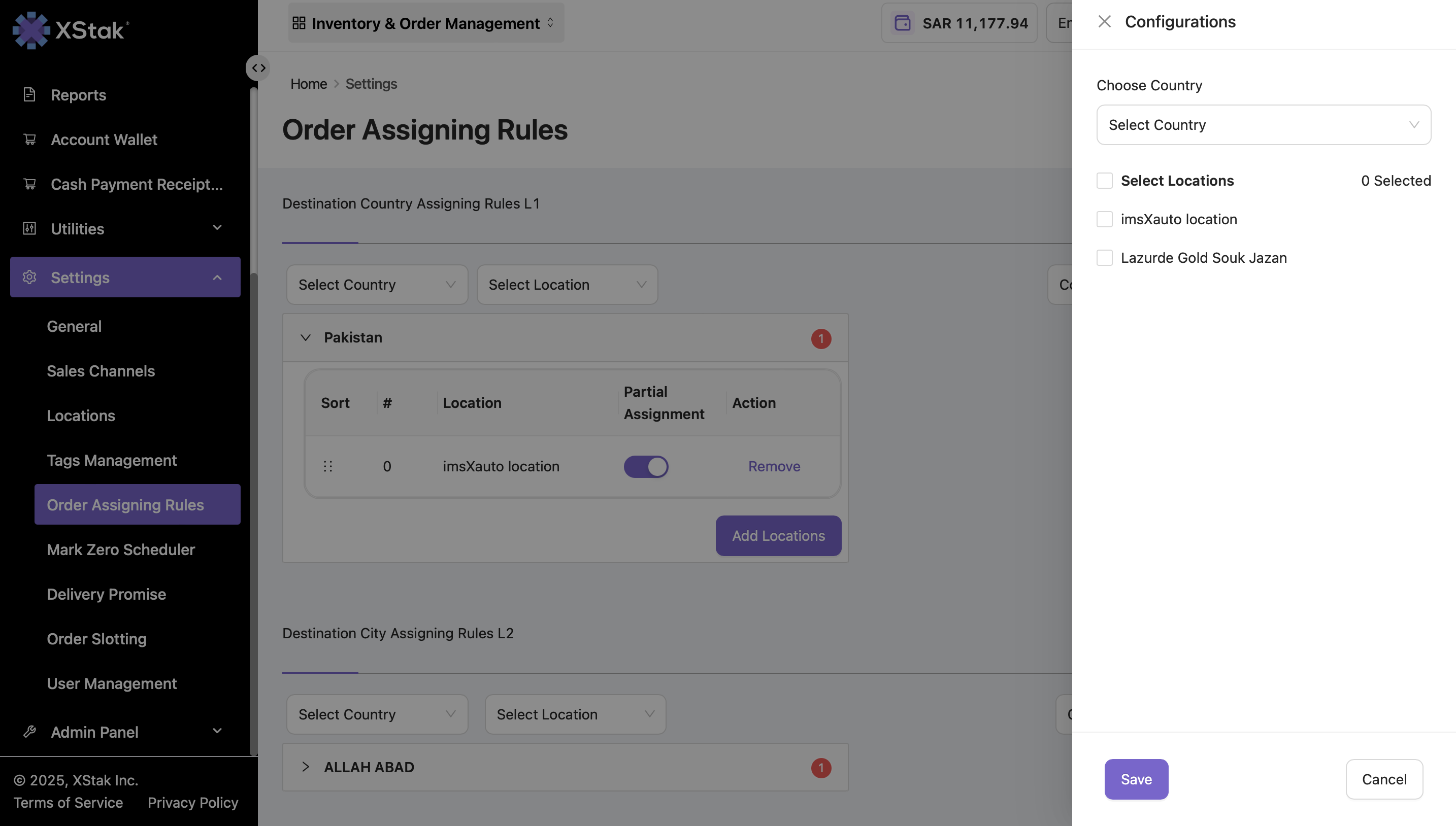
Example:
Country | Assigned Location Priority |
|---|---|
Pakistan | 1 |
Important Notes:
Locations must exist in Locations Plain Priority to be used here.
Removing a location from Locations Plain Priority automatically removes it from country rules.
This ensures orders are routed efficiently based on the country of destination.
3. Destination City Assigning Rules
This section allows brands to define rules for order assignment based on the destination city and the fulfillment location.
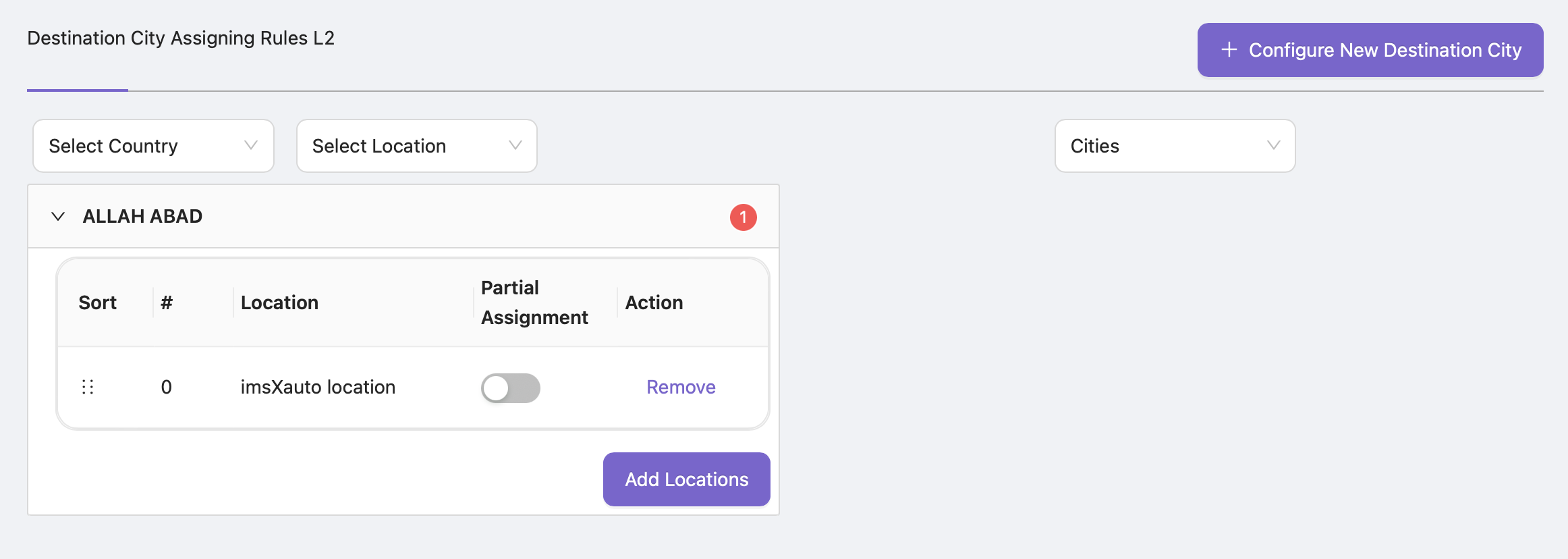
Key Features:
Add or remove locations for specific cities.
Prioritize locations for each city.
View rules based on cities only, locations only, or both combined.
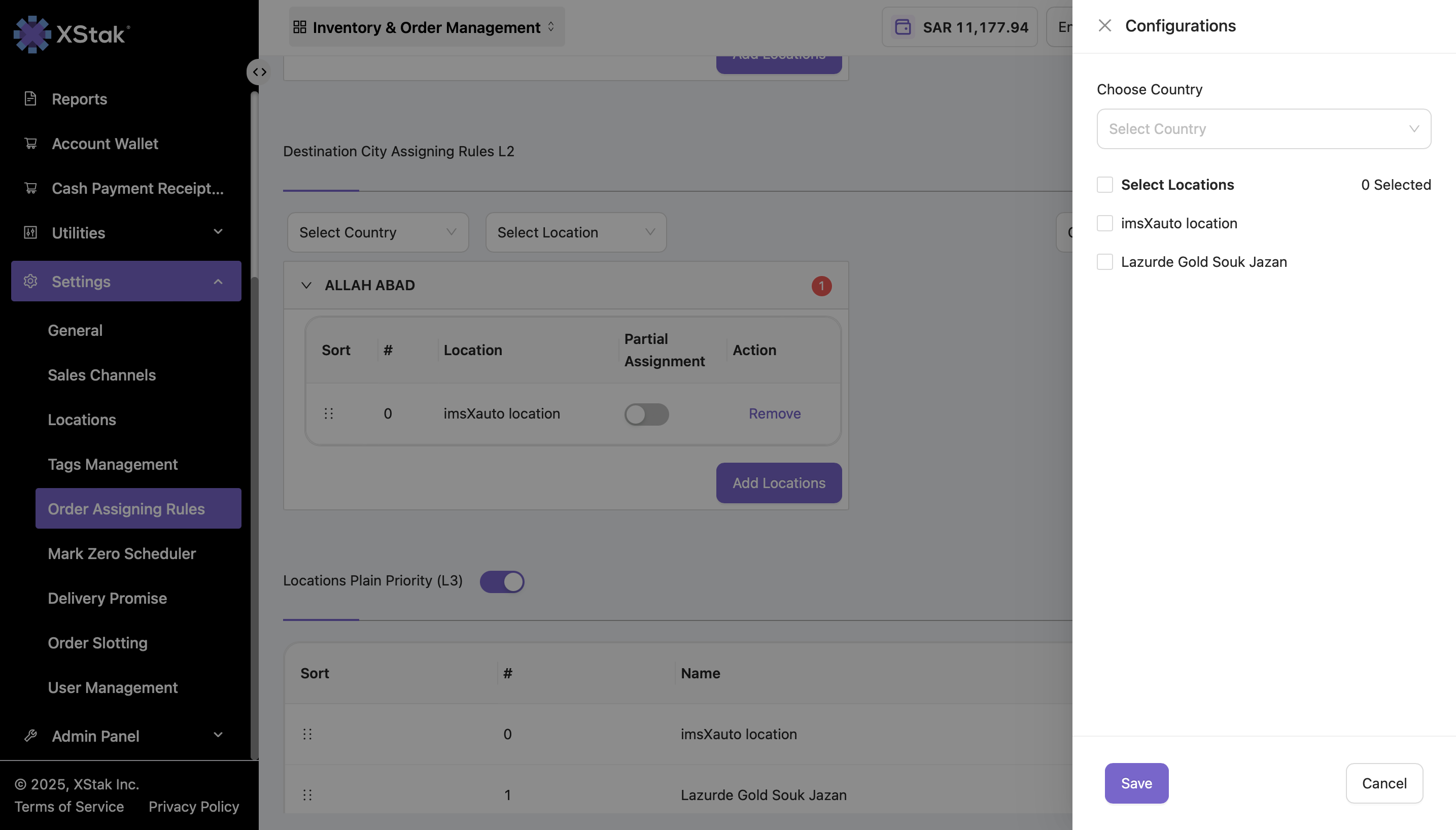
Example:
City | Assigned Location Priority |
|---|---|
ALLAH ABAD | 1 |
Important Notes:
Locations must exist in Locations Plain Priority to be used here.
Removing a location from Locations Plain Priority automatically removes it from city rules.
This ensures orders are routed efficiently based on the city of destination.