
Sync POS
The Sync POS (Point of Sale) is used to manage and validate barcodes that are synced from external POS systems such as Technosys, Bold POS, or any retail store POS integration.
This module ensures that all barcodes received from POS match the correct SKUs in the OMS and that product scanning at stores and warehouses remains accurate and consistent.
2. Where to Access Sync POS
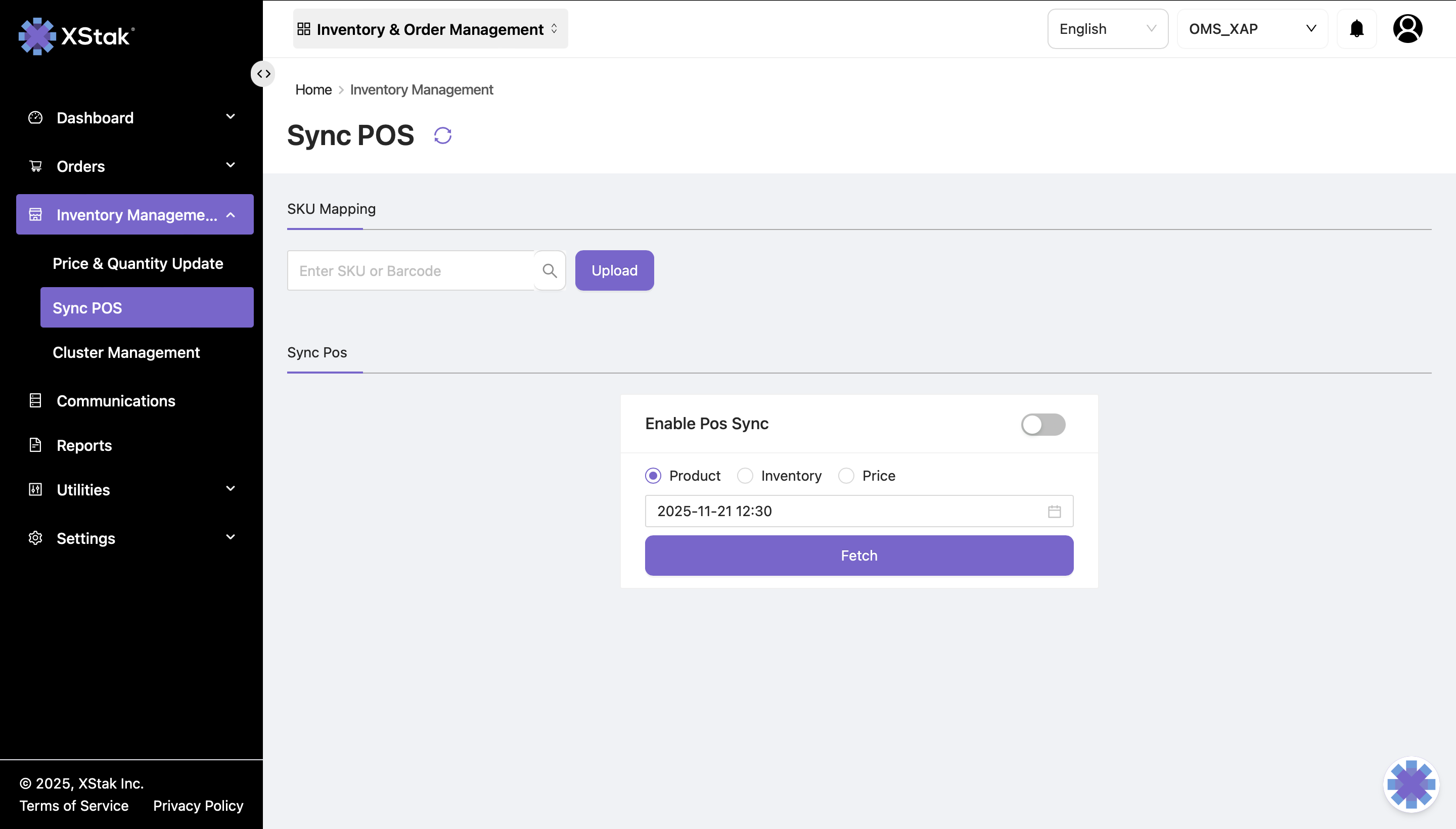
Open the Inventory module from the left sidebar
Click Sync POS
You will now see:
Search by SKU & by Barcode
Update (Upload File)
POS Sync Toggle (Enable / Disable)
3. Purpose of Sync POS
3.1 Barcode Verification
Many brands receive barcode data directly from their POS system .
The Sync POS module allows you to:
Verify which barcode is assigned to which SKU
Check mismatches when barcode scanning fails at packing or at store counters
Confirm that Technosys-generated barcodes are received correctly into OMS
4. Search Functions
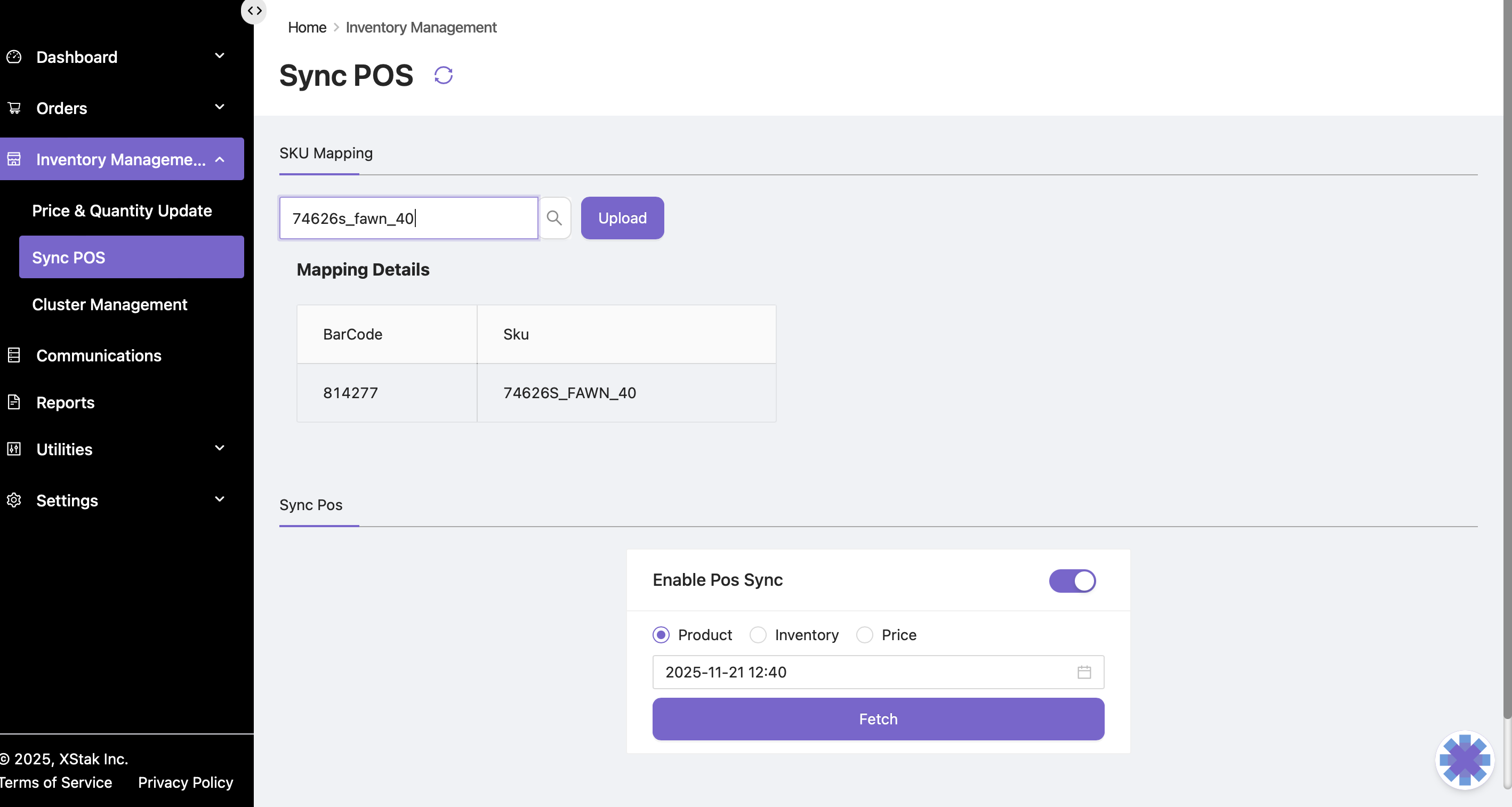
4.1 Search by SKU
Enter the SKU in the search bar
The system displays all barcodes mapped to that SKU
Helps verify multiple barcodes for variants or color/size products
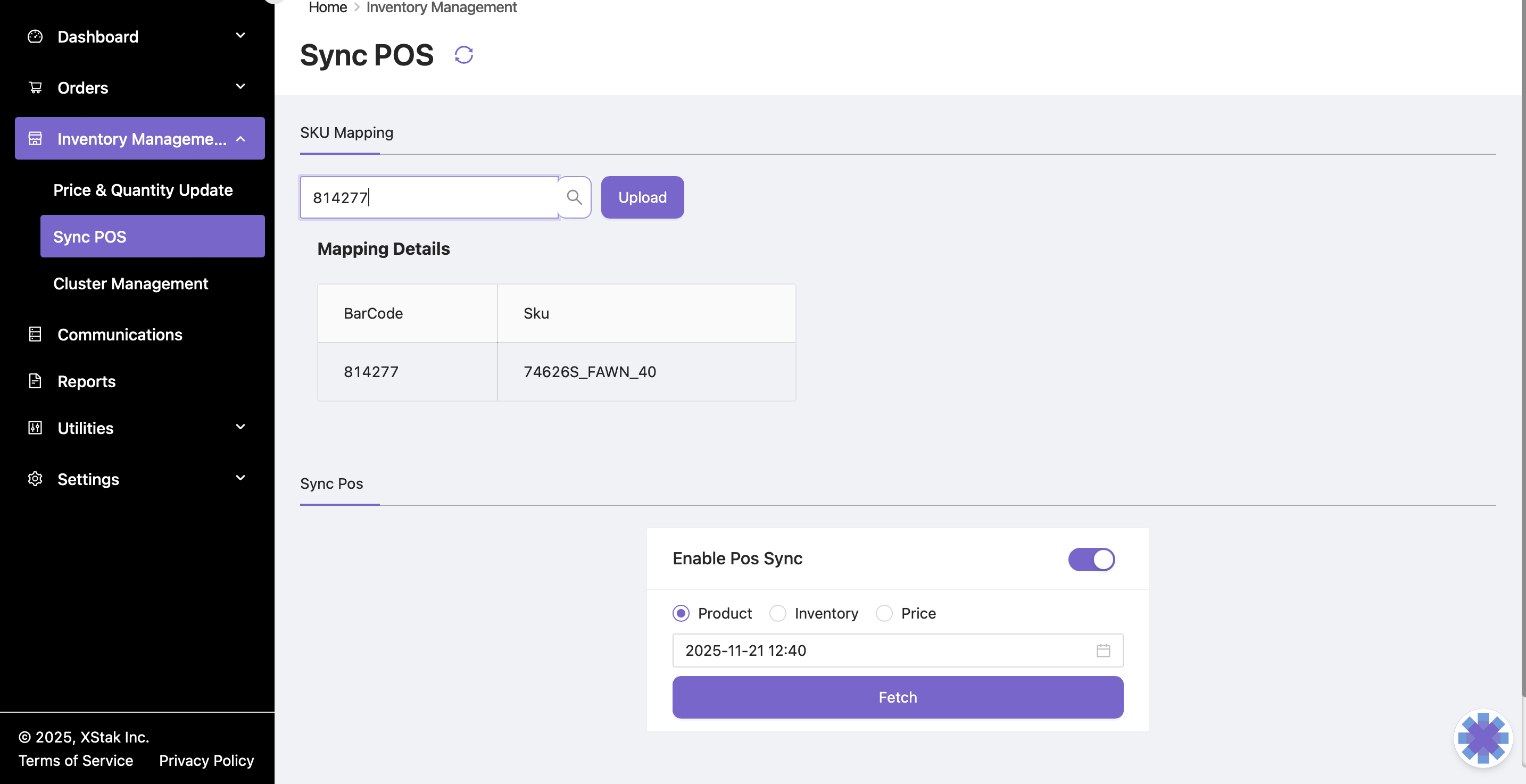
4.2 Search by Barcode
Enter a barcode number
The system returns the SKU associated with that barcode
Used when store or warehouse devices scan a barcode but cannot find the SKU
Helps quickly detect incorrect or broken barcode mappings
5. Mapping or Updating Barcodes (Upload File Method)
If a barcode is not mapped or needs correction, you can update it through the Update section.
Step-by-Step Process
Step 1 – Open Update Option
Go to Sync POS
Click on Update
Step 2 – Prepare File
Prepare an Excel file with the required format:
sku | barcode |
|---|---|
SKU123 | 1234567890123 |
SKU789 | 9988776655443 |
Rules:
SKU must be valid in OMS
Barcode must be numeric (no characters)
No duplicates
No blank rows
File must be in
.csvformat
Step 3 – Upload File
Click Select File
Choose the file
Click Upload
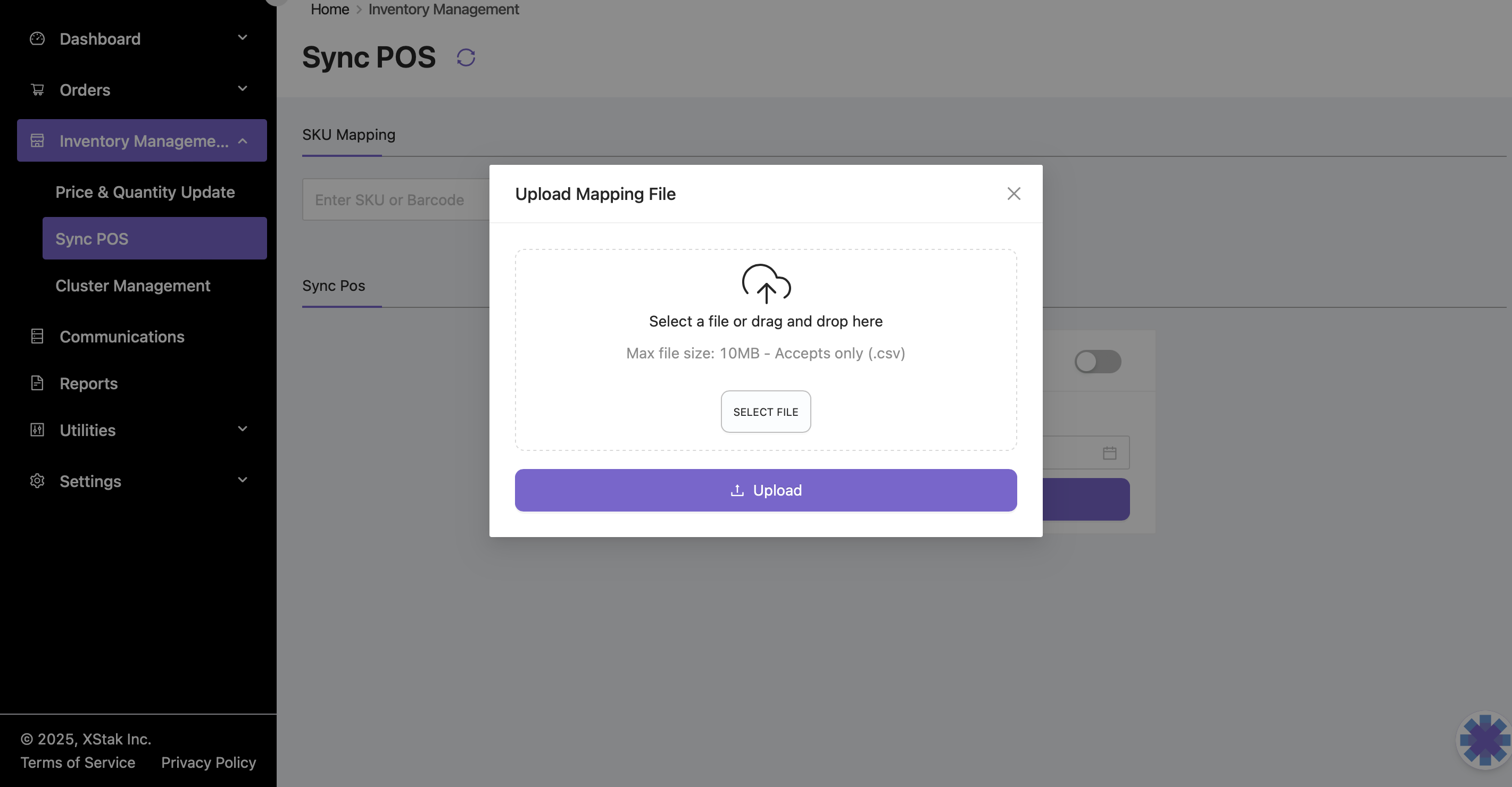
The system will map each barcode to its respective SKU.
Mappings are instant and can be verified using Search by SKU or Search by Barcode.
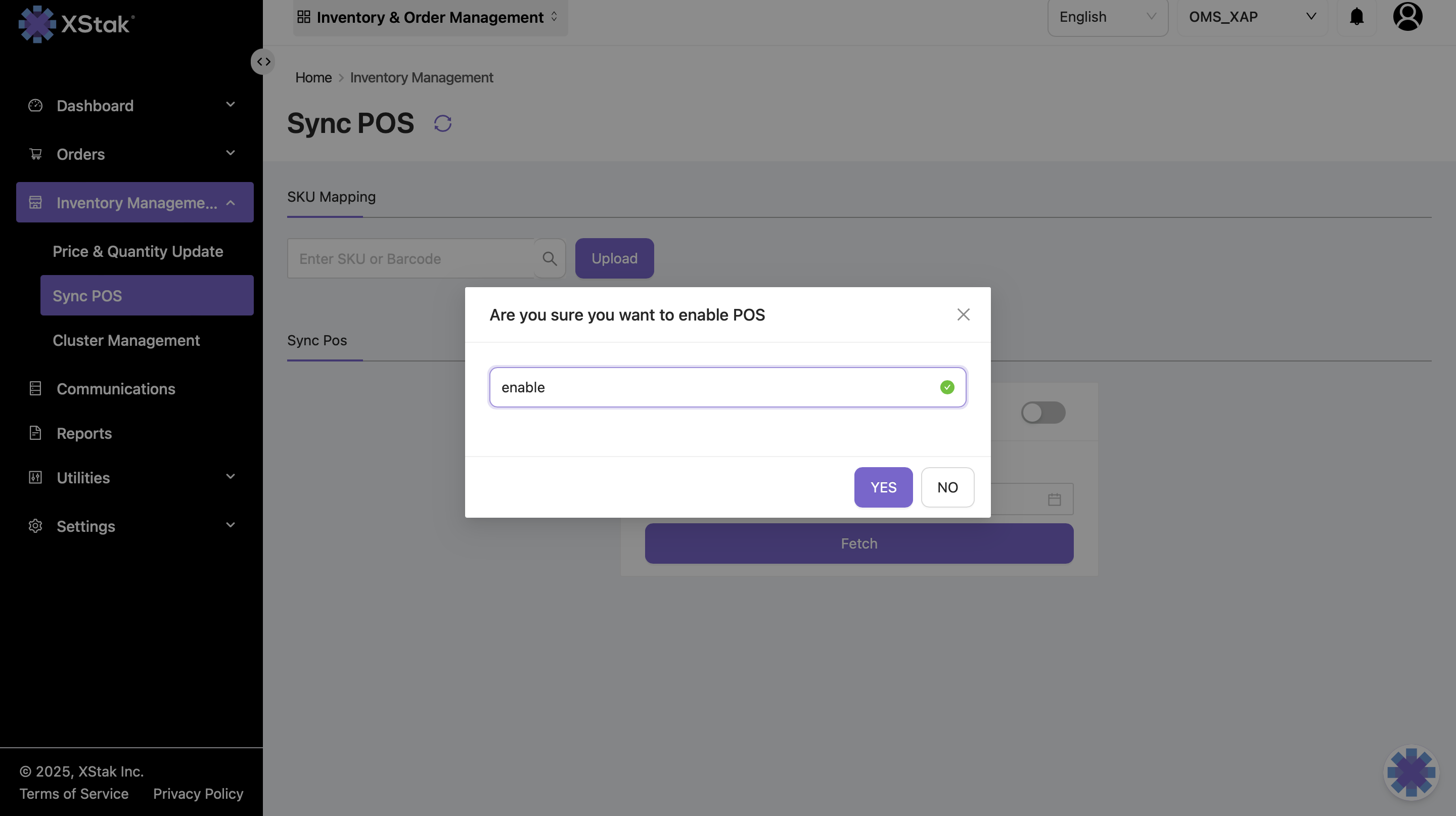
6. POS Sync Toggle – Enable Sync
Sometimes during audits, maintenance, bulk updates, or POS system failures, the team may need to temporarily stop the POS sync.
How to Enable POS Sync Again
Toggle the button back to ON
Sync resumes immediately
All pending POS barcode updates will start syncing again
7. Operational Use Cases
Scenario | How Sync POS Helps |
|---|---|
Barcode scanned at warehouse showing “SKU not found” | Search barcode → verify correct SKU |
POS sending incorrect barcode mappings | Disable sync → Fix → Re-enable sync |
Onboarding a new season’s products | Upload barcode file for bulk mapping |
Barcode mismatch between website & store | Use SKU search to identify wrong links |
POS team sends new barcodes daily | Upload file regularly to update mappings |
Picking errors reported | Search by barcode and validate SKU assignments |